
CZL TransAI: AI Translation via System-Wide Shortcuts
This post was translated from Chinese by AI. If anything reads oddly, the Chinese original is authoritative. 中文原文
Lightning-fast AI desktop translation. One global shortcut puts the full power of translation at your fingertips.
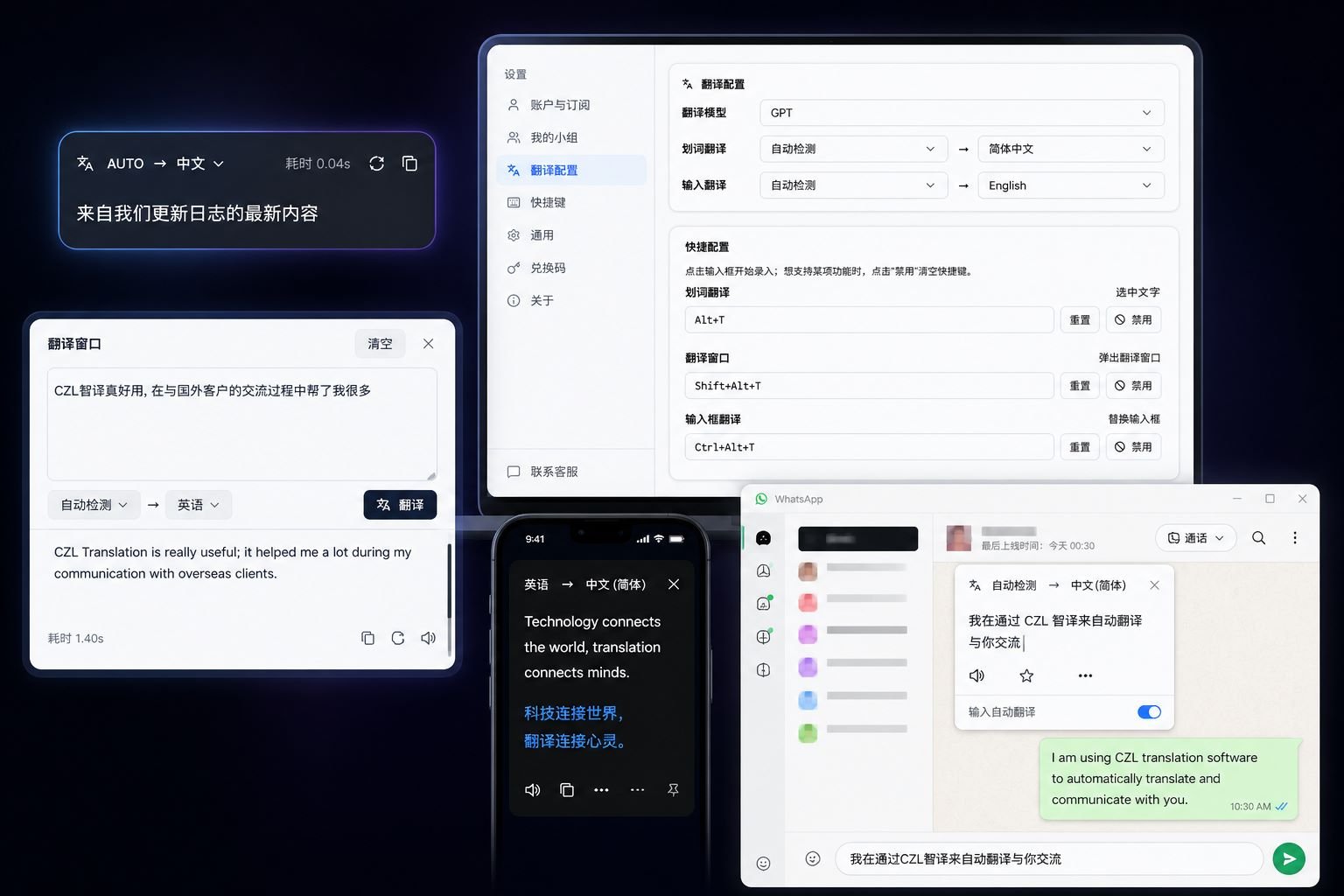
If you spend every day switching between English research papers, international business emails, source code comments, and chat windows—and you're tired of opening a browser, finding a tab, pasting text, waiting for results, and switching back—TransAI is built for your workflow.
It lives in your system tray, with three independent global shortcuts for three ways to translate: translate selected text, open a translation window, or replace Chinese with English in place. Multiple leading AI models power it behind the scenes; if the primary model has trouble, it automatically switches to another to keep translations reliable. Available on Windows 10+ / macOS 12+ Apple Silicon, with no browser, web translation extension, or "open ChatGPT first" step required.
The Problem It Solves
For the past decade, desktop translation has meant the same routine: copy → switch windows → paste → wait for results → switch back. The AI era is here, but most AI translation tools still boil down to "a webpage + a text box."
TransAI's premise is simple: AI translation should be integrated into OS-level shortcuts, not require another Tab.
That led to three core shortcuts:
| Shortcut | Action | Use case |
|---|---|---|
| Selected-text translation | Shows a small floating window with the translation after you select text | Reading papers and English articles |
| Translation window | Opens a standalone translation input box where you can paste long text | Translating long passages or repeated use |
| Input-field translation | Replaces Chinese at the current cursor position with English in place | Writing emails, chatting, and writing code comments |
Each shortcut can be configured or disabled independently. Conflicts are highlighted in red.
Three Typical Use Cases
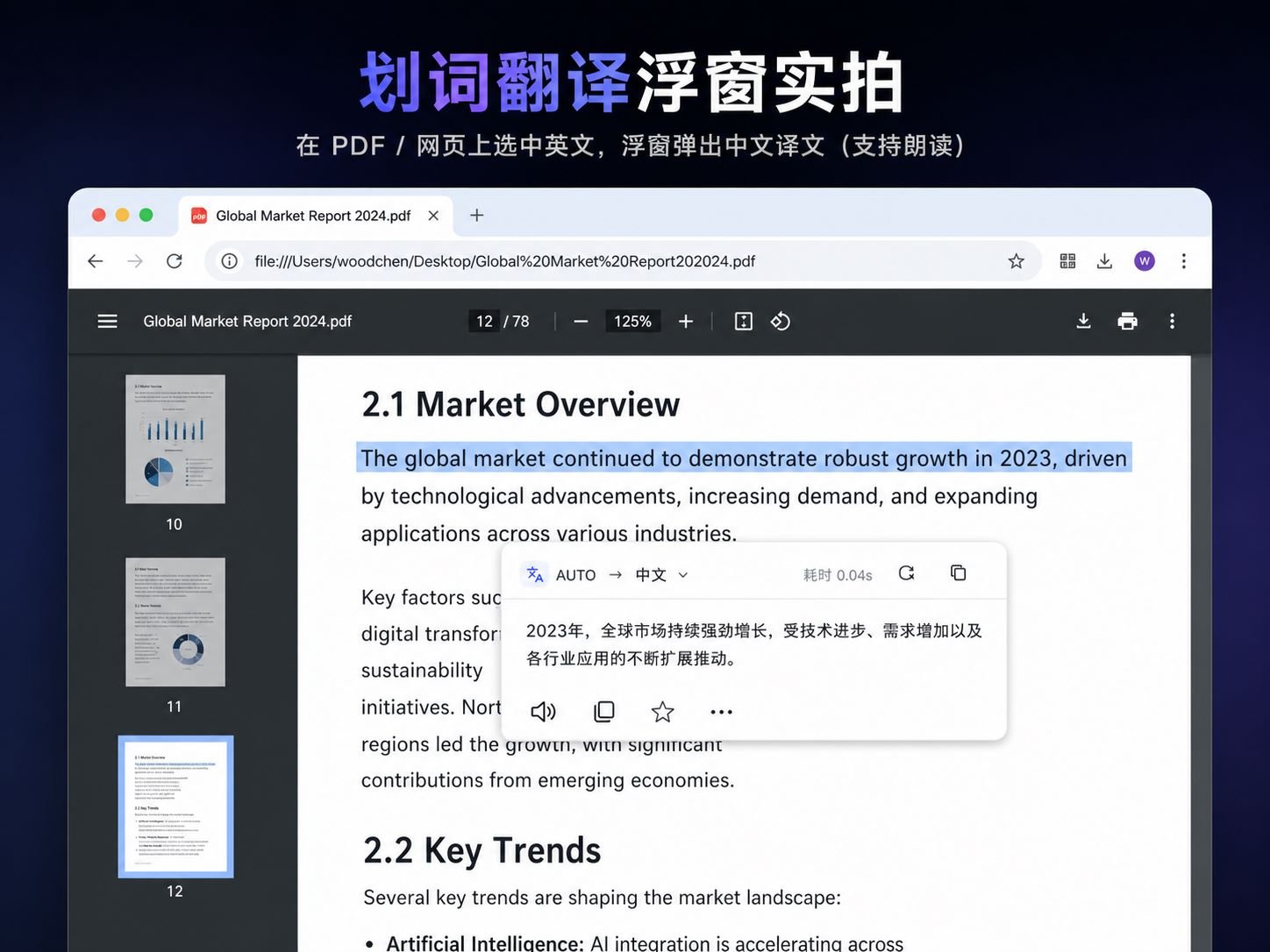
1. Reading English Papers / Technical Documentation
The floating translation window appears near your selection without interrupting your reading. Translations support natural-sounding TTS playback, and a local history of 500 translations delivers instant results for repeated content.
2. International Business Emails / Cross-Border Chats
Write in Chinese in any input field in Outlook, Gmail Web, WeCom, or Telegram, then press Alt+Ctrl+T. TransAI reads the current selection or input, translates it with AI, and uses the clipboard to replace it in place—no moving the cursor or switching windows.

Feedback from users in the industry: email replies are 3 times faster.
3. Team Collaboration (Pro / Max Group Sharing)
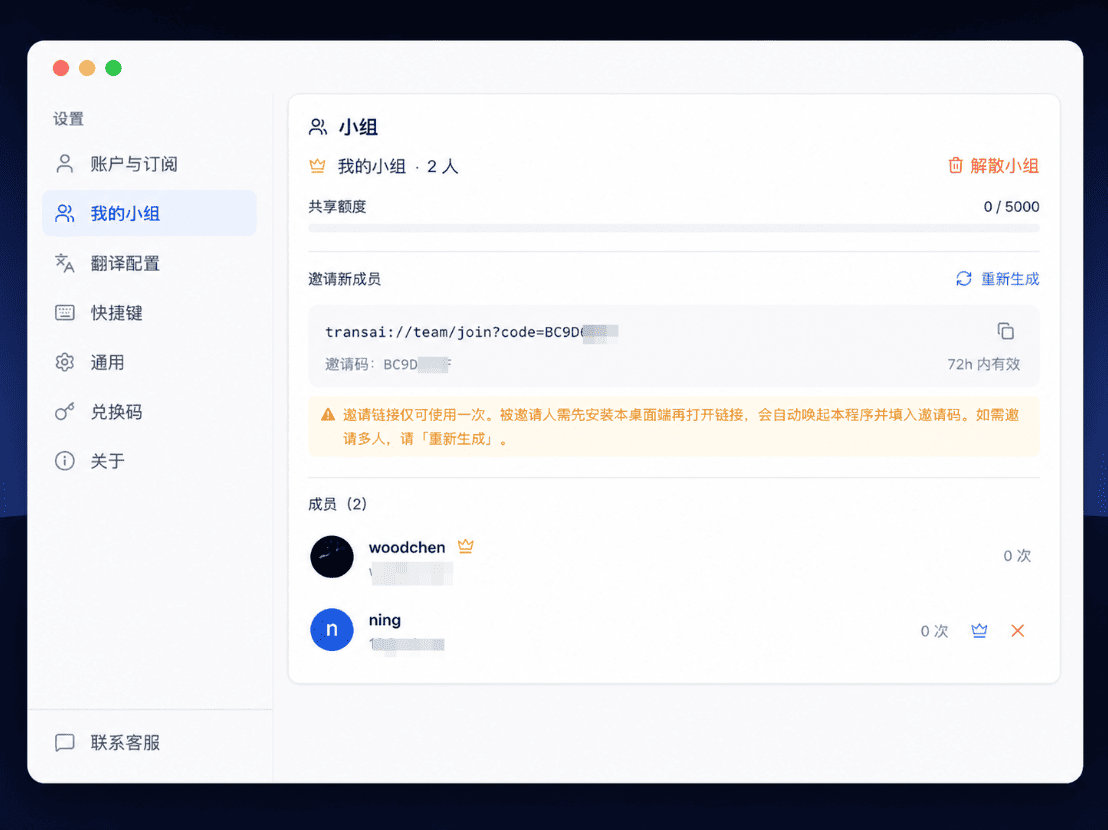
Pro lets you create groups of up to 5 people; Max supports 10. Group members' translations use the group owner's daily quota first. In the client's "My Group" section, the owner can generate an invitation link with a click and send it to colleagues. Opening the link automatically launches the client with the invitation code filled in—just confirm to join.
Invitation links are single-use and expire immediately after use. Generate a new link for each additional person. This prevents forwarded links from letting unwanted users into the group.
Why You'll Still Have It Installed a Year Later
Product pages rarely mention these details, but they determine whether you'll switch back to another tool after six months.
Translations never leave you watching a loading spinner. Multiple leading AI models work behind the scenes. If the primary model fails, gets rate-limited, or slows down, TransAI automatically switches to a backup and keeps translating—all you see is "press the shortcut, get the translation."
Natural-sounding read-aloud audio. Click the speaker button next to a translation to hear it spoken aloud. Switch between male and female voices—a handy way to practice listening and speaking.
Your translation history stays on your computer. The latest 500 entries are stored locally, so repeated content returns instantly without using more quota; the server only knows how many characters you've used, not what you've translated.
Use one account on 3 computers. Sign in on your home computer, office computer, and laptop. When switching computers, you can remotely disable an old one under "My Devices" to prevent strangers from using your account.
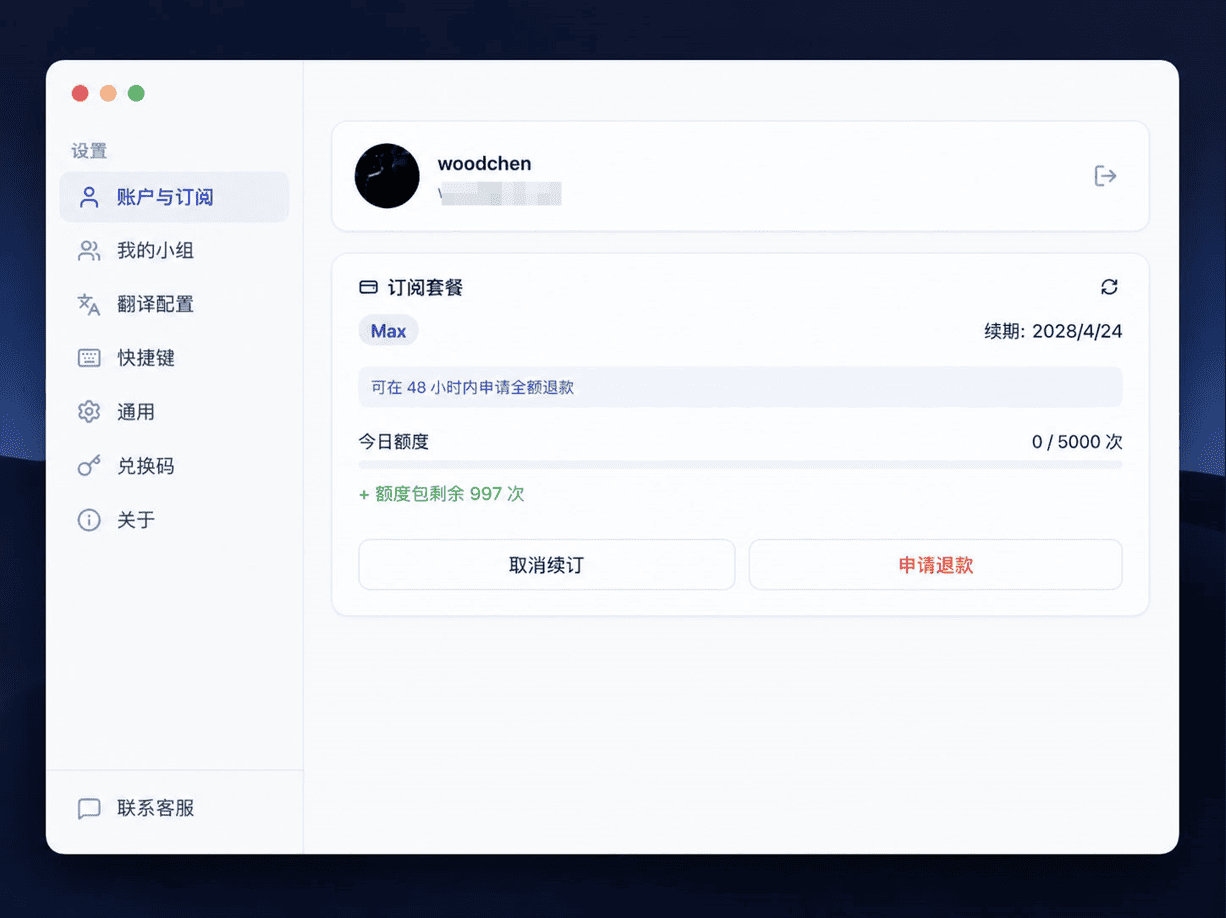
Straightforward upgrades and refunds. Upgrade from Pro to Max without waiting for your plan to expire—the price difference is automatically calculated based on the days remaining. Not satisfied within 48 hours? Get a full refund with one click, and your plan immediately returns to the free tier.
Always up to date. The client automatically notifies you of new versions and downloads them, so you don't have to hunt for installers on the website.
Pricing
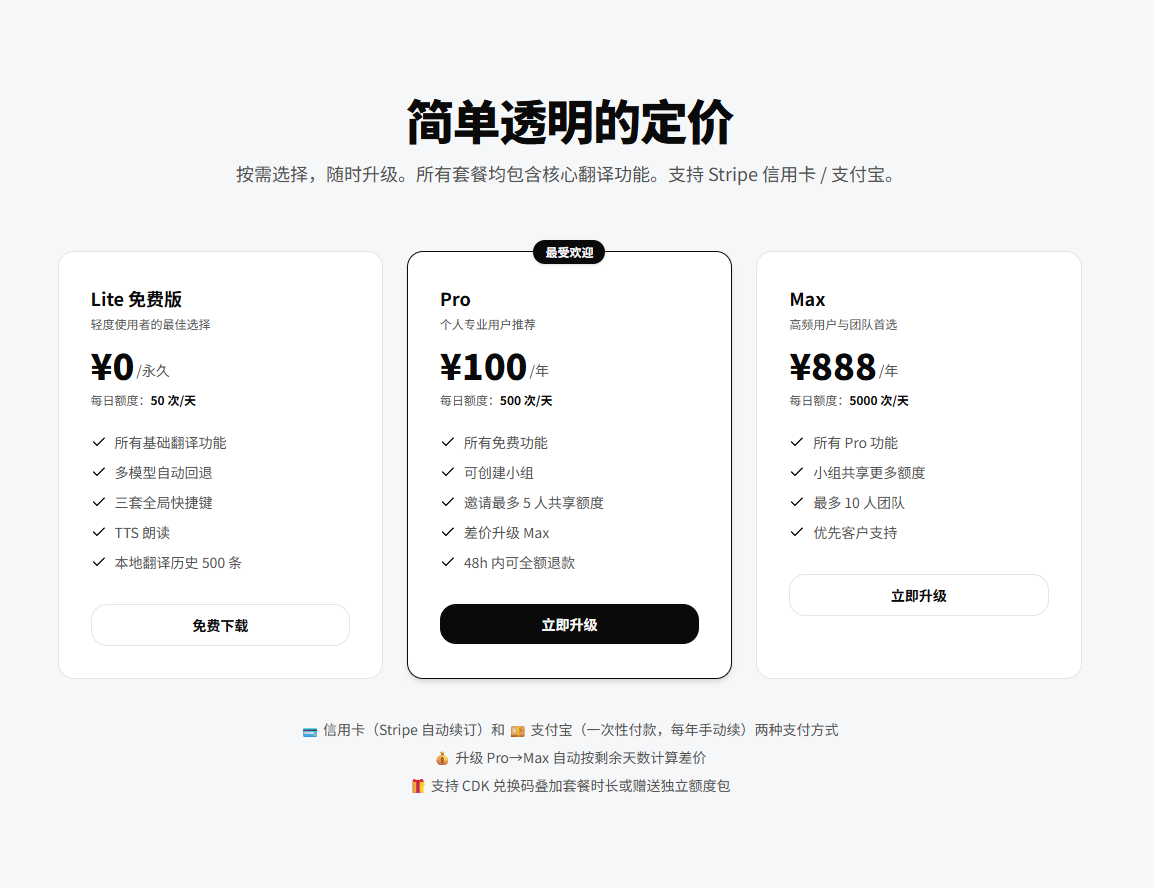
1 translation = ⌈source character count ÷ 1000⌉. In other words, up to 1000 characters counts as 1 translation. Pro's 500 translations / day ≈ 50 ten-thousand-character blocks / day.
Payment methods: Credit card (automatic renewal) or Alipay (one-time payment, renewed manually each year).
Flexible upgrades: When upgrading from Pro to Max, the price difference is automatically calculated based on the days remaining—no need to wait for expiration.
48-hour no-questions-asked refund: Within 48 hours of your first payment, you can get a full refund with one click, and your plan immediately downgrades to Lite. Refund terms are transparent, and support handles requests directly. Credit card refunds arrive in 5-10 business days; Alipay refunds take 24-48 hours.
CDK redemption: Redeem codes to extend your plan or receive separate quota packs. Quota packs are used first, and expiration dates are automatically extended.
Get Started in Three Steps

- Download and install: Double-click the installer, and the app automatically runs in the system tray.
- Sign in: Use CZL Connect for one-click sign-in—no separate registration required.
- Start translating: Press a global shortcut, select text or paste content, and get your translation instantly.
From downloading to your first translation, it usually takes less than a minute.
Download Now
- Windows 10+: Download for Windows
- macOS 12+ Apple Silicon: Download for macOS
macOS supports Apple Silicon only (M1 / M2 / M3 / M4). An Intel x86_64 version is no longer available.
Full features, pricing, and FAQ: www.czl.net/cn/transai
Comments 0