
Expanding the OS Disk on a CentOS 7.5 VM in Microsoft Azure
This post was translated from Chinese by AI. If anything reads oddly, the Chinese original is authoritative. 中文原文
1、First, stop the virtual machine in azure, select the OS disk, and expand it to the desired capacity
My OS disk was originally 30G. I expanded it to 2T in the portal, but I didn't take a screenshot.
2、Once the expansion is complete, start the VM and log in via SSH to run the commands
ssh wood@10.0.0.10 #Log in
sudo -i #Get root privileges
First, check the current state with lsblk and df -h
[root@woodczl ~]$ lsblk
NAME                      MAJ:MIN RM  SIZE RO TYPE MOUNTPOINT
fd0                         2:0    1    4K  0 disk
sda                         8:0    0    2T  0 disk
├─sda1                      8:1    0  500M  0 part /boot
└─sda2                      8:2    0 29.5G  0 part /
sdb                         8:16   0  600G  0 disk
└─sdb1                      8:17   0  600G  0 part /mnt/resource
sdc                         8:32   0    1T  0 disk
└─sdc1                      8:33   0 1024G  0 part
  └─my_vg_name-my_lv_name 253:0    0 1024G  0 lvm  /mnt/czl

[root@woodczl ~]$ df -h
文件系统                           容量  已用  可用 已用% 挂载点
/dev/sda2                           30G   18G   12G   61% /
devtmpfs                            32G     0   32G    0% /dev
tmpfs                               32G  8.0K   32G    1% /dev/shm
tmpfs                               32G  9.2M   32G    1% /run
tmpfs                               32G     0   32G    0% /sys/fs/cgroup
/dev/sda1                          497M   81M  417M   17% /boot
tmpfs                              6.3G     0  6.3G    0% /run/user/1004
/dev/sdb1                          591G   73M  561G    1% /mnt/resource
tmpfs                              6.3G     0  6.3G    0% /run/user/1000
/dev/mapper/my_vg_name-my_lv_name 1008G   77M  957G    1% /mnt/czl
As you can see, the OS volume, /dev/sda2, currently has only 12G available, while the entire physical disk, sda, has 2.2T. We now need to add the roughly 2T of newly expanded capacity to /dev/sda2
Open and modify the partition table
[root@woodczl ~]$ fdisk /dev/sda

WARNING: The size of this disk is 2.2 TB (2199023255552 bytes).
DOS partition table format can not be used on drives for volumes
larger than (2199023255040 bytes) for 512-byte sectors. Use parted(1) and GUID
partition table format (GPT).

The device presents a logical sector size that is smaller than
the physical sector size. Aligning to a physical sector (or optimal
I/O) size boundary is recommended, or performance may be impacted.
欢迎使用 fdisk (util-linux 2.23.2)。

更改将停留在内存中,直到您决定将更改写入磁盘。
使用写入命令前请三思。

命令(输入 m 获取帮助):p   #Print the partition information first

磁盘 /dev/sda:2199.0 GB, 2199023255552 字节,4294967296 个扇区
Units = 扇区 of 1 * 512 = 512 bytes
扇区大小(逻辑/物理):512 字节 / 4096 字节
I/O 大小(最小/最佳):4096 字节 / 4096 字节
磁盘标签类型:dos
磁盘标识符:0x000ecbd2

   设备 Boot      Start         End      Blocks   Id  System
/dev/sda1   *        2048     1026047      512000   83  Linux
/dev/sda2         1026048  4294967294  2146970623+  83  Linux   #Take a screenshot of this information for reference

命令(输入 m 获取帮助):u   #Switch to sectors as the unit
将显示/记录单位更改为柱面(已废弃!)。

命令(输入 m 获取帮助):u  #Enter it again
将显示/记录单位更改为盲区。

命令(输入 m 获取帮助):d  #Delete the partition
分区号 (1,2,默认 2):2  #I want to delete sda2, so I choose 2
分区 2 已删除

命令(输入 m 获取帮助):n  #Create a new partition
Partition type:
   p   primary (1 primary, 0 extended, 3 free)
   e   extended
Select (default p): p
分区号 (2-4,默认 2):2  #I'm recreating sda2, so I enter 2
起始 扇区 (1026048-4294967295,默认为 1026048):
将使用默认值 1026048  #Just press Enter to keep the default
Last 扇区, +扇区 or +size{K,M,G} (1026048-4294967294,默认为 4294967294):
将使用默认值 4294967294  #Just press Enter to keep the default
分区 2 已设置为 Linux 类型,大小设为 2 TiB

#The changes are complete; print the partition table to check

命令(输入 m 获取帮助):p

磁盘 /dev/sda:2199.0 GB, 2199023255552 字节,4294967296 个扇区
Units = 扇区 of 1 * 512 = 512 bytes
扇区大小(逻辑/物理):512 字节 / 4096 字节
I/O 大小(最小/最佳):4096 字节 / 4096 字节
磁盘标签类型:dos
磁盘标识符:0x000ecbd2

   设备 Boot      Start         End      Blocks   Id  System
/dev/sda1   *        2048     1026047      512000   83  Linux
/dev/sda2         1026048  4294967294  2146970623+  83  Linux

#The partition looks fine, so mark it active (some say this isn't necessary, but I did it without any issues)

命令(输入 m 获取帮助):a
分区号 (1,2,默认 2):2 #The second partition

命令(输入 m 获取帮助):p #Print it again

磁盘 /dev/sda:2199.0 GB, 2199023255552 字节,4294967296 个扇区
Units = 扇区 of 1 * 512 = 512 bytes
扇区大小(逻辑/物理):512 字节 / 4096 字节
I/O 大小(最小/最佳):4096 字节 / 4096 字节
磁盘标签类型:dos
磁盘标识符:0x000ecbd2

   设备 Boot      Start         End      Blocks   Id  System
/dev/sda1   *        2048     1026047      512000   83  Linux
/dev/sda2   *     1026048  4294967294  2146970623+  83  Linux

#It's now marked active, and everything looks fine.

命令(输入 m 获取帮助):wr #Write the partition table
The partition table has been altered!
Reboot the VM, then log back in
[root@woodczl ~]$ init6
#Reboot the VM
Wait for the machine to finish rebooting, then log back in
First, check the current state again with lsblk and df -h
[root@woodczl ~]$ lsblk
NAME                      MAJ:MIN RM  SIZE RO TYPE MOUNTPOINT
fd0                         2:0    1    4K  0 disk
sda                         8:0    0    2T  0 disk
├─sda1                      8:1    0  500M  0 part /boot
└─sda2                      8:2    0    2T  0 part /
sdb                         8:16   0  600G  0 disk
└─sdb1                      8:17   0  600G  0 part /mnt/resource
sdc                         8:32   0    1T  0 disk
└─sdc1                      8:33   0 1024G  0 part
  └─my_vg_name-my_lv_name 253:0    0 1024G  0 lvm  /mnt/czl
[root@woodczl ~]$ df -h
文件系统                           容量  已用  可用 已用% 挂载点
/dev/sda2                           30G   18G   12G   61% /
devtmpfs                            32G     0   32G    0% /dev
tmpfs                               32G  8.0K   32G    1% /dev/shm
tmpfs                               32G  9.1M   32G    1% /run
tmpfs                               32G     0   32G    0% /sys/fs/cgroup
/dev/sda1                          497M   81M  417M   17% /boot
/dev/mapper/my_vg_name-my_lv_name 1008G   82M  957G    1% /mnt/czl
tmpfs                              6.3G     0  6.3G    0% /run/user/1004
/dev/sdb1                          591G   73M  561G    1% /mnt/resource
tmpfs                              6.3G     0  6.3G    0% /run/user/1000
The volume has been expanded, but the root filesystem hasn't been resized yet. Let's resize it now
#Resize the root filesystem
[root@woodczl ~]$ xfs_growfs /dev/sda2
meta-data=/dev/sda2              isize=512    agcount=4, agsize=1934016 blks
         =                       sectsz=512   attr=2, projid32bit=1
         =                       crc=1        finobt=0 spinodes=0
data     =                       bsize=4096   blocks=7736064, imaxpct=25
         =                       sunit=0      swidth=0 blks
naming   =version 2              bsize=4096   ascii-ci=0 ftype=1
log      =internal               bsize=4096   blocks=3777, version=2
         =                       sectsz=512   sunit=0 blks, lazy-count=1
realtime =none                   extsz=4096   blocks=0, rtextents=0
data blocks changed from 7736064 to 536742655

#The filesystem has been expanded successfully. Check its status with `df -h`

[root@woodczl ~]$ df -h
文件系统                           容量  已用  可用 已用% 挂载点
/dev/sda2                          2.0T   18G  2.0T    1% /
devtmpfs                            32G     0   32G    0% /dev
tmpfs                               32G  8.0K   32G    1% /dev/shm
tmpfs                               32G  9.1M   32G    1% /run
tmpfs                               32G     0   32G    0% /sys/fs/cgroup
/dev/sda1                          497M   81M  417M   17% /boot
/dev/mapper/my_vg_name-my_lv_name 1008G   82M  957G    1% /mnt/czl
tmpfs                              6.3G     0  6.3G    0% /run/user/1004
/dev/sdb1                          591G   73M  561G    1% /mnt/resource
tmpfs                              6.3G     0  6.3G    0% /run/user/1000
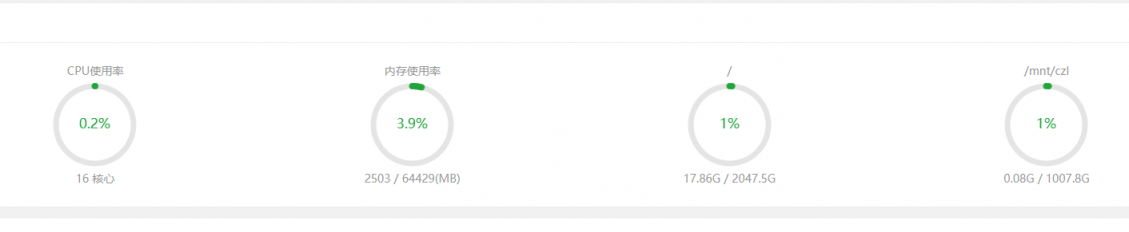
The expansion is now complete. No further reboot is needed.
Last updated 2024-01-14
Comments 0