
czlterm: My Lightweight, Open-Source XPipe Alternative with SSH/RDP/VNC Management, Vaultwarden Credentials, and MCP
This post was translated from Chinese by AI. If anything reads oddly, the Chinese original is authoritative. 中文原文
I used to manage my servers with XPipe. It worked fine, but the memory usage was too high—it’s written in Java and uses hundreds of MB just sitting open. I wanted an alternative with these requirements:
- SSH, RDP, and VNC support
- File management
- MCP support so AI can work directly on servers
- Connection settings synced across multiple computers
- Passwords and private keys fetched directly from my self-hosted Vaultwarden
- Support for both Windows and Mac
- No Java, no Electron
After looking around, everything was either missing features or built with Electron, so I wrote my own: czlterm.
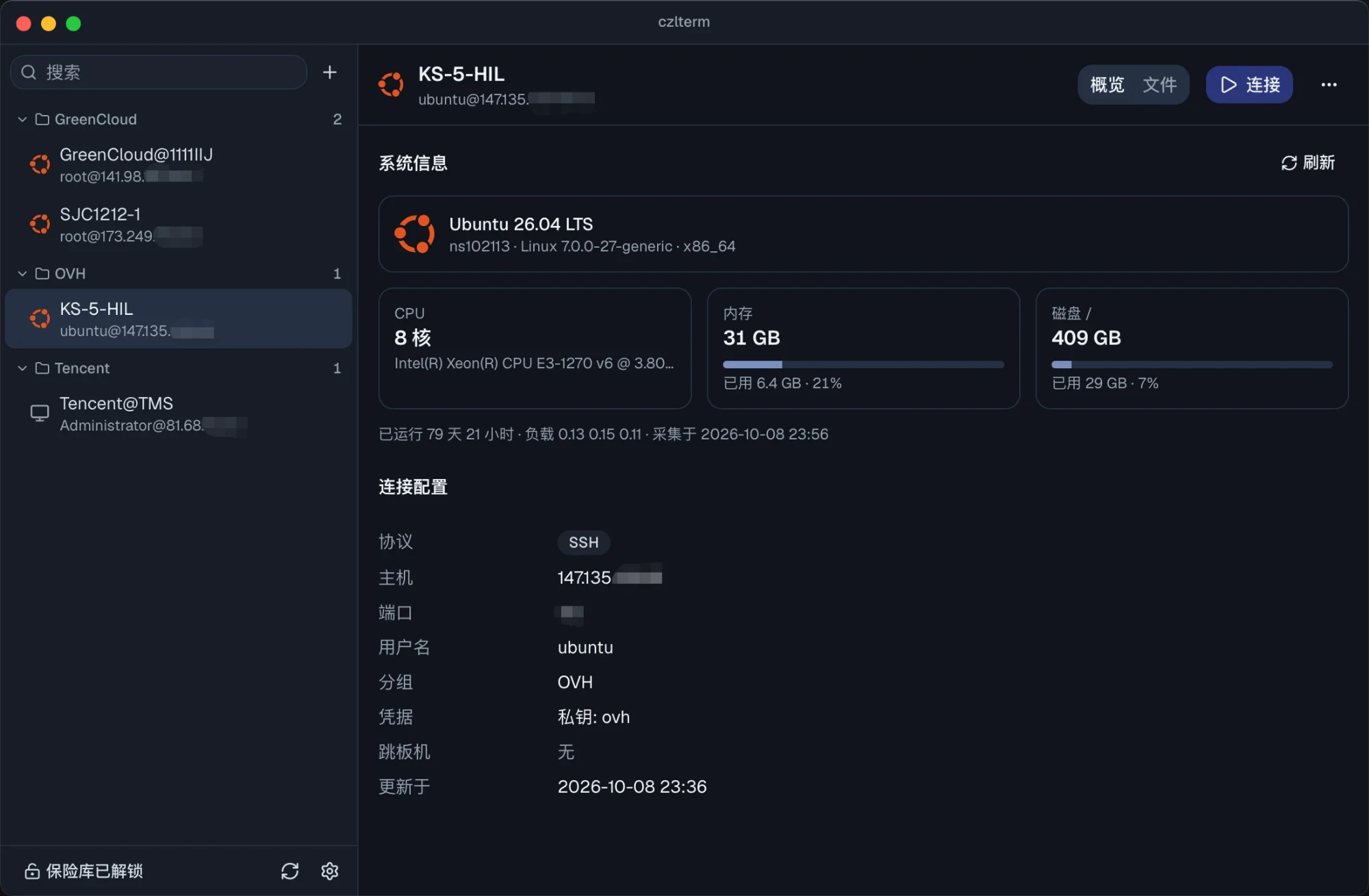
The approach: no built-in terminal or remote desktop
Built-in terminals and RDP/VNC protocol stacks are the most memory-hungry components and the hardest to get right. Your system already has good options, so czlterm doesn’t include them. When you connect, it launches the application you prefer:
| Type | macOS | Windows |
|---|---|---|
| SSH | Terminal / iTerm2 / Ghostty / WezTerm / kitty | Windows Terminal / PowerShell |
| RDP | Windows App | Built-in Remote Desktop mstsc |
| VNC | Built-in Screen Sharing | TigerVNC |
czlterm itself only handles connection management, credential retrieval, file management, and MCP. It’s built with Go + Wails, with the UI running in the system’s built-in WebView rather than bundling a browser engine.
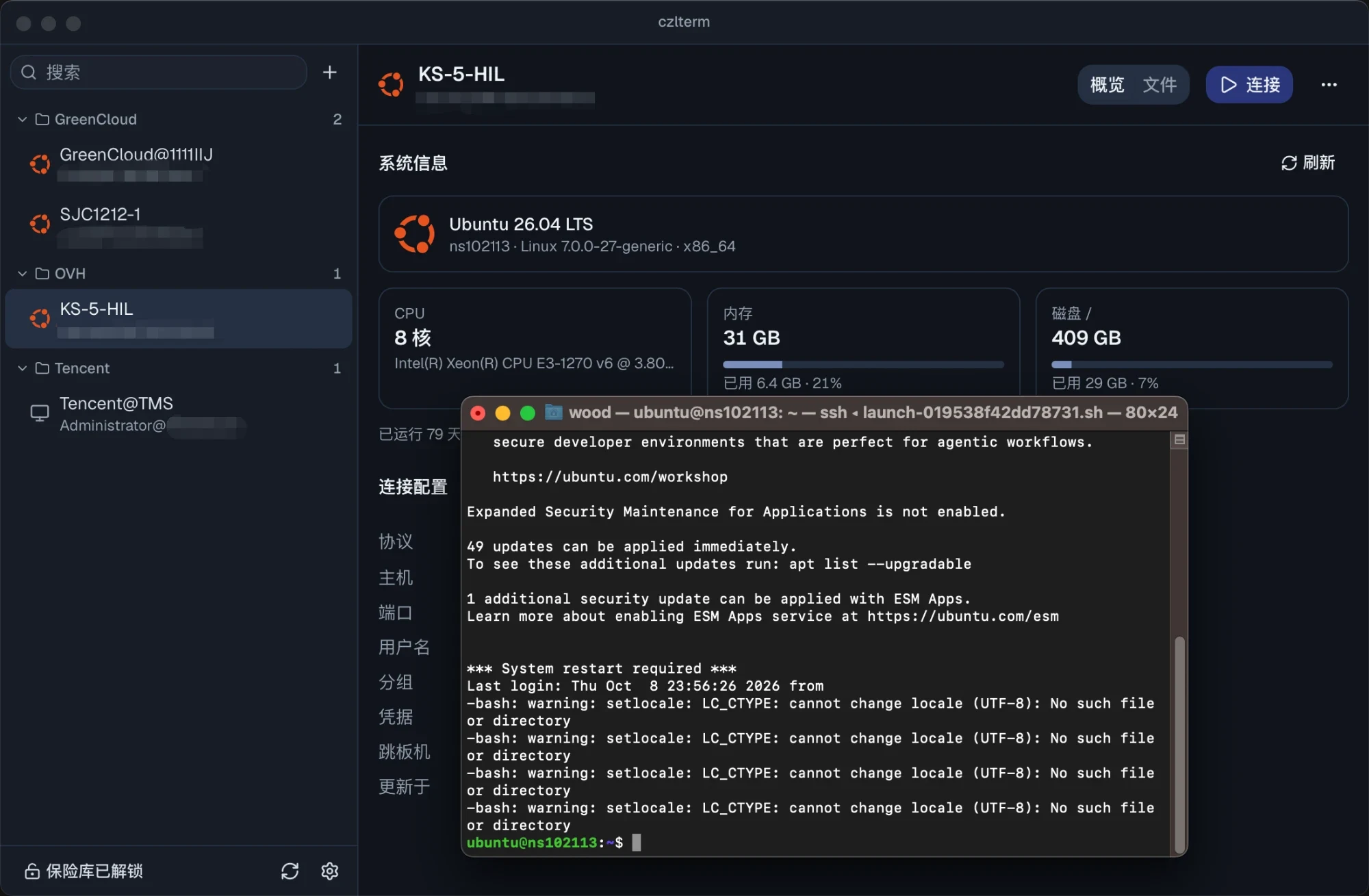
Credentials fetched directly from Vaultwarden
The vault is accessed through the official bw CLI. Run bw login once in a terminal, then enter your master password in czlterm to unlock it.
- Private keys: After decryption, the key is loaded into a dedicated ssh-agent for that connection inside the czlterm process, then passed to the system ssh through
SSH_AUTH_SOCK. Private keys never touch disk or enter the system agent - Passwords: When the system ssh asks for a password, an
SSH_ASKPASScallback to czlterm fills it in automatically. It never appears in command-line arguments - Jump hosts: Multiple hops are supported, with separate credentials for each hop
- RDP: On Windows, credentials are temporarily added to Credential Manager and deleted once mstsc reads them; on Mac, Windows App doesn’t accept passwords from external applications, so the password can only be copied to the clipboard, which is automatically cleared after 45 seconds
Locking the vault or quitting the application clears all in-memory sessions, ssh-agents, and connections.
File management and machine information
SFTP browsing, uploads, downloads, renaming, and deletion are all supported. Double-clicking a file opens it in VS Code (or your configured editor), and saving automatically uploads it back to the server.
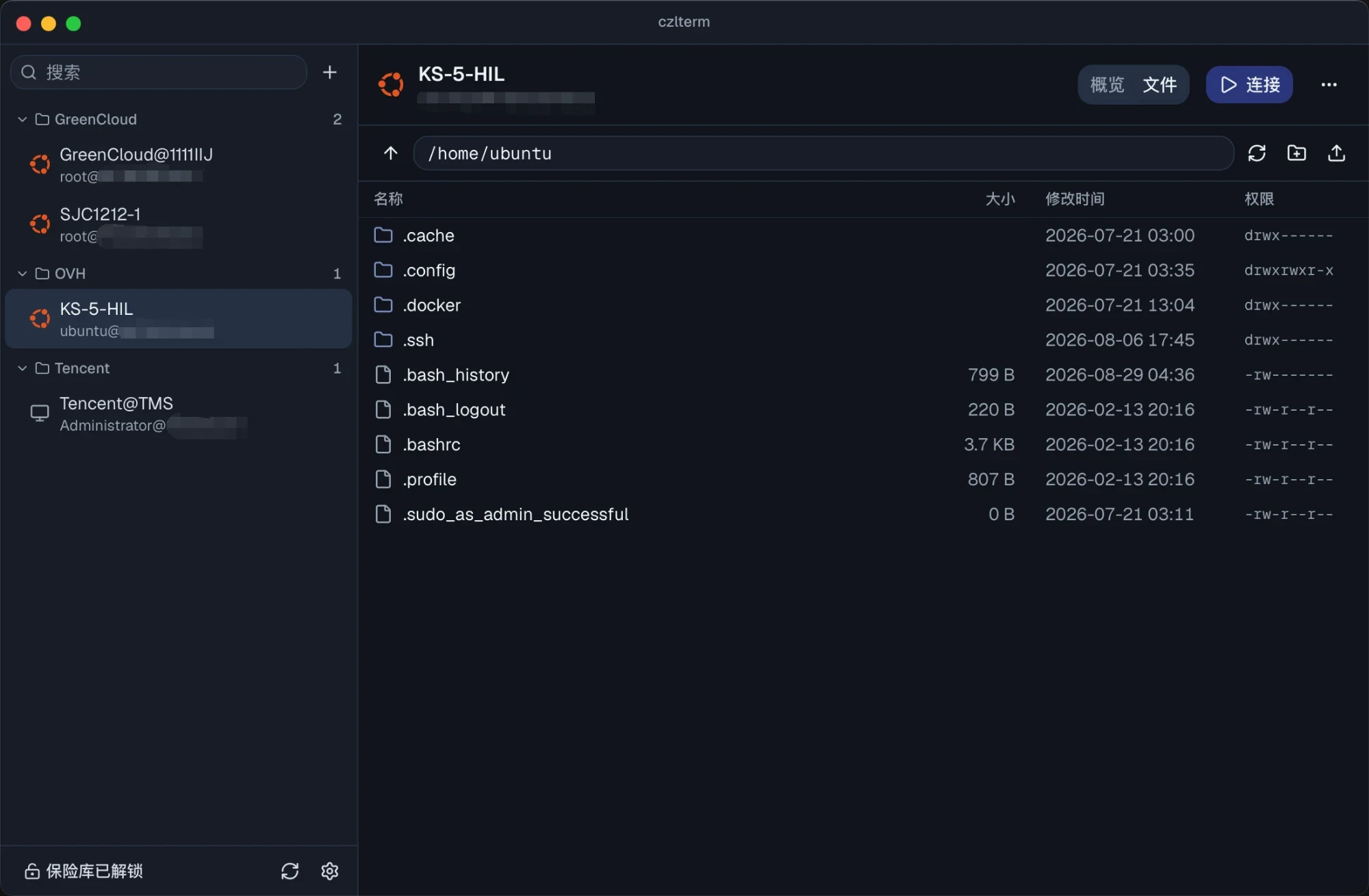
After each SSH connection, czlterm collects OS, kernel, CPU, memory, disk, and uptime information in the background and displays it on the overview page. The list on the left also updates to show the matching OS icon (Ubuntu, Debian, CentOS, Windows, and so on).
MCP
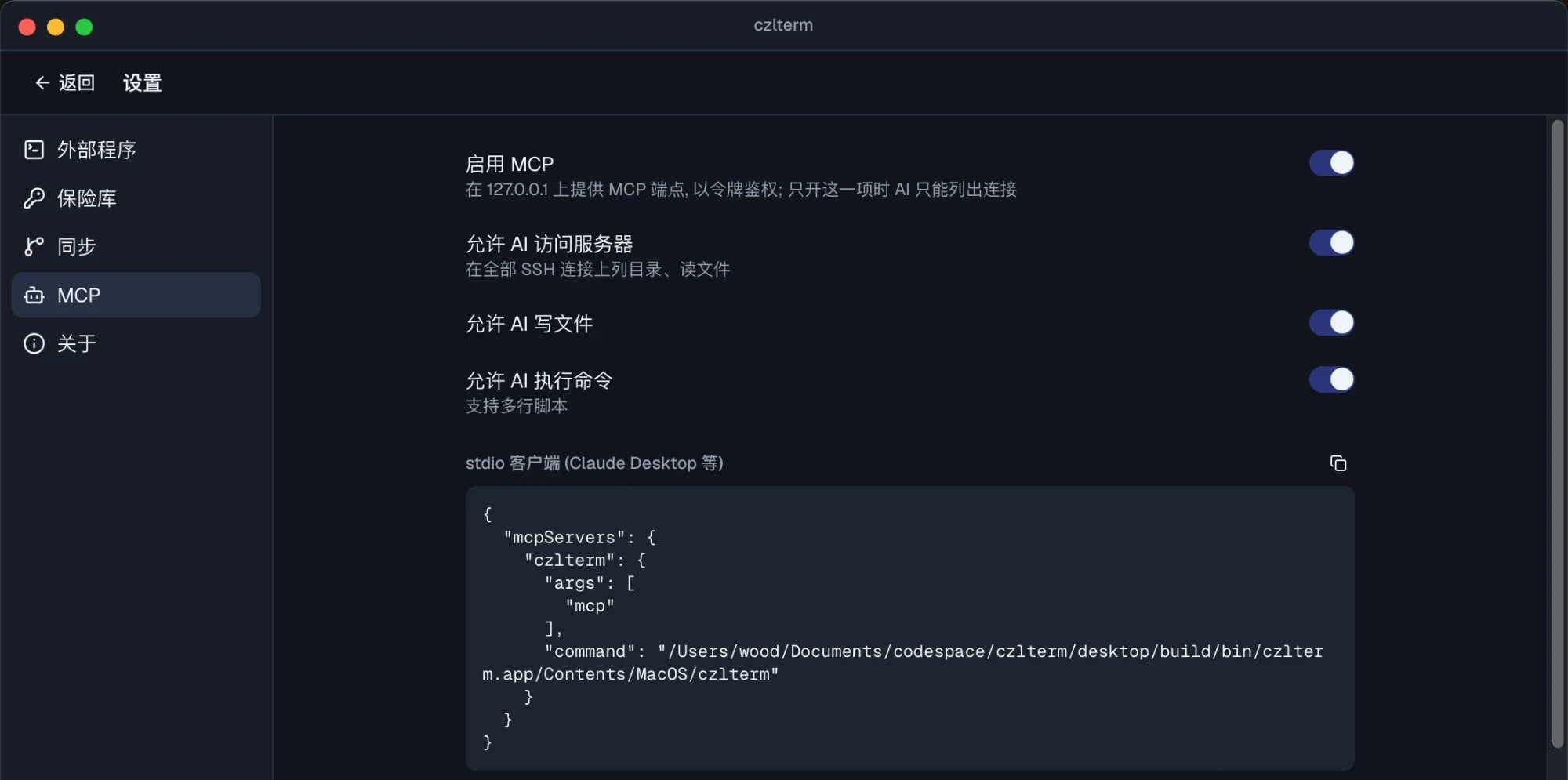
When enabled, czlterm serves an MCP endpoint on 127.0.0.1. Claude Code connects over HTTP, while clients that only support stdio, such as Claude Desktop, use czlterm mcp as a bridge. There are four tools: list connections, list directories, read/write files, and execute commands.
Permissions are enabled in stages: with only MCP enabled, AI can only see the connection list; enabling "Allow AI to access servers" lets it read files. Writing files and executing commands each have their own toggle. Credentials always stay inside the czlterm process and are never exposed to AI.
When executing commands, the entire script is passed to sh -s through standard input. Multiline scripts, heredocs, quotes, and $ all execute as written, with no escaping needed. This was a major frustration for me with XPipe: its MCP doesn’t support multiline scripts.
Sync
Each connection is stored as a JSON file containing no passwords, then pushed to your own private repository with git. You can configure a separate username and key for the repository (an access token for HTTPS, or a pasted private key for SSH, stored in the system keychain); otherwise, git’s default authentication is used.
Installation
Download from Releases:
- Windows:
czlterm-amd64-installer.exe, installed per user to%LOCALAPPDATA%\CZL\czlterm, with no administrator privileges required - macOS:
czlterm-darwin-universal.dmg, a universal build for Intel and Apple Silicon. It isn’t signed with an Apple developer certificate. If macOS says it’s "damaged" when you first open it, run this once in a terminal:xattr -dr com.apple.quarantine /Applications/czlterm.app
To use Vaultwarden, first install the bw CLI (npm i -g @bitwarden/cli), then run bw config server https://你的地址 and bw login.
The application has a built-in updater. It notifies you when a new version is available, then verifies the SHA-256 checksum after downloading and before installation.
Current status
I’ve just released the first version, v0.1.0. I mainly use it on Mac, so testing on Windows has been limited. A few known limitations:
- RDP and VNC don’t support jump hosts yet
- The OpenSSH bundled with Windows 10 is 8.1 and doesn’t support automatic password entry, so you need to upgrade first (
winget install Microsoft.OpenSSH.Preview); private-key authentication is unaffected
The code is fully open source: https://github.com/woodchen-ink/czlterm
If you run into problems, reply to the original forum post or open an issue on GitHub. If you find it useful, give it a Star.
Originally published on the SunAI Forum.
Comments 0