
splitdns Guide: Route a Subdomain Through CF Overseas and Another CDN in China
This post was translated from Chinese by AI. If anything reads oddly, the Chinese original is authoritative. 中文原文
I originally posted this on my SunAI forum. Updates and additions will appear on the forum first. If you have questions, feel free to leave a comment on the original thread.
This is a guide to using splitdns. For how it works and the fully manual approach, see my other post: Keep the main domain on Cloudflare and delegate just one subdomain to DNSPod for geo-based DNS routing.
The tool is a Windows / macOS desktop app, open source (MIT): github.com/woodchen-ink/splitdns. Downloads are on the Releases page.
What it solves
Cloudflare's authoritative DNS does not support returning different answers by region for standard records. And once a record is orange-clouded, it returns the same anycast IPs worldwide. So CF alone cannot make the same hostname resolve to different destinations in different regions.
The solution is to put authoritative DNS for that hostname on a provider that supports region-based routing (DNSPod in this case). But that means CF no longer manages that name, so the orange cloud, cache, and WAF no longer apply. We then use Cloudflare for SaaS to bring one route back through CF: its key feature is letting CF proxy a hostname even when its DNS is hosted elsewhere.
Two setup modes
| Delegation mode | Direct hosting mode | |
|---|---|---|
| Prerequisite | The main domain is on CF, and you only want to move one subdomain | The domain's NS already points to DNSPod |
| What you need to do | Add NS records in CF to delegate the subdomain, and remove old records in the parent zone that are shadowed by the delegation | No delegation needed |
| What you can configure | The delegated subdomain | The root domain itself, or any subdomain under it |
【委派模式】example.com (Cloudflare)
    ├── www / mail / 其它所有记录 ──> 照旧, 完全不受影响
    └── img  NS ──> DNSPod            ← 只有这一条被委派出去
                      │
                      ├── 境内线 ──> CNAME 国内 CDN / 优选域名
                      └── 默认线 ──> CNAME SaaS 区的橙云记录 ──> CF 边缘 ──> 源站

【直托模式】example.com (NS 直接指着 DNSPod)
    └── 任意记录天生支持线路, 不需要委派这一步
In delegation mode, you can only move a subdomain—the NS for the domain itself (zone apex) is controlled by the registrar, not by records you add in the CF zone. Direct hosting mode has no such restriction; you can configure the root domain directly.
Both modes share the same steps, health checks, and teardown process in the tool. The only difference is whether parent-zone configuration is involved: direct hosting mode skips parent-zone cleanup and NS delegation. Everything else (custom hostnames, verification TXT records, certificates, and routing records) is identical.
You will need: a domain also hosted on CF to use as the SaaS zone (a custom hostname cannot be the same name as the SaaS zone, so this must be another domain), and a DNSPod account. Delegation mode also requires the main domain to be on CF.
Preparation · Sign in
On first launch, sign in once with a CZL Connect account. Clicking Sign in opens your system browser for authorization. Once you approve, you are automatically returned to the app. The login session is stored locally, so you will not need to sign in again while it remains active.
Sign-in is purely for counting how many people use the tool. It serves no other purpose. Domains, API keys, DNS records, and health-check results are never uploaded—they are stored only in a local SQLite file. The app communicates only with Cloudflare, Tencent Cloud, and your own browser. The authorization flow only retrieves account details such as your nickname, avatar, and email from CZL Connect; that data flow is one-way. The app does not listen on any ports either.
Two things you might encounter:
- After approving on the authorization page, the browser tab stays where it is—this is normal; just close it.
- After browser authorization, you are not returned to the app—the
splitdns://protocol was not registered (perhaps you changed the installation directory, or security software blocked it). Copy the entire URL beginning withsplitdns://callbackfrom the address bar back into the login page to complete sign-in.
Step one · Credentials
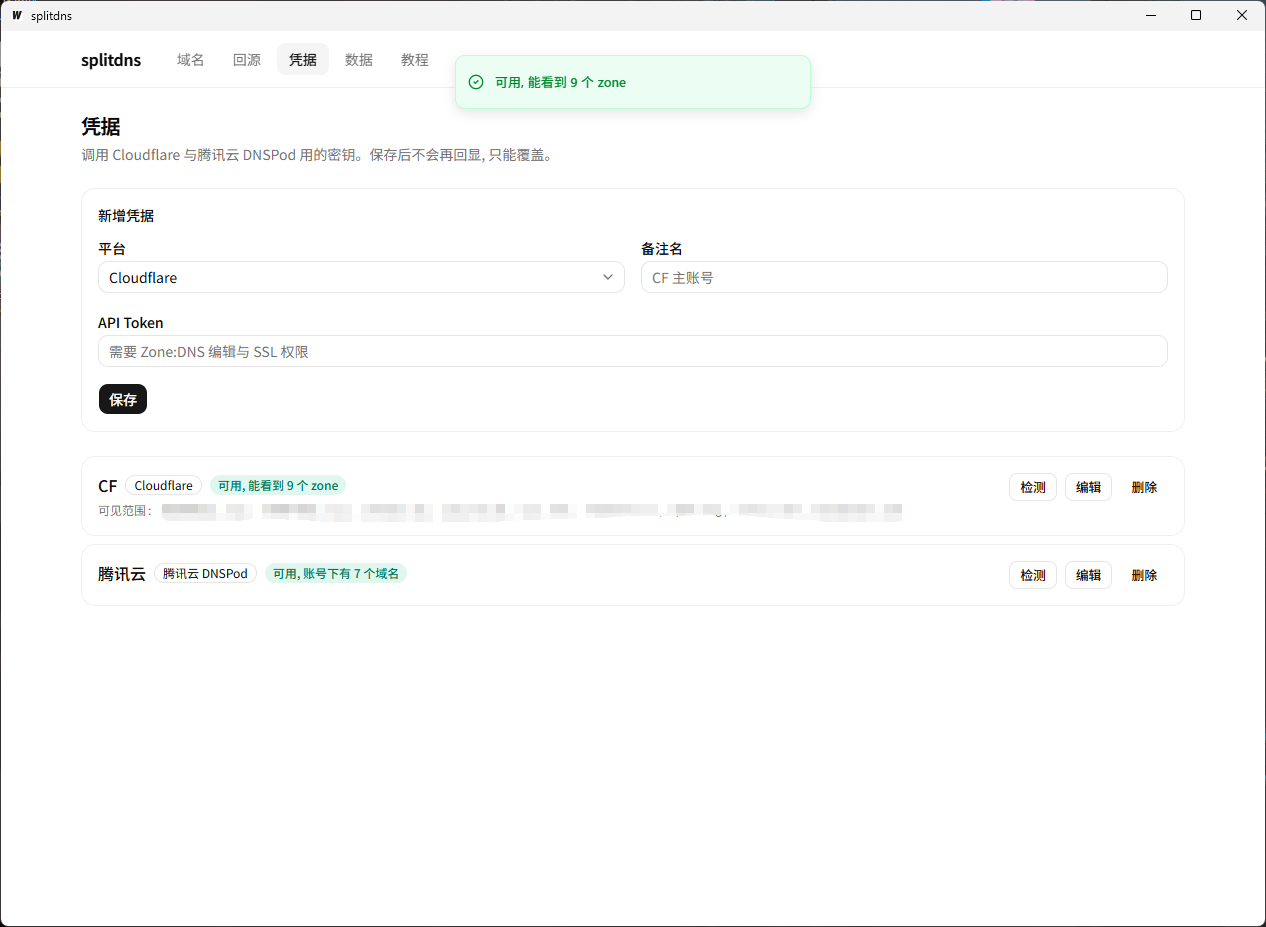
Add one entry for each service on the “Credentials” page. Once saved, keys are no longer displayed; you can only replace them.
| Platform | Required credentials | Permissions |
|---|---|---|
| Cloudflare | API Token | Zone:Read, DNS:Edit, SSL and Certificates:Edit; the scope must cover both the parent zone and the SaaS zone |
| Tencent Cloud DNSPod | SecretId / SecretKey | DNSPod read/write access |
Once entered, click “Test”. Cloudflare will list every zone this Token can see—a valid Token and sufficient permissions are two different things. If the zone you need is missing from the list, the Token is no use for this setup.
You can add multiple sets of CF credentials. Which account owns a domain is already established; you do not need to assign it manually. Later, when you enter domains and origins, the app searches all CF accounts for the zone that governs each name (using longest-suffix matching) and selects the account automatically.
Step two · Origins
On the “Origins” page, register destinations that will be shared by multiple domains. When you move to another server later, you only need to update them here. For destinations used by only one domain (such as EdgeOne's per-domain CNAME), enter them directly when configuring the domain; there is no need to create an entry here first.
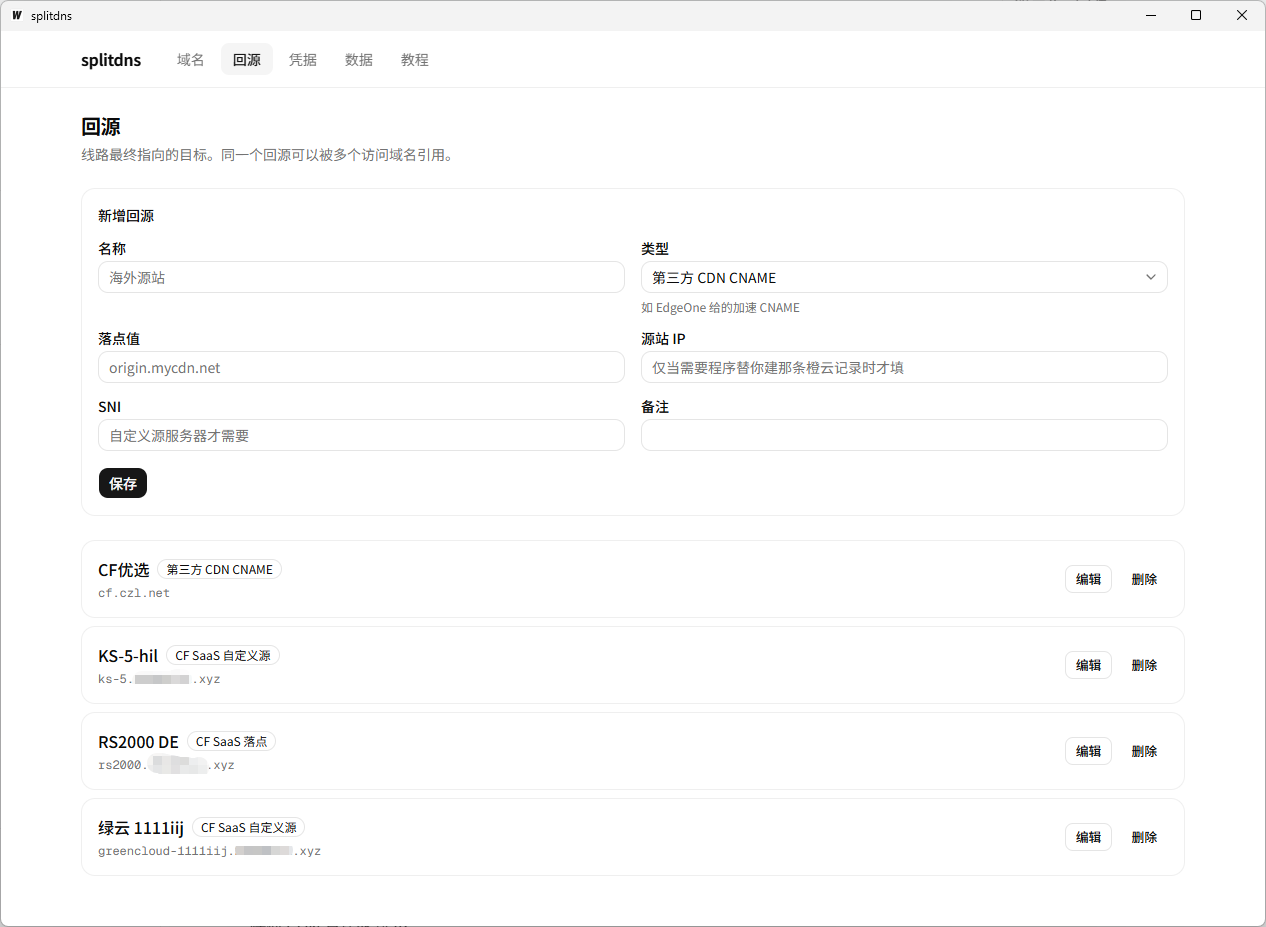
Of the four types, the first two are the easiest to mix up:
“CF SaaS endpoint” vs. “CF SaaS custom origin”
These describe two completely different parts of the request path:
用户 ──解析──> [CF SaaS 落点] ──> CF 边缘 ──> [CF SaaS 自定义源] ──> 你的机器
        ↑                                   ↑
     DNS 记录的值                    自定义主机名上的一个字段
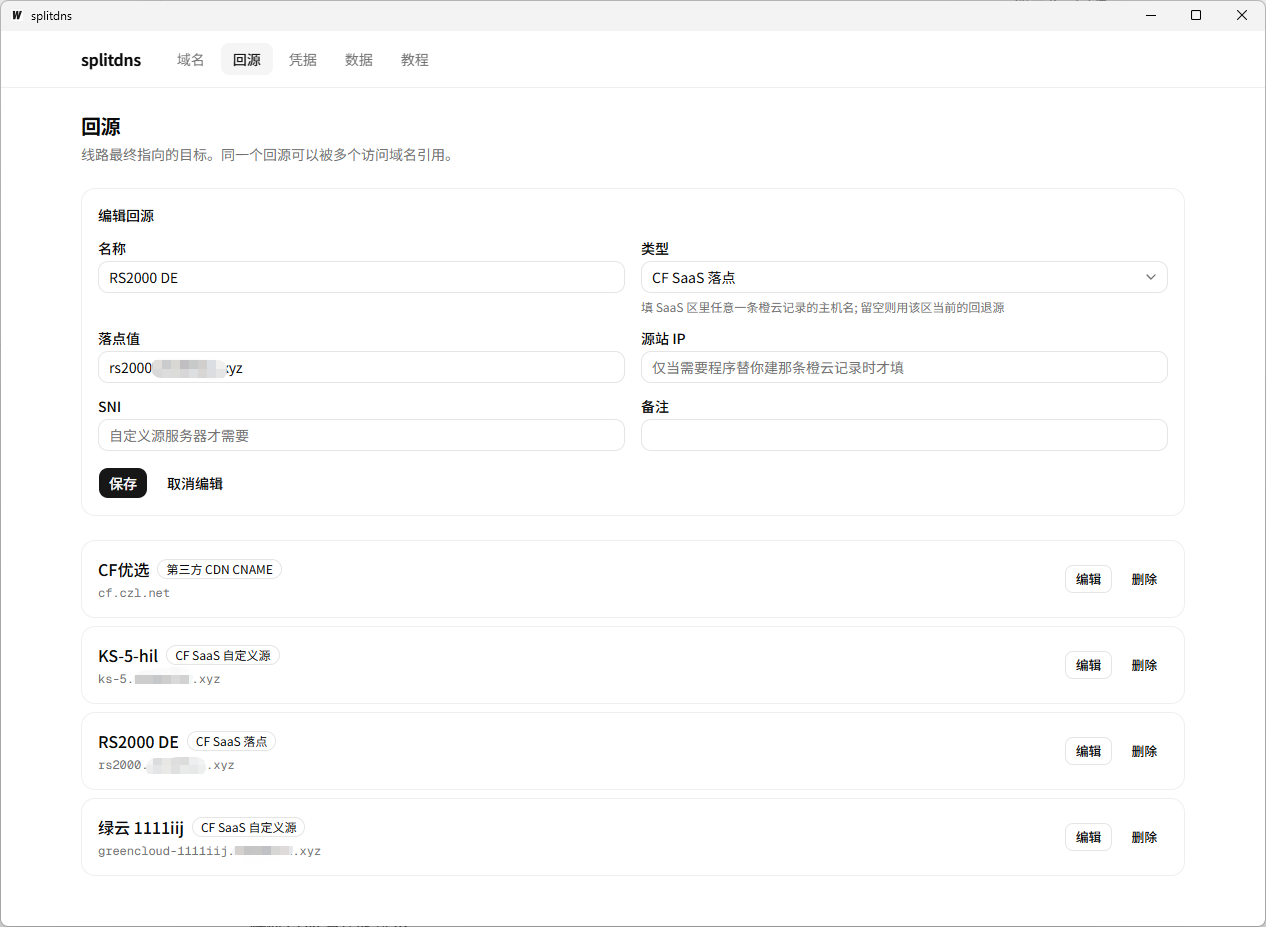
CF SaaS endpoint — This is the value of the CNAME record in DNS. It determines how traffic enters CF. Enter the hostname of any orange-clouded record in the SaaS zone; it does not have to be the one configured as the “fallback origin”. Once traffic reaches the CF edge, CF uses the Host header to find the custom hostname. The CNAME target only brings traffic into this zone. Leave it blank to use the zone's current fallback origin.
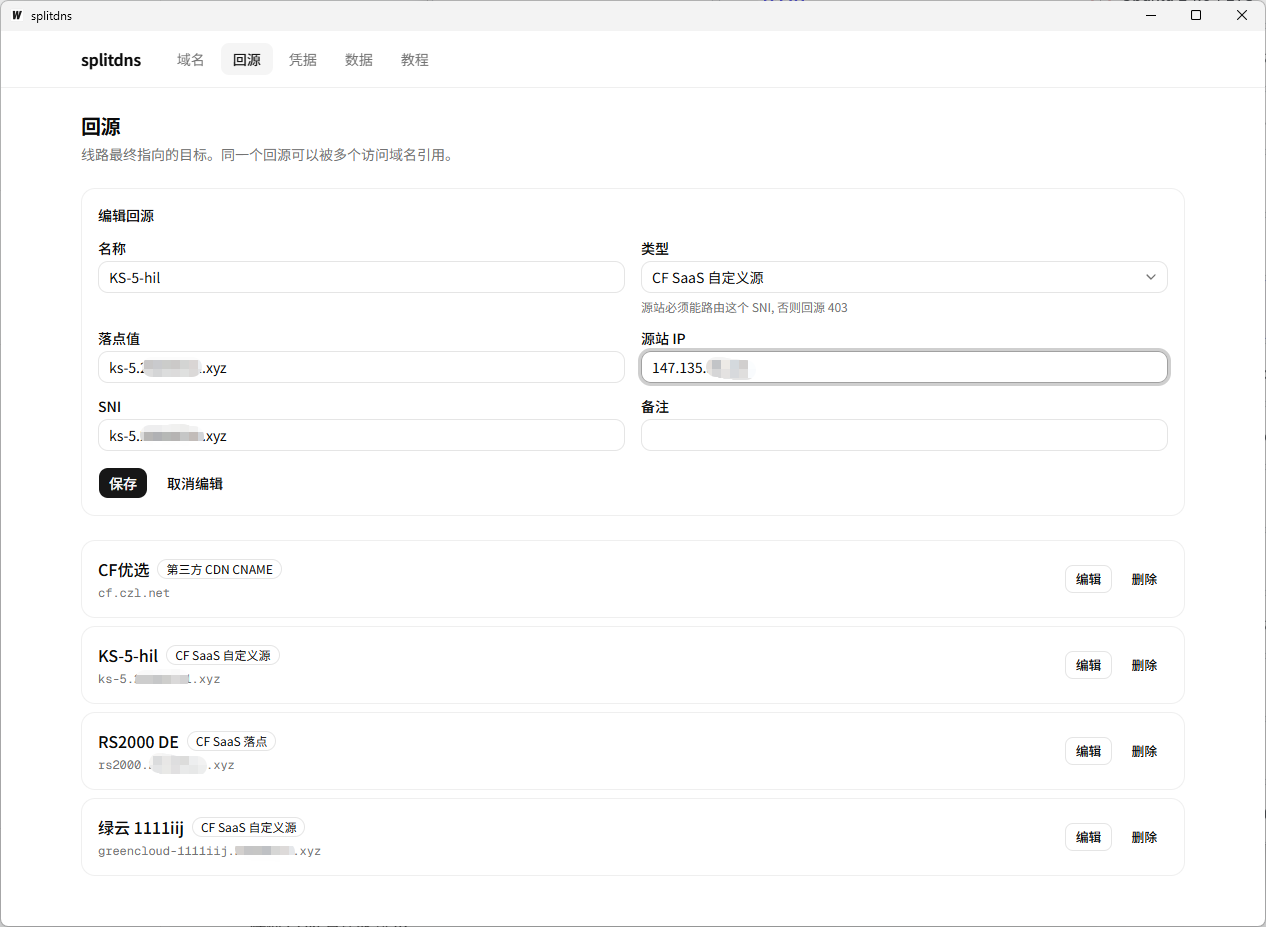
CF SaaS custom origin — This is not a DNS target. It is the custom_origin_server field on the CF custom hostname, which determines which server receives traffic after it enters CF. By default, all custom hostnames use the zone's fallback origin. You only need this when a domain must use a different server.
So:
- “Overseas traffic goes through CF to the default server” → Only the endpoint is needed
- “Overseas traffic goes through CF, but this domain needs a different origin server” → Both are needed: the endpoint brings traffic into CF, and the custom origin tells CF where to forward it
Putting the custom origin in DNS is a common mistake—CF does not recognize that name as your custom hostname, so requests cannot reach it.
Does the endpoint actually exist in CF?
This is the biggest trap: whether it is an endpoint or a custom origin, if you enter a hostname, CF must have an orange-clouded record with that exact name pointing to the origin server for traffic to be forwarded. CF explicitly requires a custom origin server to be an orange-clouded DNS record in the same account; it cannot be an IP.
The catch is that if this record is missing or gray-clouded, origin requests fail outright, yet both the hostname status and certificate status on the custom hostname page still show “Active”. Nothing on that page reveals the problem.
The Origins page now checks this automatically and gives you a clear result:
- Record does not exist → Create an orange-clouded record with one click (if you have entered an “Origin IP”)
- Record already exists → Leave it untouched, never overwrite it: this is a live DNS record
- The CF credentials cannot read the zone list → Explicitly report “Unable to determine”, rather than silently skipping it as “Not managed by us”
“Origin IP” supports comma-separated dual-stack addresses: IPv4 creates an A record, and IPv6 creates an AAAA record. Two records with the same name are normal and will not be incorrectly flagged as conflicts.
The health checks now include two corresponding items: saas.custom_origin_record_missing (missing record) and custom_origin_record_grey (record created as DNS-only).
The other two types are straightforward: for Third-party CDN / Optimized Domain CNAME, enter the acceleration CNAME provided by the service or your own optimized domain; Direct Origin IP sends traffic straight to the IP without going through any CDN (use this type for optimized IPs too).
Step 3 · Domains
Go to “Domains → Add Domain”. There are fewer fields to fill in than before:
- Setup mode——“Delegate a subdomain from a CF parent zone” or “Host the root domain directly on DNSPod”
- Access domain——Enter a prefix + select a suffix from the dropdown. In delegation mode, suffixes come from the CF zone list; in direct hosting mode, they come from the DNSPod domain list. In direct hosting mode, leaving the prefix empty means the root domain itself. If you cannot find it in the list, enter the full domain manually
- SaaS zone——Select one from the dropdown; if this route does not go through CF, select “Do not use CF for SaaS”
- DNSPod credentials——Selected automatically if there is only one set
- Route target——Each route points to a target, either referenced from the origin library or entered directly
You no longer need to select Cloudflare credentials: once you enter the access domain, the app looks up which zone in which CF account it belongs to (the parent zone is derived the same way, and the result appears below the input). Separate credentials are stored for the SaaS zone only if it happens to be in another account.
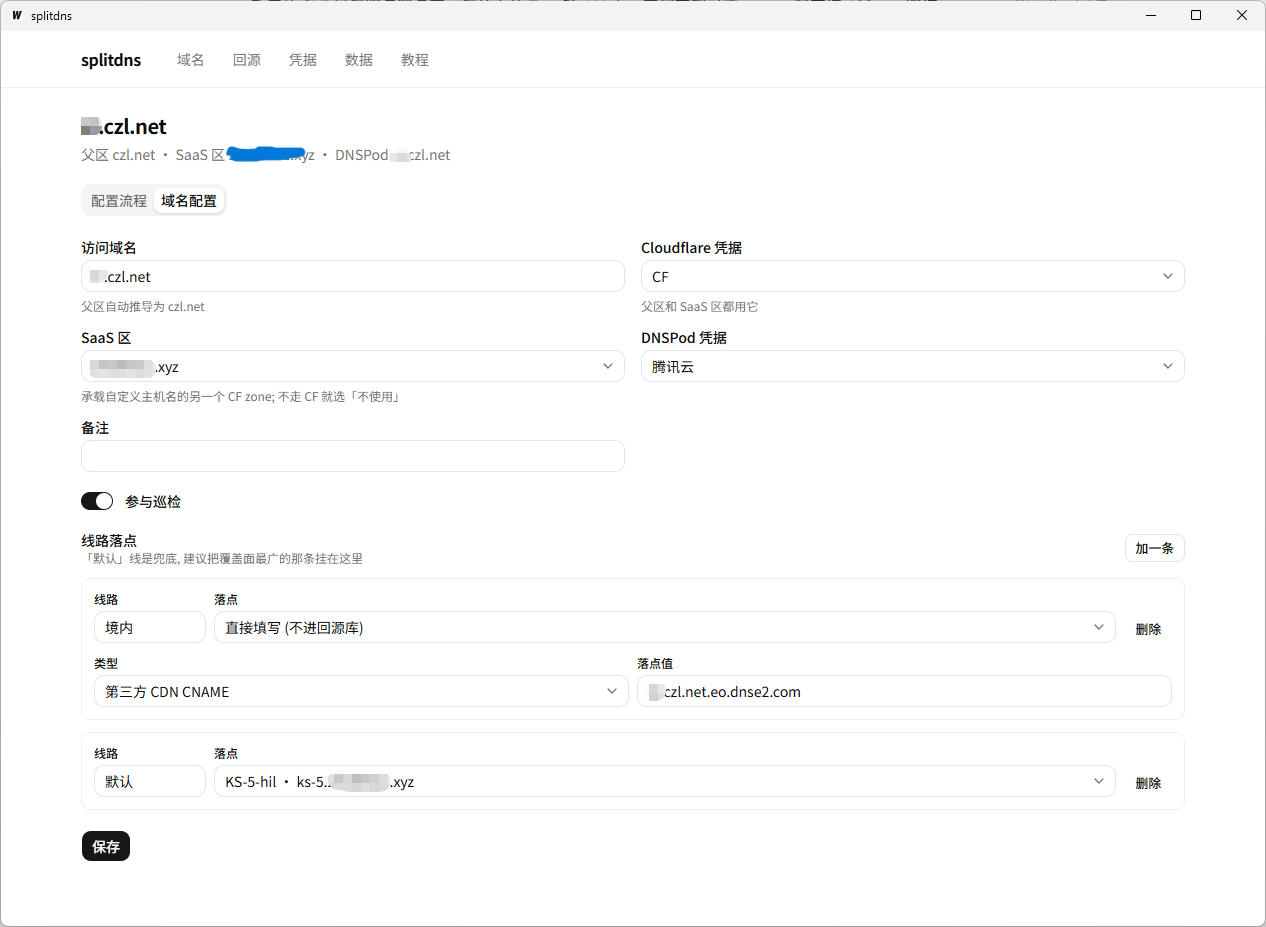
⚠️ The “Default” route is the fallback, so make sure you configure it. If you configure only Domestic + Overseas, resolvers whose location cannot be identified will receive no records at all. I recommend assigning the route with the broadest coverage to “Default”.
DNSPod's free plan has only three routes: Default / Domestic / Overseas. Country-specific routing requires a plan upgrade.
Configuring optimized routing
Optimized routing is just a regular route, with no dedicated toggle: select “Third-party CDN / Optimized Domain CNAME” as the type and enter your own optimized domain as the target. For an optimized IP, use “Direct Origin IP” to create an A record. Once traffic enters the CF edge through the optimized domain, it still matches your custom hostname by the Host header, so optimized routes also depend on the SaaS zone configuration—they do not bypass CF.
⚠️ Do not create an optimized domain as a “CF SaaS Target”. That type is treated as a candidate for the zone's fallback origin during the “Set Fallback Origin” step. An optimized domain is not in your SaaS zone at all, so setting it there will break origin connections.
A typical setup——example.com is hosted directly on DNSPod, with the default route going through CF and the domestic route using an optimized domain:
| Route | Type | Target value |
|---|---|---|
| Default | CF SaaS Target | origin.mycdn.net |
| Domestic | Third-party CDN / Optimized Domain CNAME | Your optimized domain |
Step 4 · Follow the workflow
Saving automatically opens the configuration workflow. The buttons below each step:
| Button | Meaning |
|---|---|
| Run Automatically | The app calls the API for you |
| I've Done It Myself | Click after completing the task in the CF / DNSPod dashboard; the wait timer starts at that moment |
| Confirm Completion | Appears only for steps the app cannot verify (such as SNI routing on the origin) |
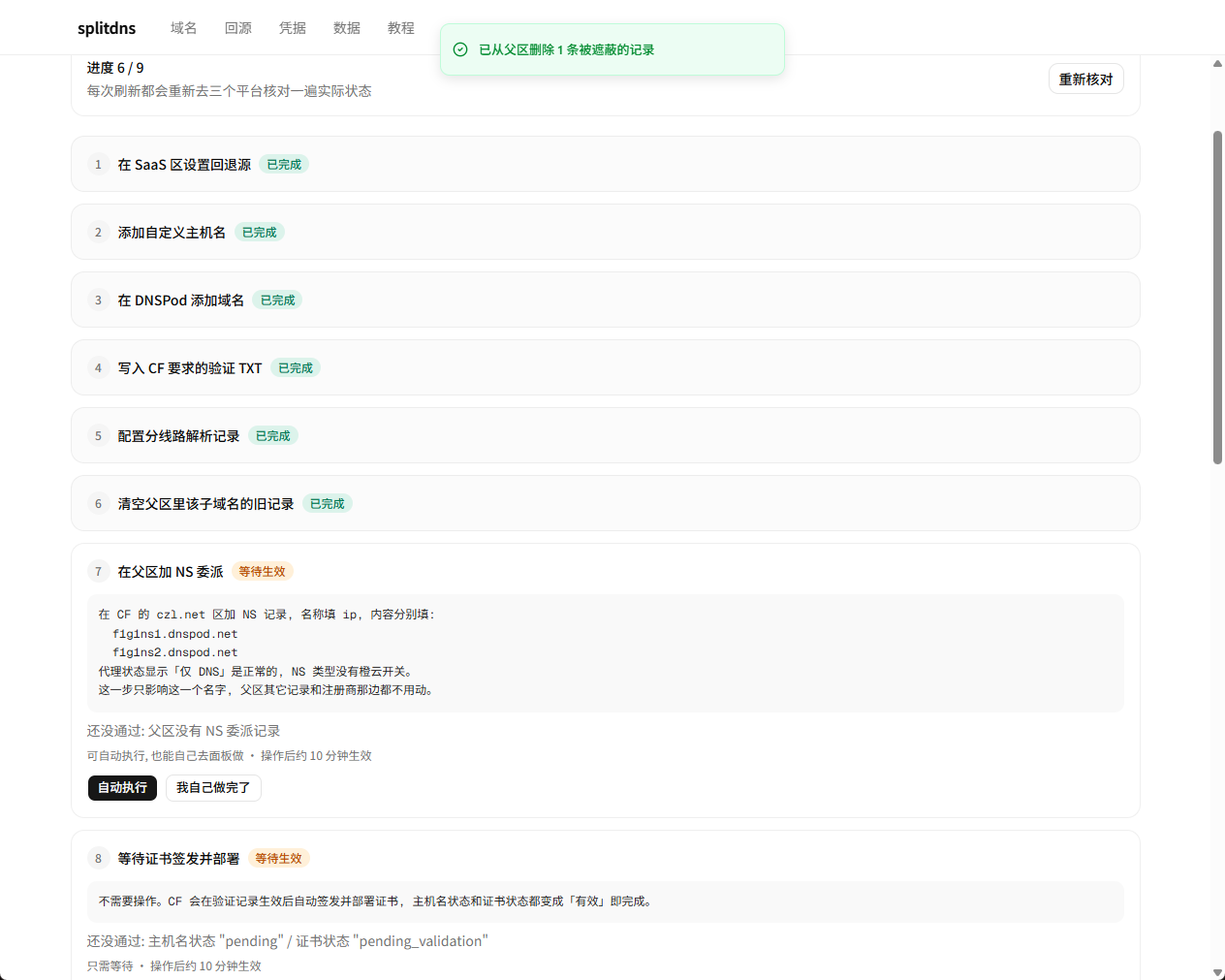
Whichever method you use, the app rechecks all three platforms afterward. A successful API response does not count; a step is complete only when the health check confirms it has actually taken effect. So:
- Close the app and come back the next day: progress is still there, and it is reassessed against the current live state
- If someone changes a previously completed step on the platform, it automatically returns to “Waiting to Take Effect” and explains what differs
- The step for cleaning up old parent-zone records lists every record first and only acts after you confirm
Steps waiting for DNS or certificates remain at “Waiting to Take Effect”, with details on what is still missing and roughly how long to wait:
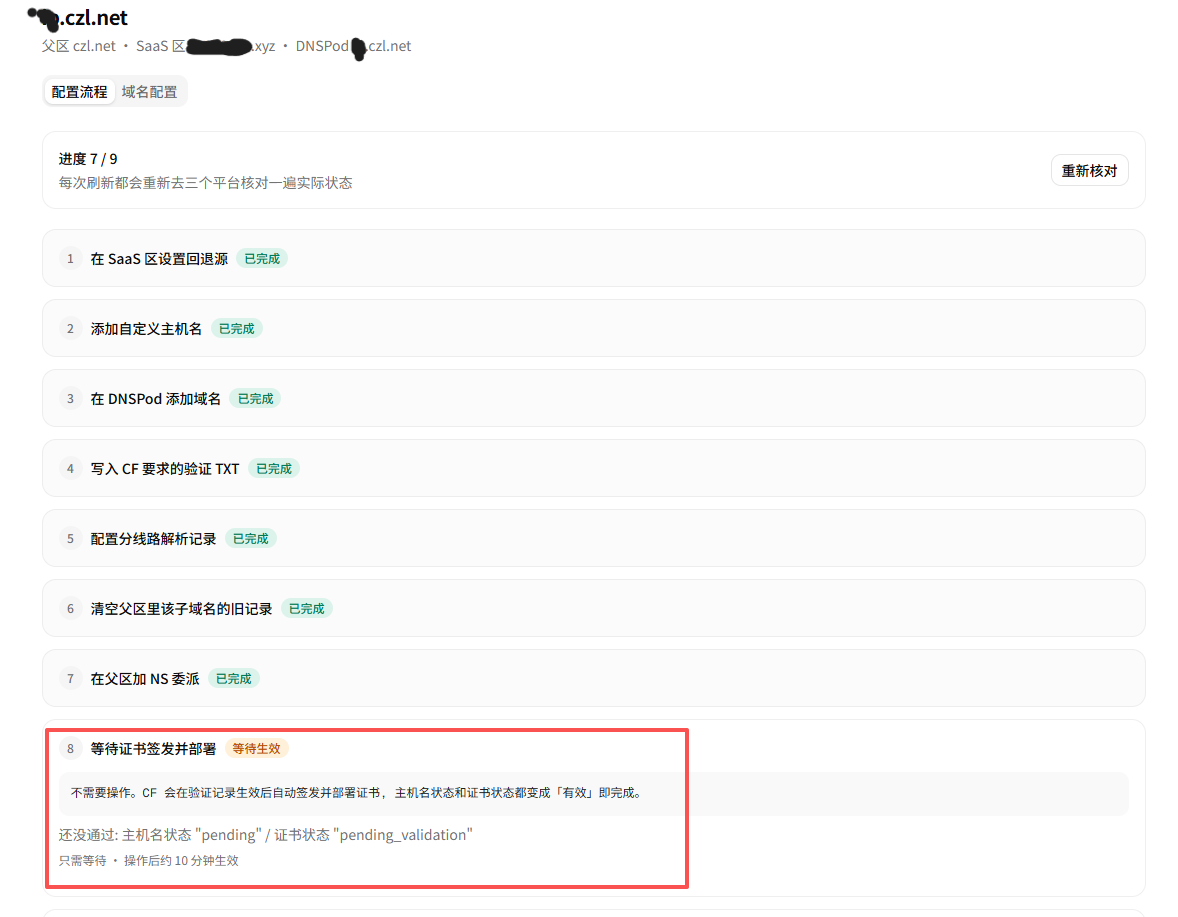
The cleanup step defaults to “Migrate to DNSPod before deleting”——being shadowed does not mean a record should be thrown away. Those records were serving traffic normally; they are just in the wrong place after delegation. The app checks them individually: records for the access domain itself are deleted without migration (their targets are managed by the route configuration), while all others are migrated unchanged. Orange-cloud records get a separate warning because they will no longer go through CF after moving to DNSPod.
Once you have more domains, you do not need to open each one to check: every card on the list page shows the progress of each workflow directly. This progress comes from step states in the local database. The list page makes no platform API calls, so adding more domains will not slow it down or consume API quota.
No longer needed: teardown
Previously, you could only delete local records. DNS records, certificates, and domains on the platforms were left behind, so you had to hunt through all three dashboards yourself. The details page now has a Teardown tab, using the same step mechanism as the configuration workflow. Each step lists what it will do before taking action:
撤委派 → 清 DNSPod 记录 → 删 DNSPod 域名 → 删自定义主机名 → 清回退源 → 清父区验证记录
The order is deliberate. Removing delegation must come first: if you delete the DNSPod domain first, the delegation still points to nameservers that no longer host it. Resolvers get SERVFAIL and keep retrying, which is worse than simply getting no result.
A few safety guardrails:
- Only delete records managed by this tool——records are identified by the “targets declared in route configurations” plus two verification TXT records with exact names, not by a broad “name + type” match. In direct hosting mode, that zone contains all your own DNS records; broad matching could put unrelated records on the deletion list
- Direct hosting mode never generates a “Delete DNSPod Domain” step——that is the entire DNS setup for your root domain, so there should not even be a step you have to skip
- The fallback origin is shared across the SaaS zone. If other custom hostnames in the zone still point to it, execution is refused outright, with no “confirm to delete anyway” option——those hostnames would stop working too
- Deleting a custom hostname also removes the target record this tool created for it, unless someone else is using it or it is itself the fallback origin
- Every step can be skipped, and skips can be undone. Keeping the DNSPod domain or leaving a fallback origin that others still use are both valid reasons not to run a step
- A failed fetch is never treated as “already cleaned up”——an empty snapshot and a failed read can look identical; failing to distinguish them would falsely report success
Deleting local records stays outside the workflow (otherwise deleting them would delete the workflow itself). Do that directly on the domain details page.
Pitfalls you will hit if you skip the docs
Records left in the parent zone after delegation become shadowed records. They remain visible in the CF dashboard, but none of them take effect. This is particularly misleading when troubleshooting——you think they are configured, but they are not active.
A custom origin server must be an orange-cloud DNS record in the same account. If it is missing or DNS-only, origin connections fail outright, while the custom hostname page still shows everything as normal. See Step 2, “Does the target actually exist on CF?”
When using a custom origin, the origin server must also be able to route that SNI. When CF connects to the origin, the Host header contains the access domain, but the TLS handshake uses the origin server name as SNI. If Traefik / Nginx on the origin cannot match the corresponding router, it returns 403 immediately——this has nothing to do with the certificate or backend service. At that step, the tool provides instructions specifying the machine, hostname, and self-check command.
CF may require multiple verification TXT records with the same name. When a certificate includes a wildcard SAN, the base domain and wildcard each need a DCV record, with the same record name but different values. Omit one and the certificate cannot be issued, and the error will not tell you which one is missing.
Newly added DNSPod domains are paused by default. Delegation and records can all be correct, yet DNS still returns no results. The tool enables the domain automatically and also flags this separately in health checks.
If the parent domain is in a different Tencent Cloud account, you must verify ownership before adding a subdomain. DNSPod returns QuhuiTxtNotMatch, and you need to add a TXT record to the parent domain (the one still on CF). The tool automatically retrieves the value, writes it to CF, and retries.
The minimum TTL is 600. That is the lower limit on DNSPod's free plan; the API rejects anything smaller.
Health checks
After setup, you can return at any time to check the actual state across all three platforms. The checks focus on:
- Records in the parent zone shadowed by delegation (not applicable in direct hosting mode)
- Missing verification TXT records required by CF
- Whether the CF route is assigned to “Default” as the fallback
- Whether the custom origin's orange-cloud record exists and whether it is DNS-only
- Whether the domain on DNSPod is still paused
- Whether the delegated NS records match the nameservers actually assigned by DNSPod (in direct hosting mode, a
DNS_ERRORfrom DNSPod triggers a warning that the NS records may not point to DNSPod) - Certificate status, expiration date, and whether the custom origin server matches the configuration
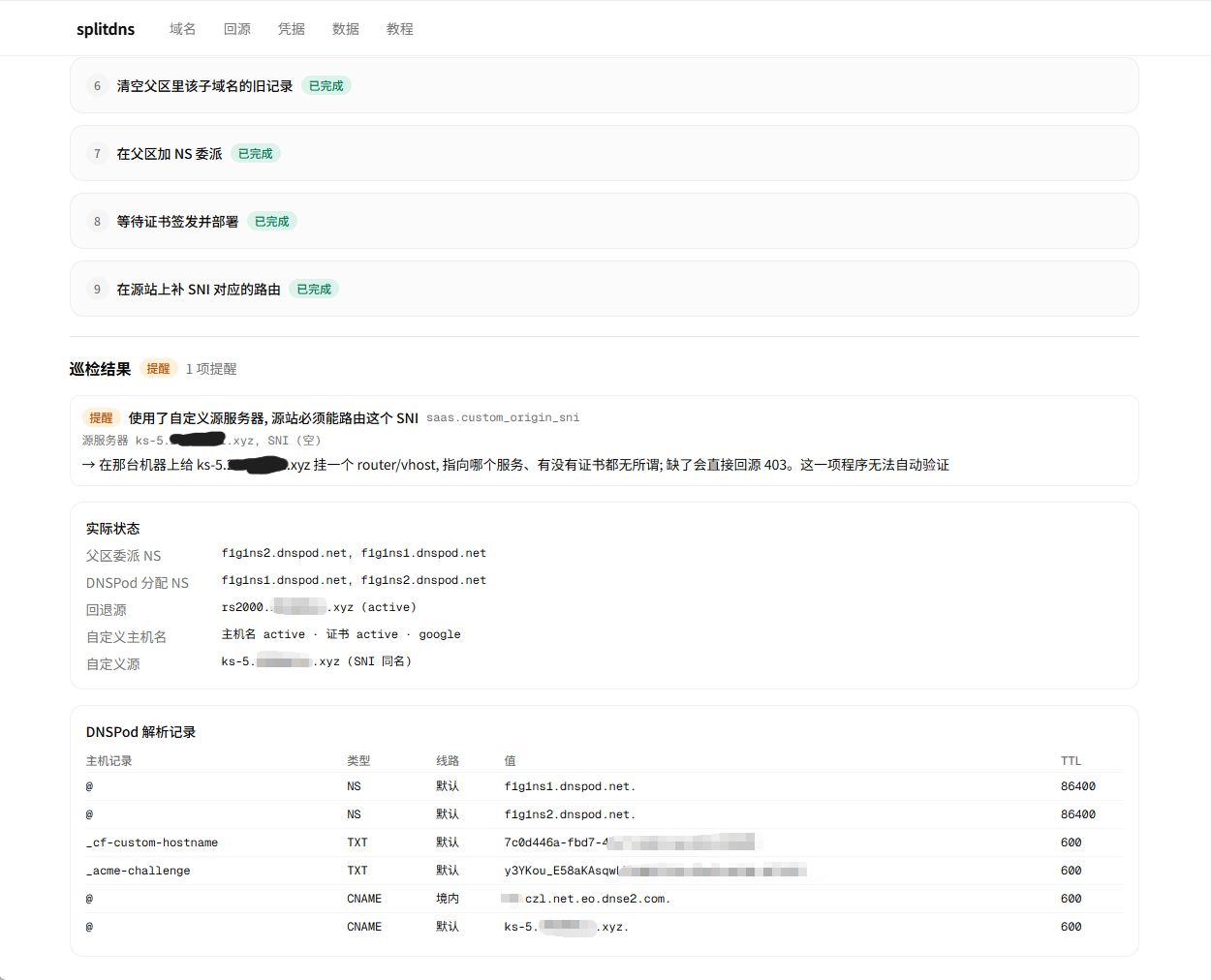
The warning in the screenshot is the SNI pitfall mentioned earlier——the tool works out which machine needs which hostname and provides a self-check command. The app cannot verify this item; you have to confirm it yourself.
“Actual State” and “DNSPod DNS Records” below show the live state exactly as retrieved. When something goes wrong, checking these is faster than digging through two dashboards.
I recommend adding your existing domains too. Create an entry and fill in the routes as usual; when you enter the workflow, every step will already be complete, so you can use it directly as a health check dashboard.
Moving machines / Backups
The “Data” page can export and import the entire database. Exports are consistent snapshots, and the app automatically saves a backup of existing data before importing.
Export files contain plaintext platform API keys. Treat them as key files, and do not casually leave them on a shared drive.
Exported backups do not include your login session—that token represents your identity, not application data; anyone who has it can call CZL Connect as you. After importing on another machine, just log in again. Your platform credentials and domain settings will still be there.
Downloads
https://github.com/woodchen-ink/splitdns/releases
- Windows installer
*-installer.exe—— Data is stored in%APPDATA%\splitdnsand stays intact when you upgrade or reinstall - Windows portable
*-portable.zip—— Extract and run; data is stored indata/alongside the exe, so copying the whole folder takes all your settings with you - macOS
*-macos-universal.zip—— Universal build for Intel and Apple Silicon; data is stored in~/Library/Application Support/splitdns
On Windows, WebView2 will be downloaded and installed automatically if it is missing. The macOS build is not signed or notarized, so Gatekeeper will block it on first launch: right-click the .app → Open → click “Open” again, or run xattr -dr com.apple.quarantine splitdns.app.
The source is at github.com/woodchen-ink/splitdns (MIT). Both Windows and macOS packages are built automatically by GitHub Actions when a tag is pushed.
Join the Discussion
This post was first published on the SunAI forum: splitdns tutorial: route a subdomain through CF overseas and another CDN in China
If you run into issues with splitdns or have feature requests, leave feedback in the original thread. Tool updates will also be posted there first.
SunAI is the tech community I run. I post VPS reviews, network tuning tips, website-building content, and AI tool updates there first. Feel free to stop by.
Comments 0