
Idea: Host a Website on Synology with a Low-Spec Cloud Server and Full-Site CDN
This post was translated from Chinese by AI. If anything reads oddly, the Chinese original is authoritative. 中文原文
Current Pain Points
My website is currently hosted directly on a Tencent Cloud server in Hong Kong, with 2 cores, 4G RAM, and 30M bandwidth. That should be a reasonable configuration, but strangely, page generation is very slow. Each new page takes 3-5 seconds with PHP at 100% CPU usage. This may be partly due to bot attacks and partly due to wordpress itself. The typecho site I host on the same server loads very quickly, even without much caching.
I tried all sorts of things, including cleaning up the database, settings, and folder contents, but nothing helped. Then I thought: if CPU usage is hitting 100%, why not just upgrade the hardware? After all, I had no issues with the 4-core, 8G server I used before.
But upgrading a cloud server is far too expensive. I'm currently running an unofficial Synology setup, where webstation is unstable, but I plan to buy an official Synology NAS in a year. Hosting the website on that NAS could be an option.
Prerequisites: A Stable Synology NAS and Public Access via DDNS
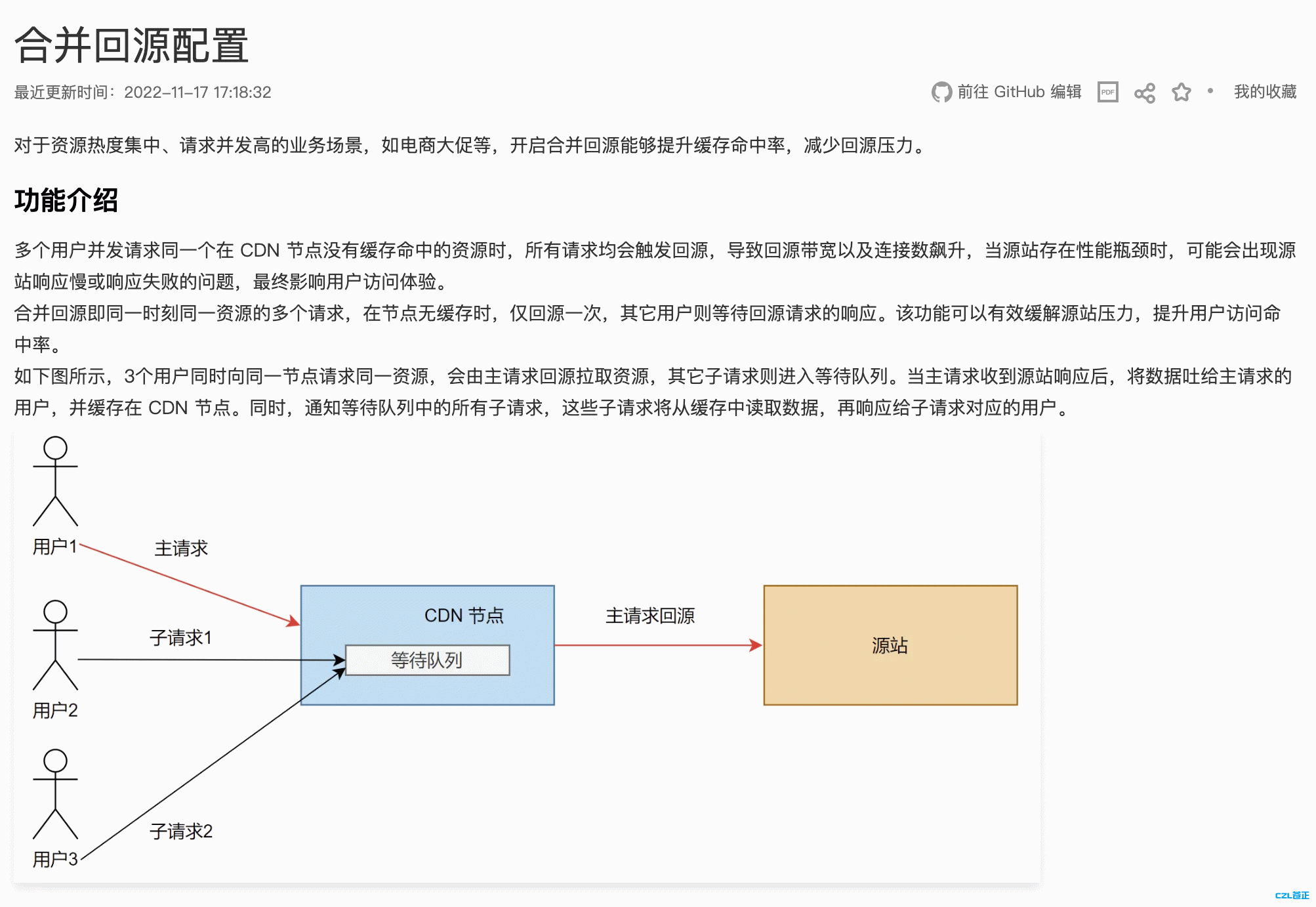
Although my local upload bandwidth isn't high, it should be more than enough if I put all the website's static assets in object storage and only serve page files locally. The CDN can also collapse origin requests, so this shouldn't be a major issue.
Hosting a Website on Synology
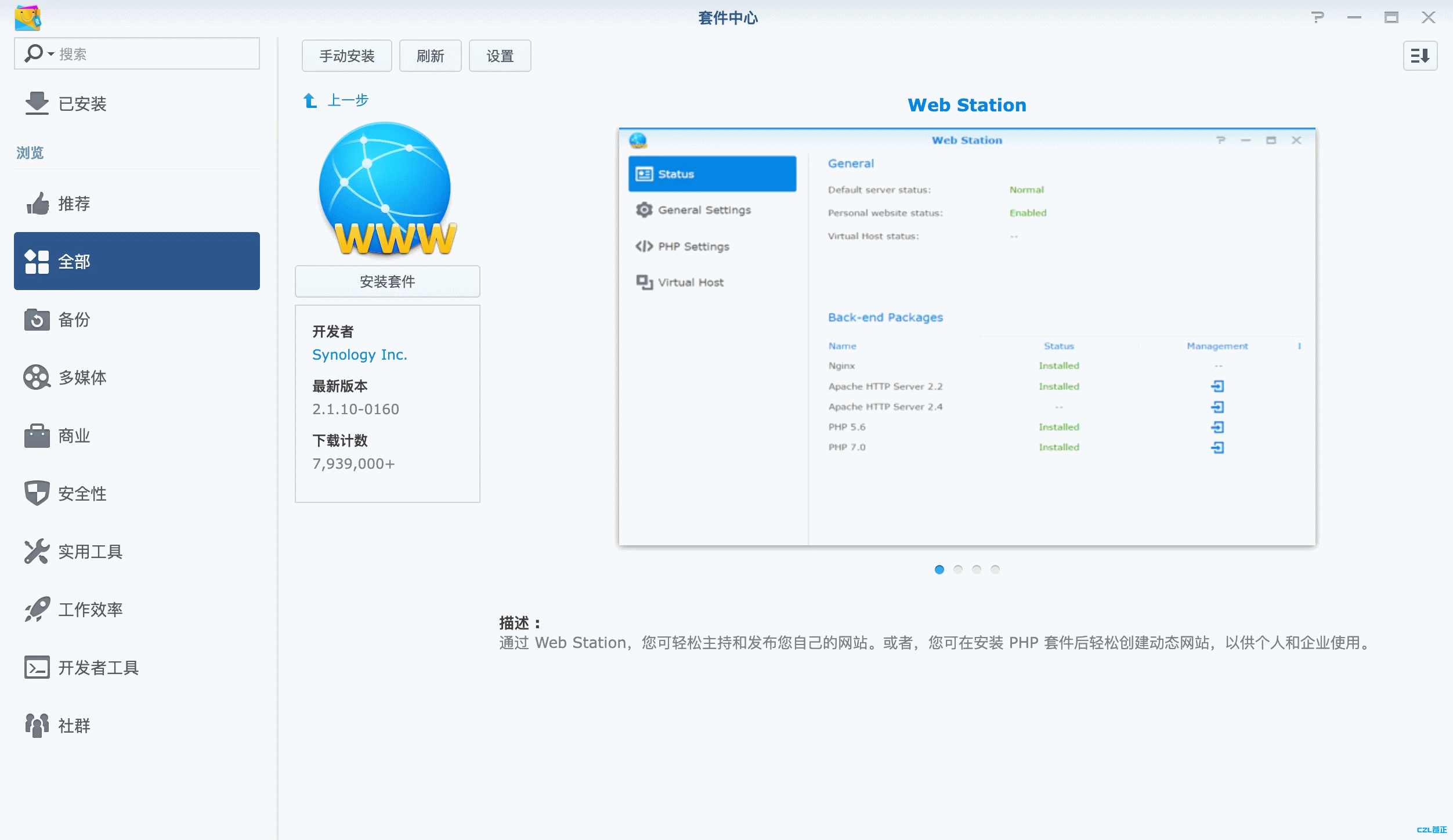
- Install php74, mysql, apache (for some reason, Synology doesn't seem to support using nginx directly as a web server), and webstation
- Migrate the existing files and database, then edit the local host file. This ensures that accessing the domain locally takes you directly to the NAS. To test external access, use another computer
10.0.0.10 *.czl.net
- Adjust the settings and make sure local access works
Install nginx on the Cloud Server and Set Up a Site
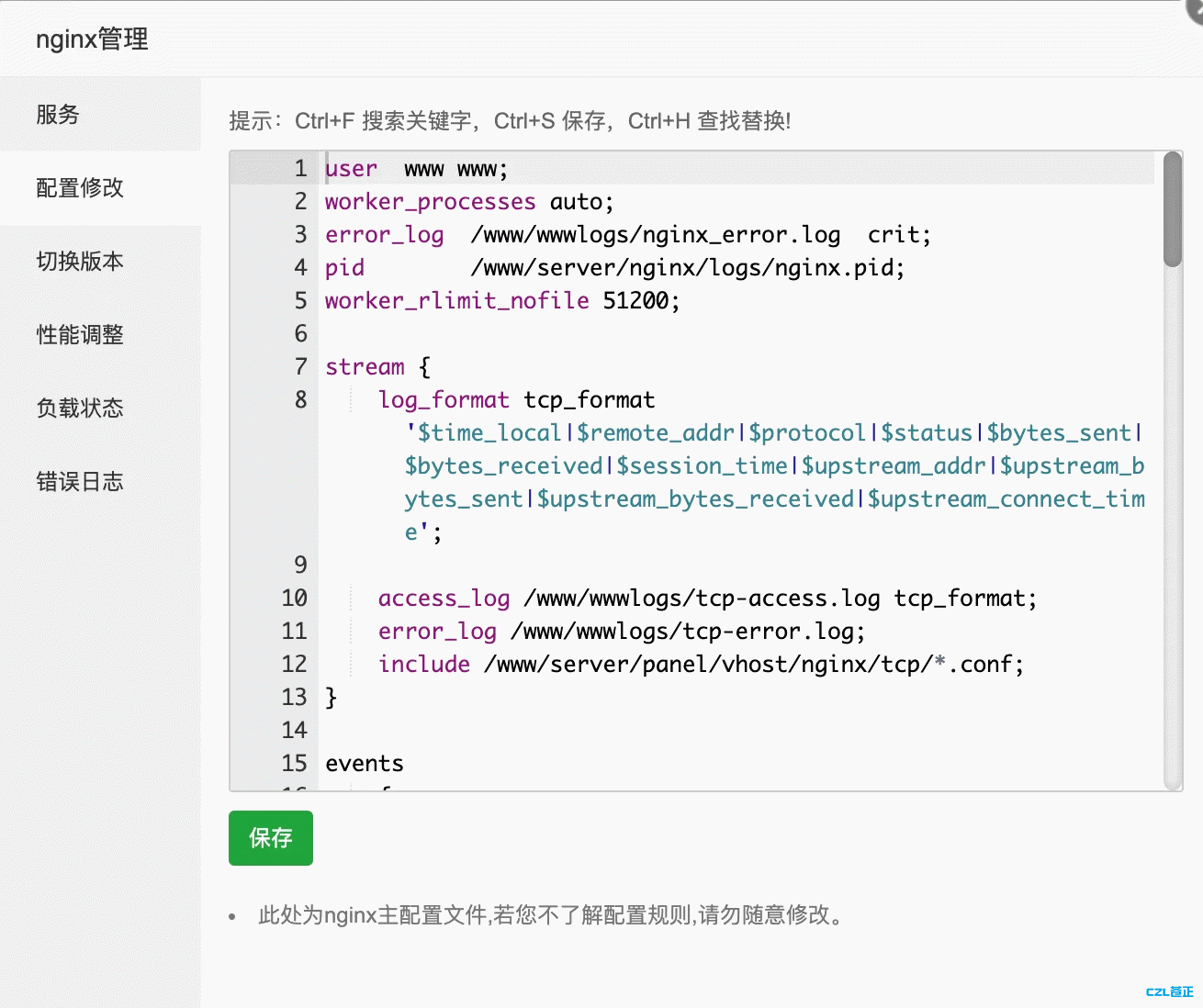
- Edit the main nginx configuration file
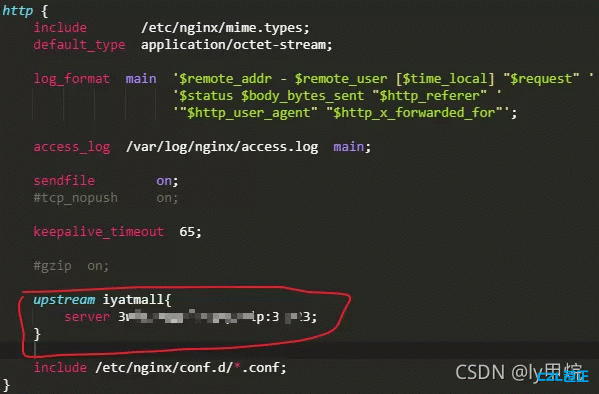
Add an upstream server
 upstream 自己起个名字{
        server demo.czl.net:1000 群辉映射的访问地址;  #Do not include http:// in this address
    }
- Edit the site configuration file
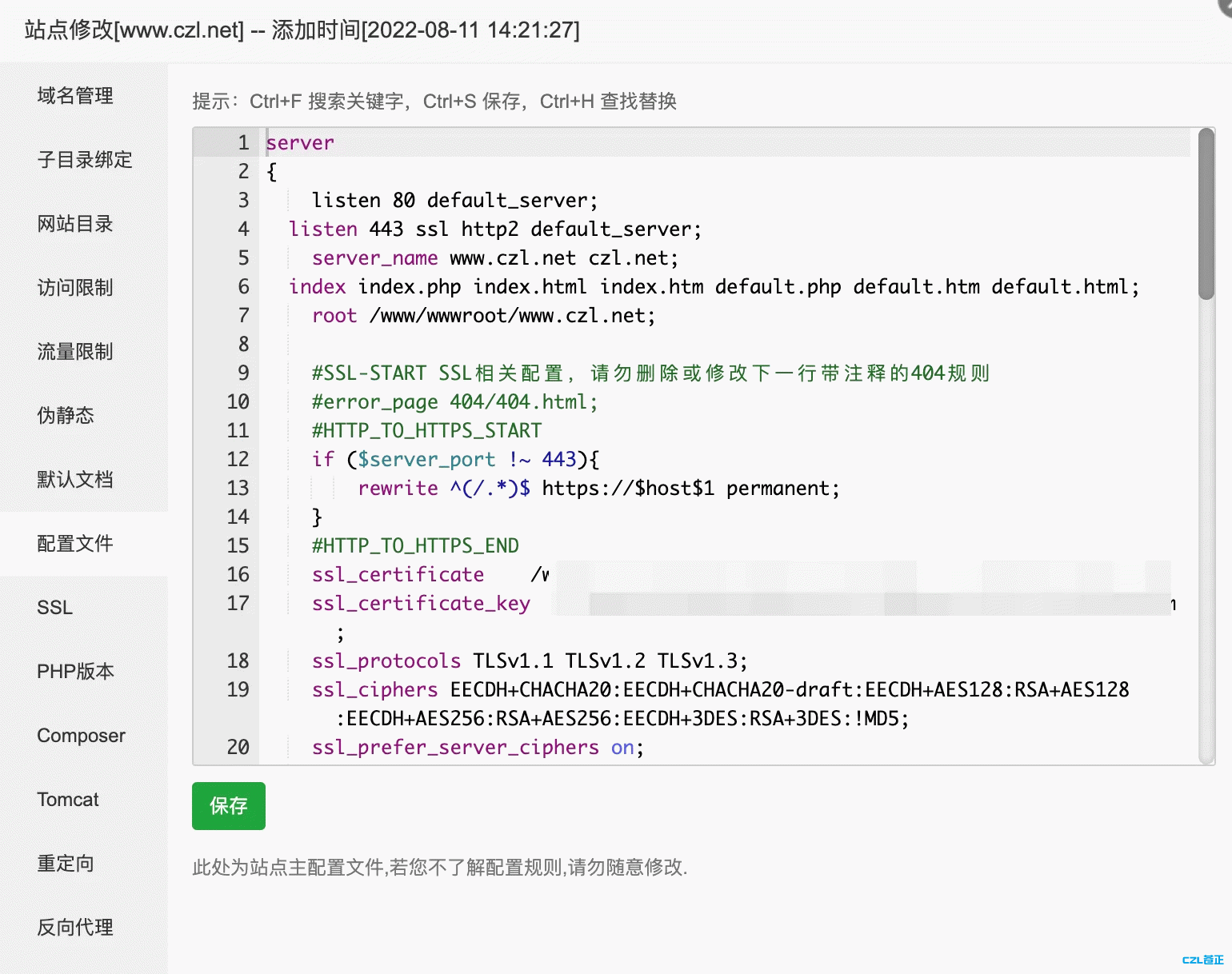
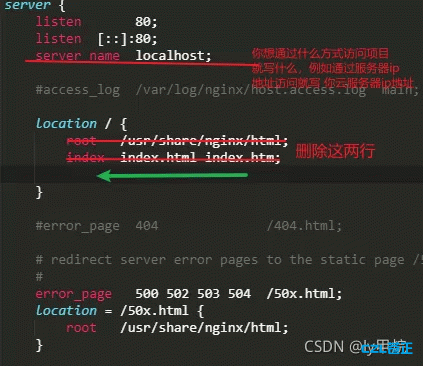
Change the server name to the address you want to use to access the site. For example, you can use the cloud server's IP address or a domain name (the domain must have an ICP filing)
In the location block (at the green arrow)
Insert
proxy_set_header Host $host;  #Add this because the nginx proxy drops this request header, causing a 404 downstream
proxy_pass http://上游服务器名字;   #(The name following upstream in the earlier configuration)
Then restart nginx
Note: When configuring the upstream server, port 80 may not work, so a dynamic port was used for the tunnel. Reference: https://www.it1352.com/1680719.html The original article used PeanutHull for tunneling. I'm not sure whether ddns would run into the same issue
Testing
At this point, you should be able to access the local site through the cloud server's IP address (or domain name)
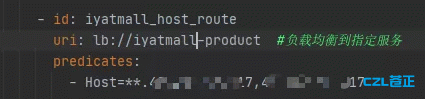
If this is a distributed application and the mapping points to a local gateway, you also need to configure the gateway
-Host should be set to whichever address you want to use for access [domain name or cloud server IP address]
Configure a Site-Wide CDN
- Configure this as usual
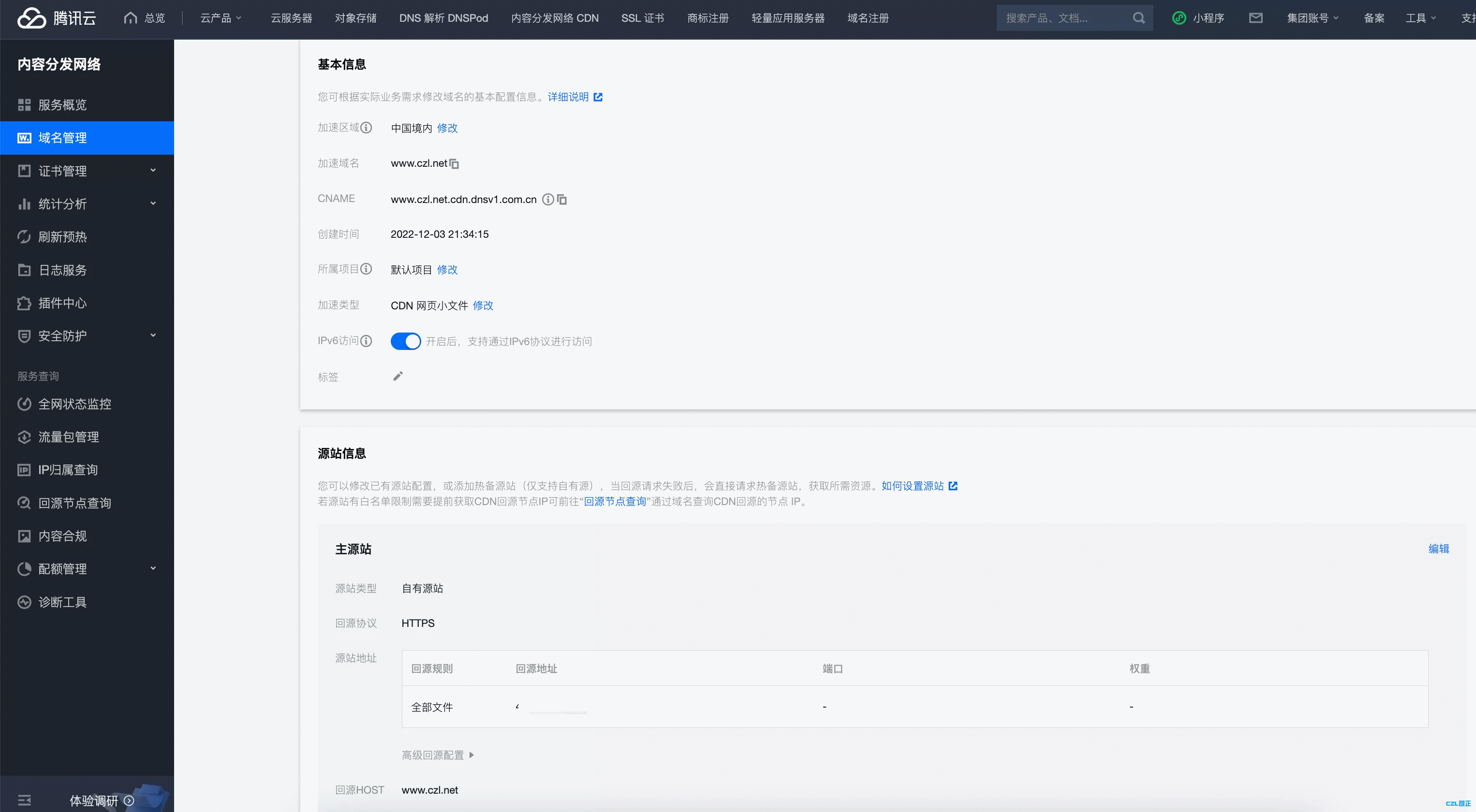
- Enable site-wide caching. Since I don't need to log in to the admin panel from outside my network, there's no need for separate rules for php and the wp-admin folder. Just disable caching for xml so search engines don't fetch an outdated sitemap
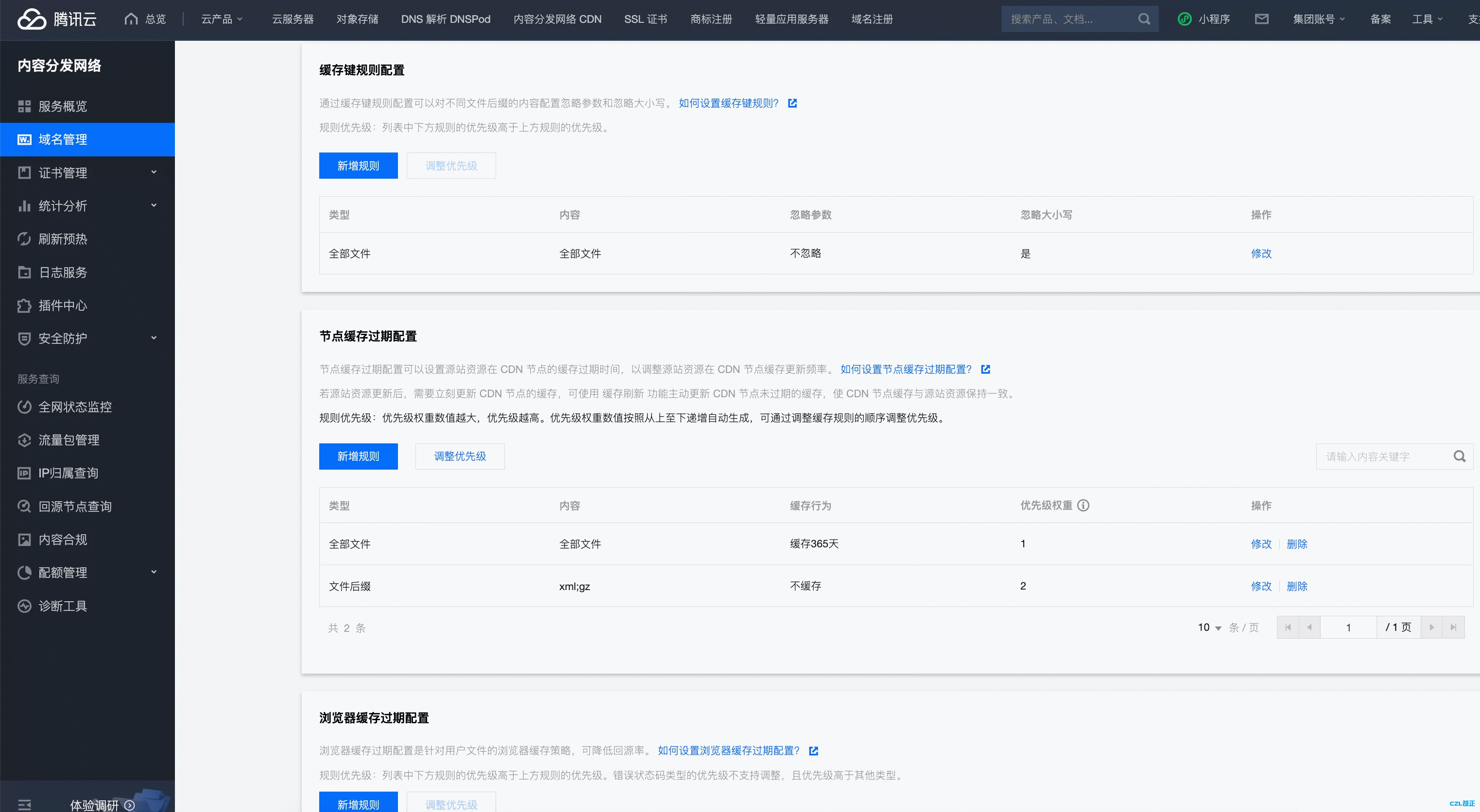
With These Settings, the Site Should Be Accessible Normally. This Is Still Just a Plan, Since My Server Has More Than 2 Years Left and I Haven't Bought the Official Synology NAS Yet.
Since pages would actually be generated by the local CPU, the website should be faster than on the cloud server. This would also shield it from attacks to some extent. It's worth a try.
Some content was based on: https://blog.csdn.net/weixin_44179010/article/details/121522184
Last updated 2024-01-14
Comments 0