
Migrating WordPress from PHP-FPM to FrankenPHP on 1Panel
This post was translated from Chinese by AI. If anything reads oddly, the Chinese original is authoritative. 中文原文
Why migrate?
Mainly, I wanted to experiment, since yesterday I migrated CZL Image Hosting from PHP-FPM to FrankenPHP. A single container automatically handles the app, scheduled tasks, process supervision, and more. It's very convenient, and performance seems better too.
Also, it reduces my dependence on 1panel, making future migrations easier.
Introduction to FrankenPHP
FrankenPHP is a modern PHP application server based on Caddy Web Server, written in Go. Compared with the traditional Nginx + PHP-FPM stack, it is simpler (a single binary), supports HTTP/3, and can significantly improve performance through Worker mode.
Core architecture changes
-
Old architecture: 1Panel OpenResty (Nginx) -> FastCGI protocol (port 9000) -> PHP-FPM container
-
New architecture: 1Panel OpenResty (Nginx) -> HTTP reverse proxy (custom port) -> FrankenPHP container (internal port 80)
Important notes
For all the steps below, I created a new subdirectory under /opt/1panel/docker/compose/ and worked there, only deleting the old setup after verifying that the new one worked. For initial testing, I recommend using port mapping to check that the homepage loads.
Also, don't work in the original website directory. I copied all the files from the original /www/sites/网站代号 into the /site subdirectory of the new directory above to avoid affecting the old setup.
Step one: Prepare the Dockerfile (add missing extensions)
The official FrankenPHP image is minimal and does not include extensions such as mysqli and gd that WordPress requires. We need to build the image ourselves.
Create a file named Dockerfile in the directory:
Dockerfile
FROM dunglas/frankenphp:php8.3

# Install the extensions required to run WordPress
# Includes database connections (mysqli/pdo), image processing (gd/imagick), and performance optimization (opcache/intl/zip)
RUN install-php-extensions \
    bcmath \
    exif \
    gd \
    intl \
    mysqli \
    opcache \
    pdo_mysql \
    zip \
    imagick
Step two: Create docker-compose.yml
You need to change the Compose file from pulling an image to building one, and adjust the ports and mount paths.
networks:
  1panel-network:
    external: true

services:
  php:
    # 1. Switch to build mode
    build: .
    container_name: wordpress-franken
    restart: always
    networks:
      - 1panel-network

    # 2. Port mapping: external port:80. Once everything works, change it to 127.0.0.1:1019 so the port is no longer exposed publicly

    ports:
      - "1019:80"

    # 3. Environment variables
    environment:
      # Tell FrankenPHP to listen only on HTTP port 80, leaving certificate management to the front-end 1Panel Nginx
      - SERVER_NAME=:80
      - TZ=Asia/Shanghai

    # 4. Directory mounts
    volumes:
      # Mount your WordPress code at /app/public
      - ./site:/app/public
Step three: Test access and coexistence
Visit 服务器IP:1019 to see if the site loads
You can add a reverse proxy, but first you need to comment out the rewrite line (add a # at the beginning)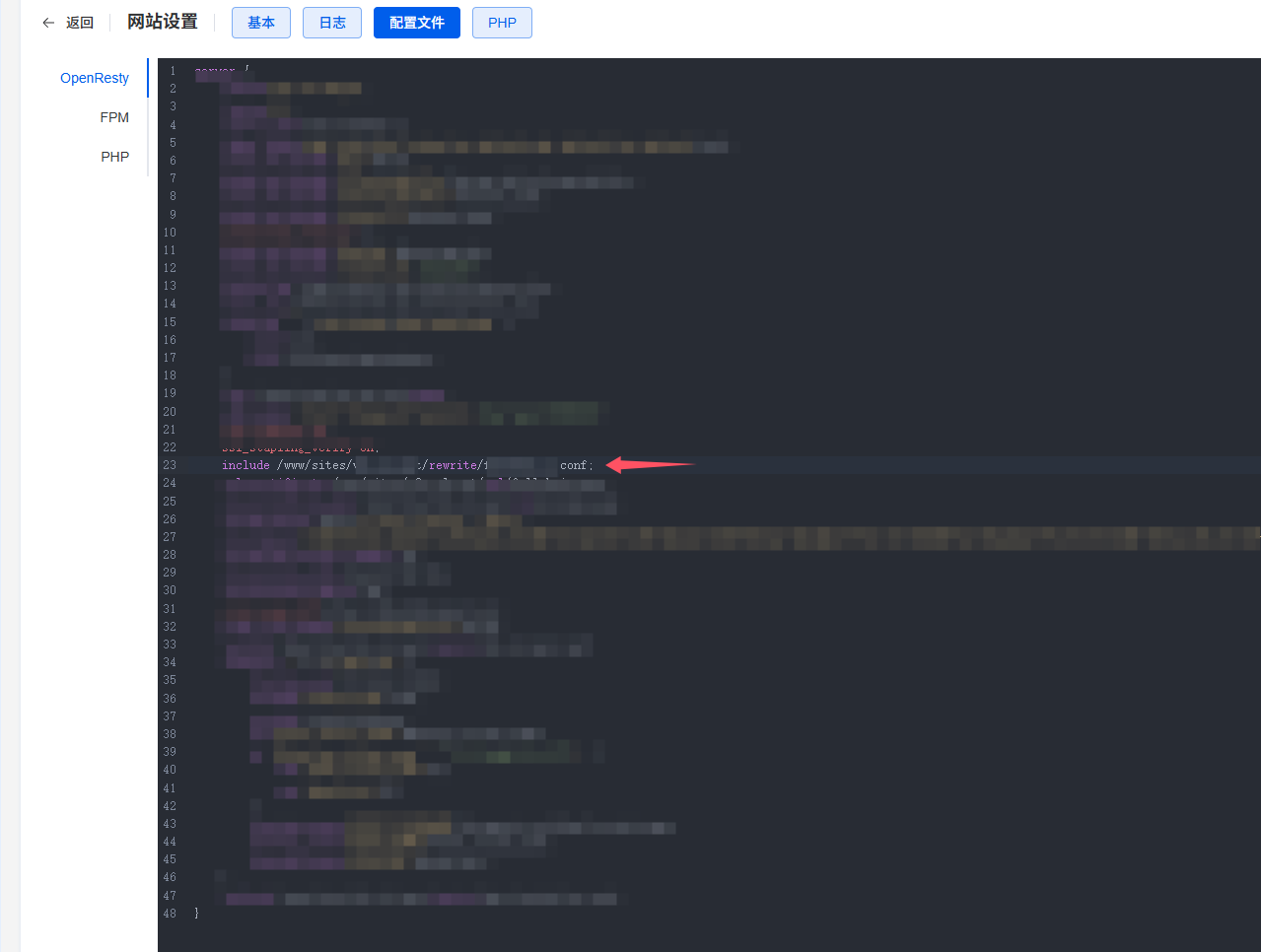
Then add a reverse proxy using ^~ to proxy the root path to 127.0.0.1:1019.
Step five: Build and start
Navigate to the directory in your terminal, then run the following commands to rebuild and start:
# 1. Build the new image with extensions
docker-compose build

# 2. Start the container
docker-compose up -d
Troubleshooting commands:
-
View logs:
docker logs -f wordpress-franken -
Check whether files exist:
docker exec -it wordpress-franken ls -la /app/public
Other fixes: HTTPS redirect loops and the upload directory
Edit wp-config.php (fix HTTPS redirect loops)
Since Nginx forwards requests to FrankenPHP over HTTP, WordPress mistakenly treats the connection as insecure and tries to redirect to HTTPS, causing an endless loop.
Edit wp-config.php in the WordPress root directory and add the following at the very top of the file (below <?php):
PHP
<?php
/**
 * Handle HTTPS detection behind a reverse proxy
 */
if (isset($_SERVER['HTTP_X_FORWARDED_PROTO']) && $_SERVER['HTTP_X_FORWARDED_PROTO'] === 'https') {
    $_SERVER['HTTPS'] = 'on';
}

// Also recommended: pin the site URLs to prevent database configuration errors
define('WP_HOME', 'https://你的域名.com');
define('WP_SITEURL', 'https://你的域名.com');

// ... The original code follows below ...
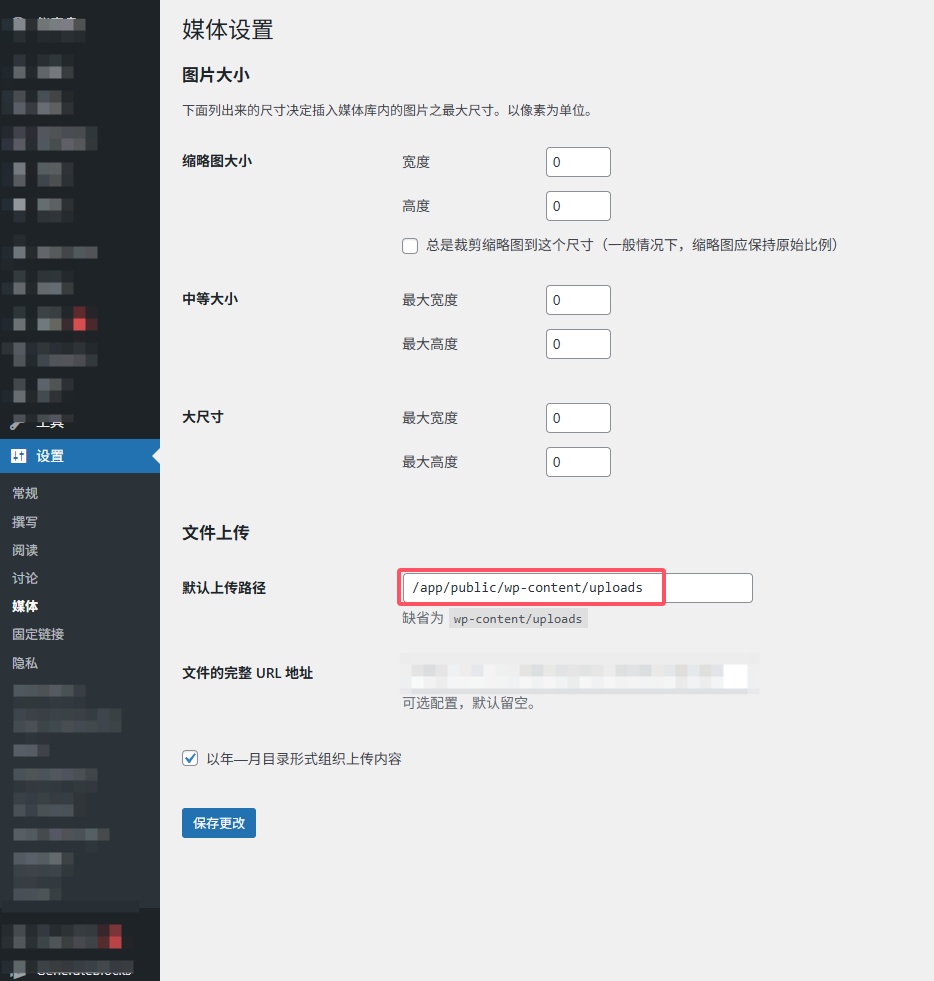
Update the upload directory
After logging in, make sure this setting is correct; otherwise, uploads won't work.
Summary
With these steps, we've successfully migrated WordPress to FrankenPHP. The new architecture is more modern, and in the future you can further enable Worker 模式 through the Dockerfile or environment variables to keep WordPress running in memory for several-fold performance gains.
Comments 0