
Palworld PalServer Daemon, Admin Commands, and VC++ Runtime Downloads
This post was translated from Chinese by AI. If anything reads oddly, the Chinese original is authoritative. 中文原文
Recommended Servers
Tencent Cloud Palworld dedicated server offer: https://curl.qcloud.com/uLCNpnXB
PalServer Daemon (Restart Based on Memory Usage)
Overview
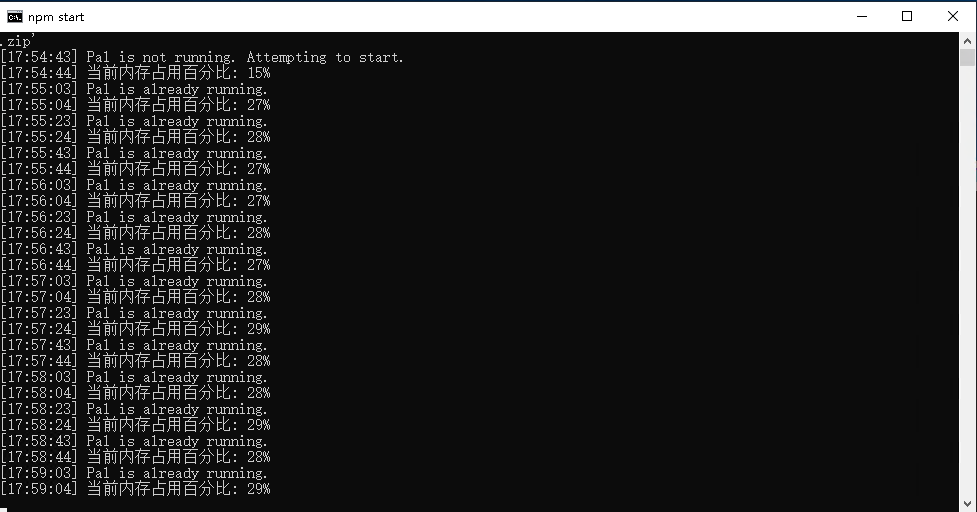
Files
In the group announcement document
Usage
- Requires a Nodejs environment (download: https://nodejs.org/dist/v20.11.0/node-v20.11.0-x64.msi)
- Enable RCON and set a password in the server configuration file
- Update the configuration in index.tx (if you followed my setup tutorial, you should only need to change the password)
- Run
npm install,npm run build,npm start - Save files will be backed up to
/dist/backupin the daemon directory.
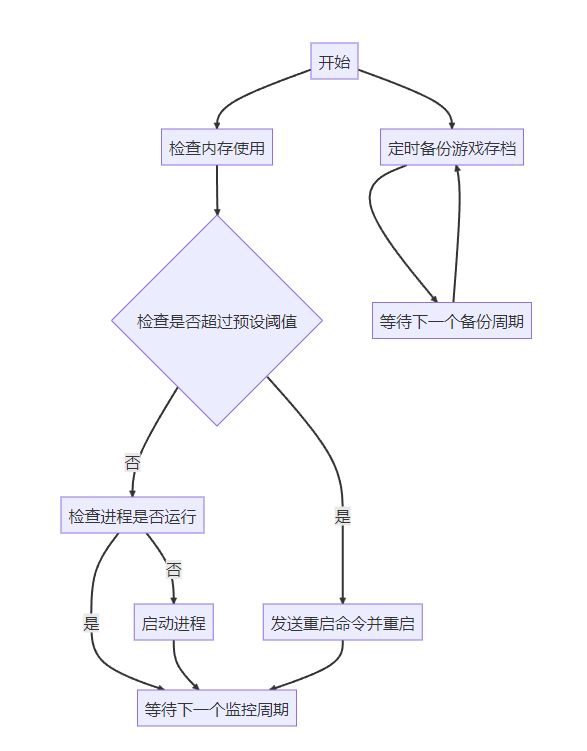
Processing Logic
 Admin Commands
Enable: Set AdminPassword in the server configuration file
Usage: Press Enter in-game and enter a command
commands Commands
If you want to use there commands. You need to setting AdminPassword and get permission for administration with /AdminPassword command.
To use these commands, you need to set AdminPassword and use the /AdminPassword command to gain admin privileges.
Tip: SteamID is shown by /ShowPlayers
/Shutdown {Seconds} {MessageText}
The server is shut down after the number of Seconds Will be notified of your MessageText.
Shuts down the server after the specified number of seconds and notifies players with your MessageText.
/DoExit
Force stop the server. Force-stops the server.
/Broadcast {MessageText}
Send message to all player in the server.
Sends a message to all players on the server.
/KickPlayer {SteamID}
Kick player from the server.
Kicks a player from the server.
/BanPlayer {SteamID}
BAN player from the server.
Bans a player from the server.
/TeleportToPlayer {SteamID}
Teleport to current location of target player.
Teleports you to the target player's current location.
/TeleportToMe {SteamID}
Target player teleport to your current location
Teleports the target player to your current location
/ShowPlayers /ShowPlayers
Show information on all connected players.
Shows information about all connected players.
/Info
Show server information. Shows server information.
/Save
Save the world data. Saves game data.
About SteamID About SteamID
You can copy SteamID if you have administrative permission.
To copy, right-click twice on the player list.
You can copy SteamID if you have admin privileges.
To copy it, right-click twice on the player list.
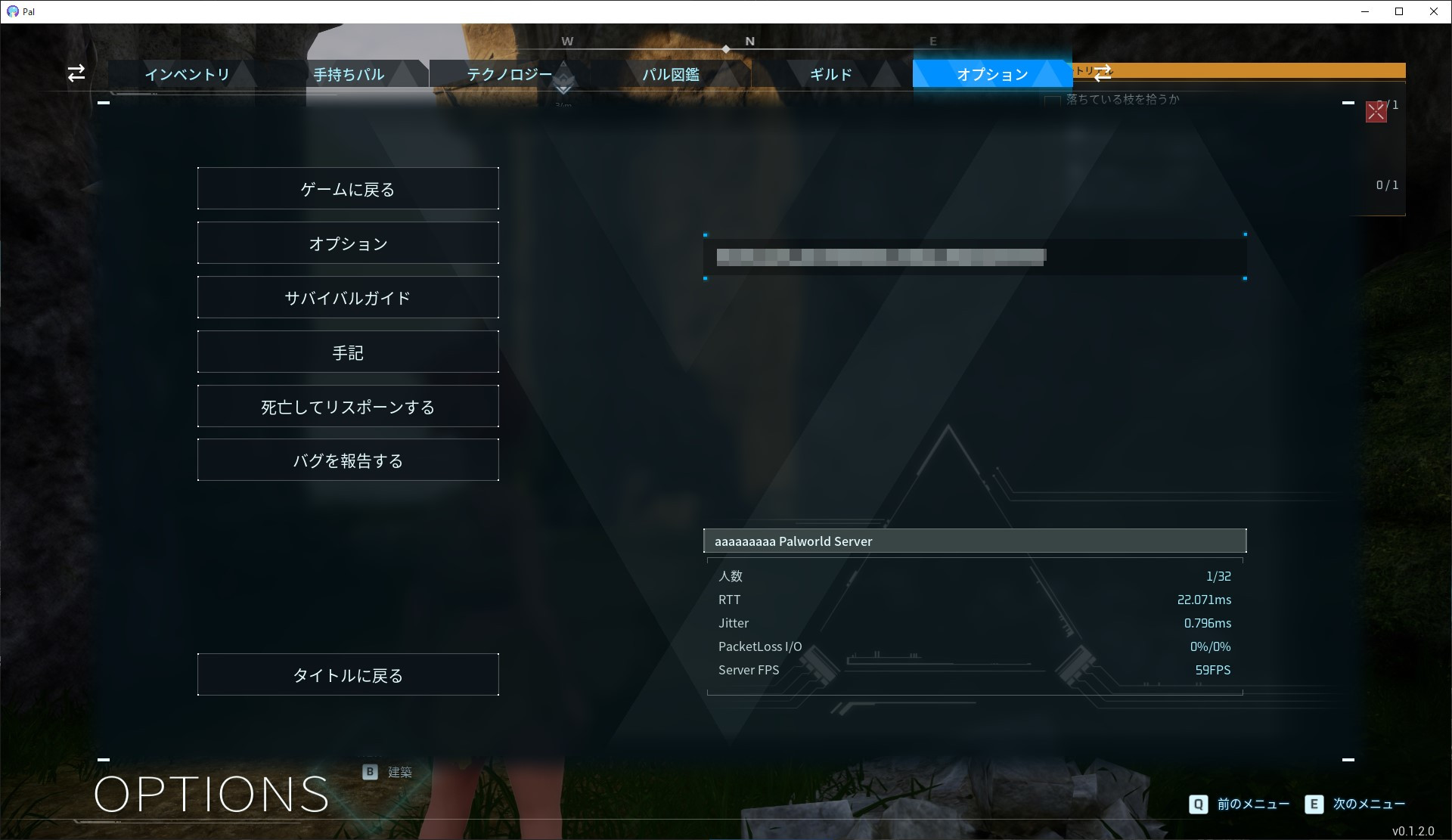
How to Unban player. How to Unban a Player.
At this time, it is not possible to command the unban.
However, can be unbaned by editing the file directly.
The file is located in steamapps/common/PalServer/Pal/Saved/SaveGames/banlist.txt in the Steam game library folder.
Deleting the SteamID of the player you wish to unban from this file.
After editing a file, it takes about 2 minutes for it to be afected.
In the current version, you cannot unban players using a command.
However, you can unban them by editing the file directly.
The file is located at steamapps/common/PalServer/Pal/Saved/SaveGames/banlist.txt in the Steam game library folder.
Delete the SteamID of the player you want to unban from this file.
After editing the file, it takes about 2 minutes for the change to take effect.
VC Runtime Installer Download:
https://aka.ms/vs/17/release/vc_redist.x64.exe
Official Documentation:
https://tech.palworldgame.com/dedicated-server-guide
Community
Click the link to join the QQ channel 【Palworld PalWorld】: https://pd.qq.com/s/cfoglmfwc
Last updated 2025-06-24
Comments 0