
Adding Lsky Pro V2 Image Hosting to Mweb Pro
This post was translated from Chinese by AI. If anything reads oddly, the Chinese original is authoritative. 中文原文
First, get a token for Lsky Pro
1. API URL: https://img0.czl.net/api/v1
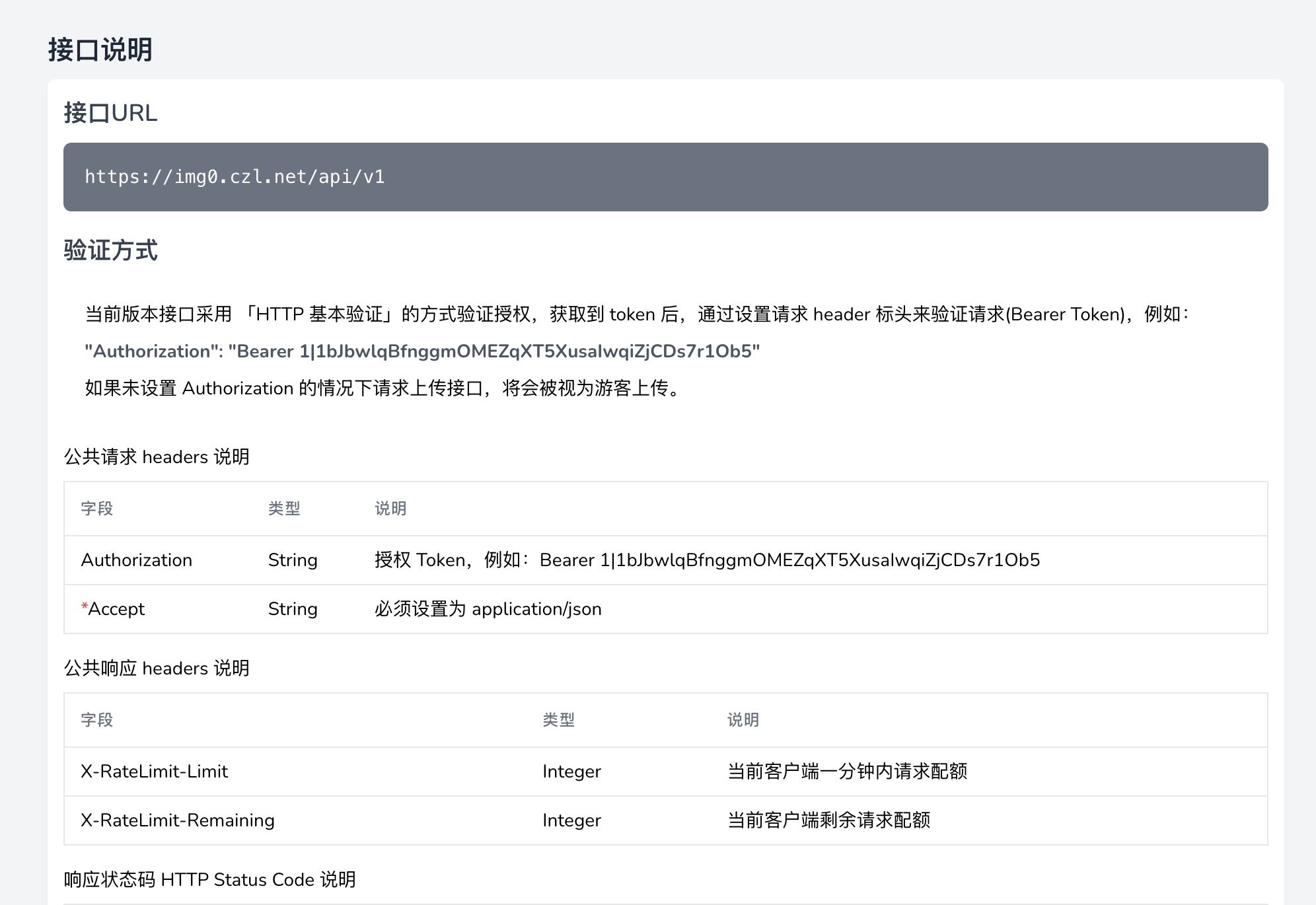
2. Send a request following the documentation
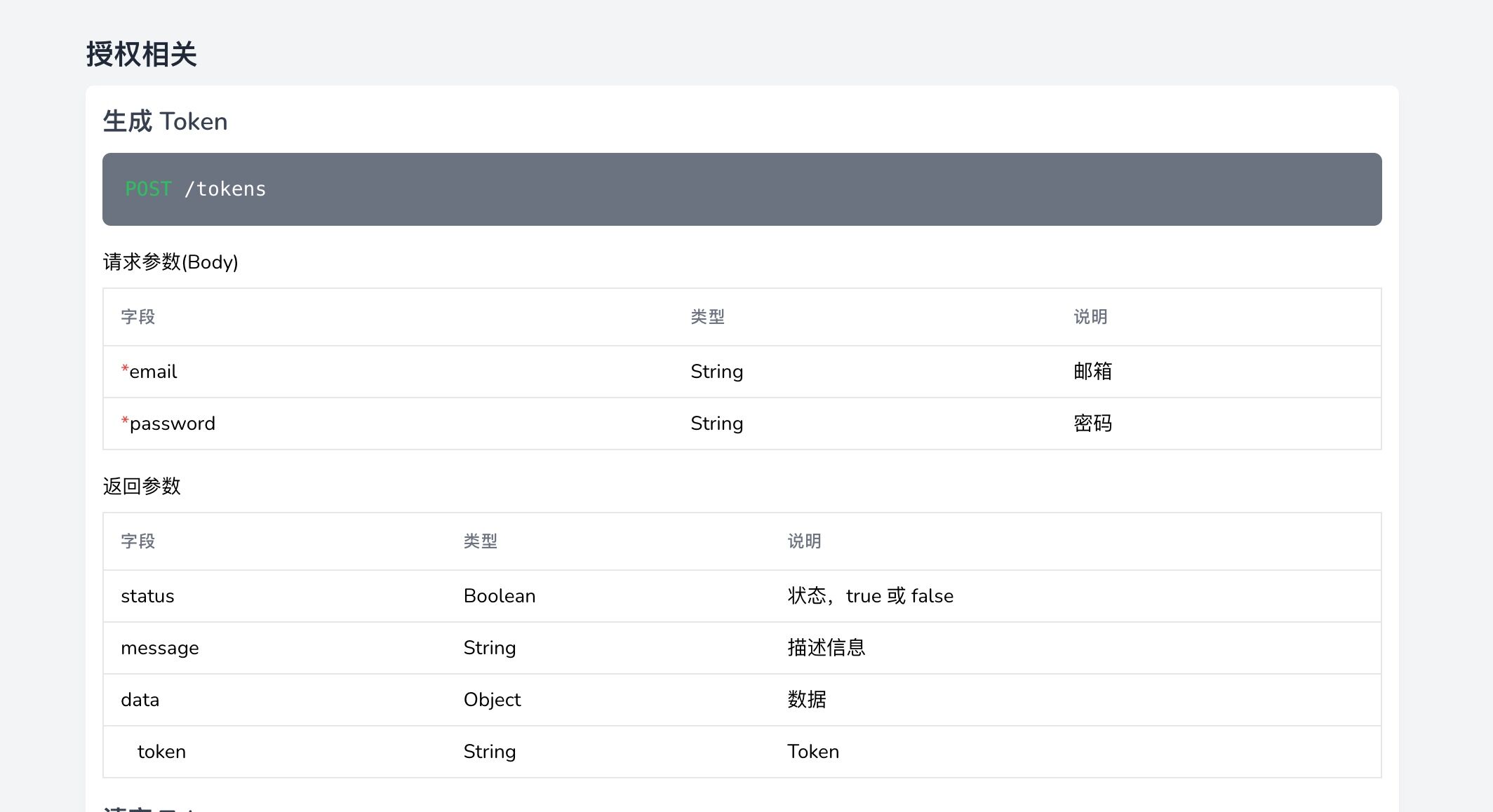
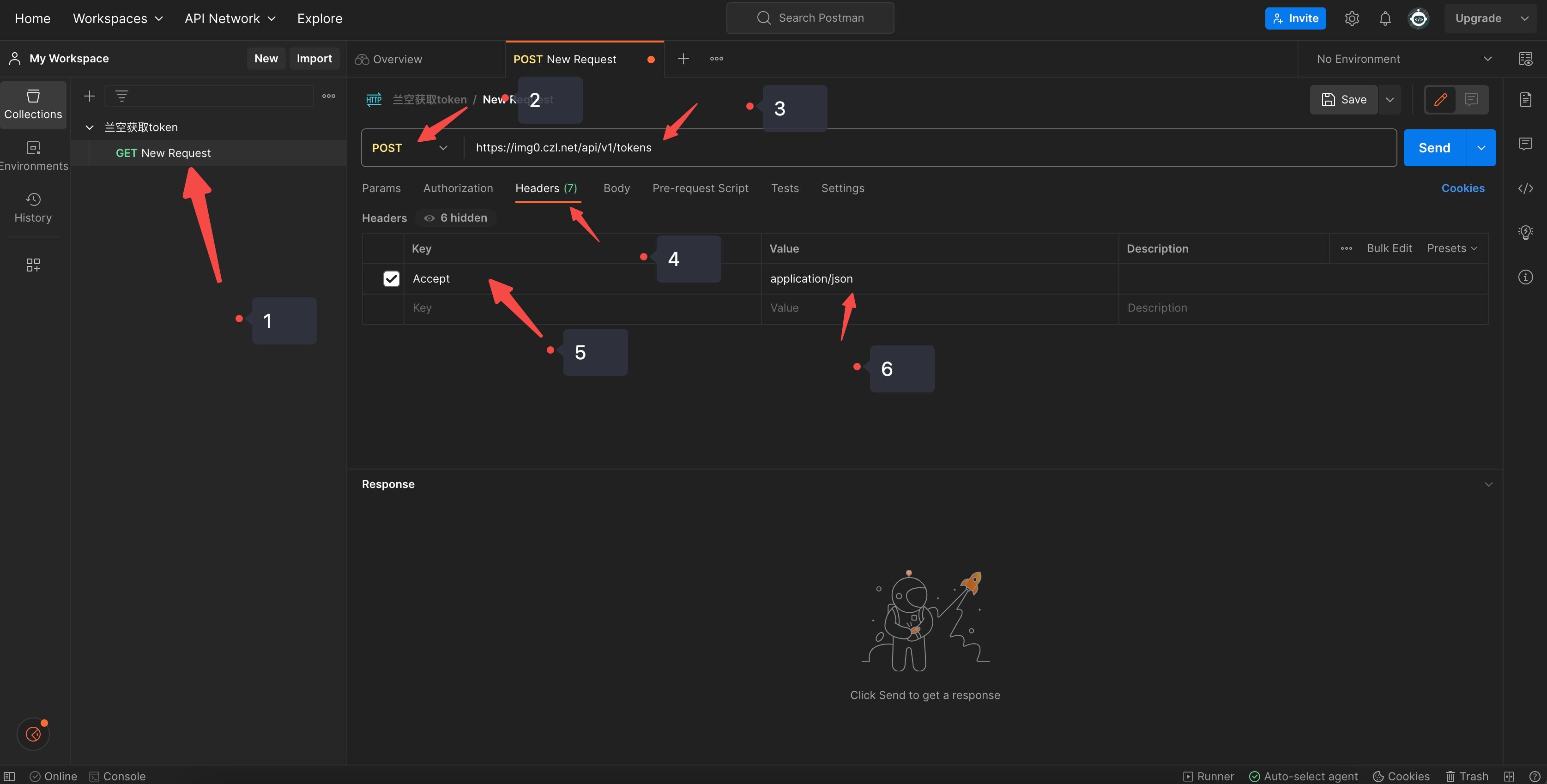
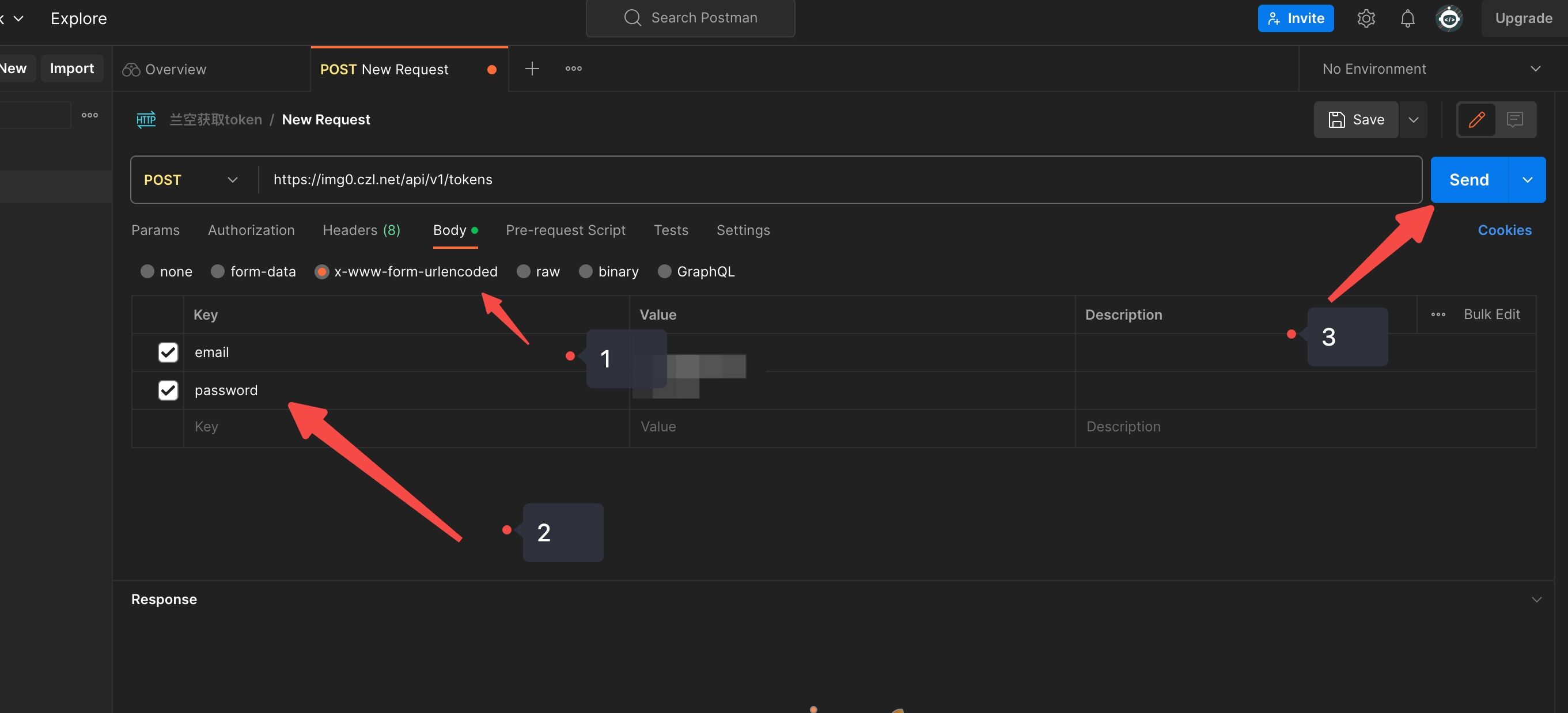
3. Get a token using Postman. After signing up, create a new HTTP request in the default Workspace. Select POST as the method and use 接口url+/tokens as the request URL. First, add a Headers entry with Key set to Accept and value set to application/json. Then add a request Body with two key entries, email and password, using your email address and password as the values. Click Send on the right. The token in the response is the token you need; save it.
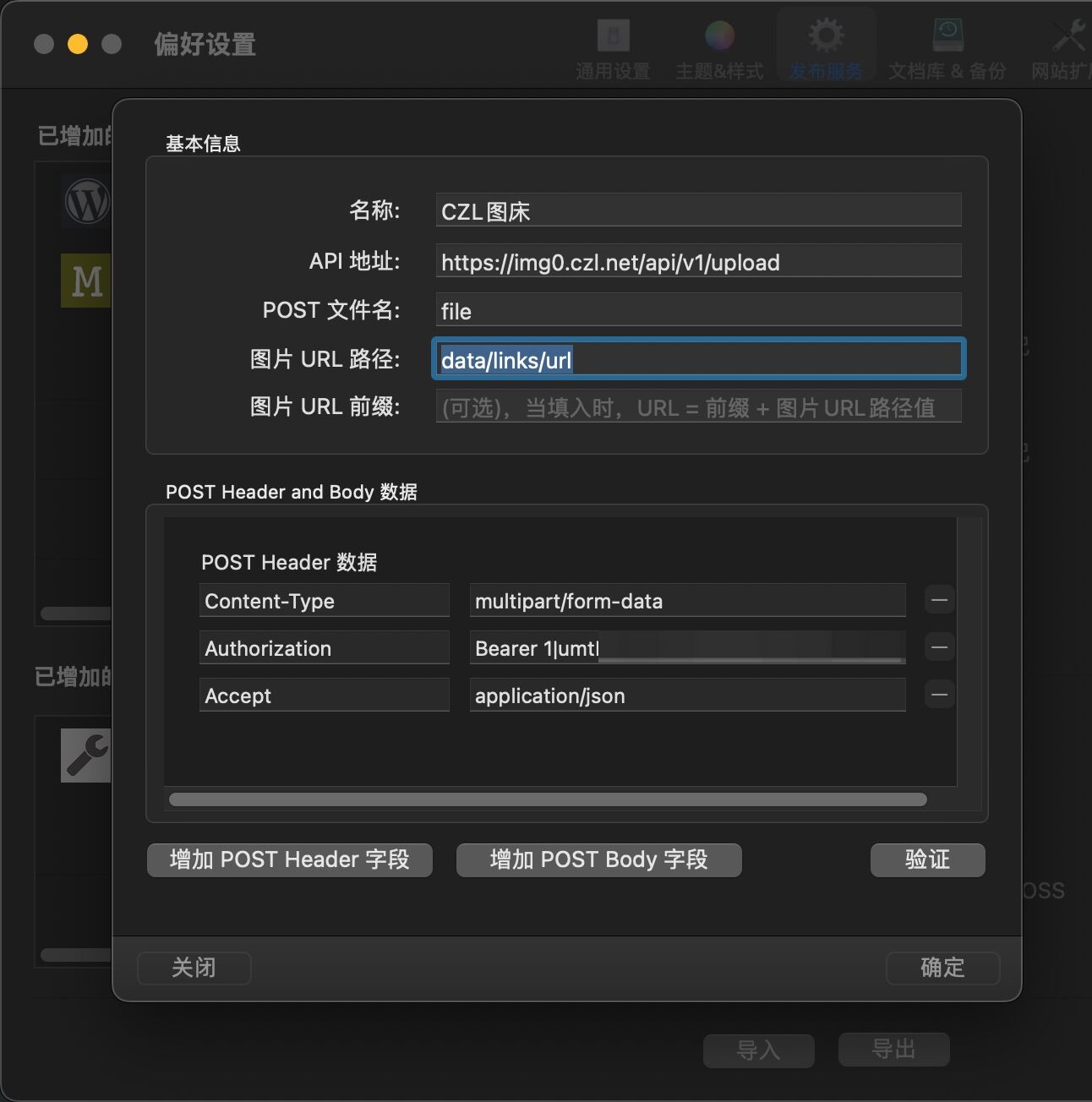
Add an image hosting configuration in MwebPro
1. In the top-left corner, go to Settings - Publishing Services - Image Hosting - Custom
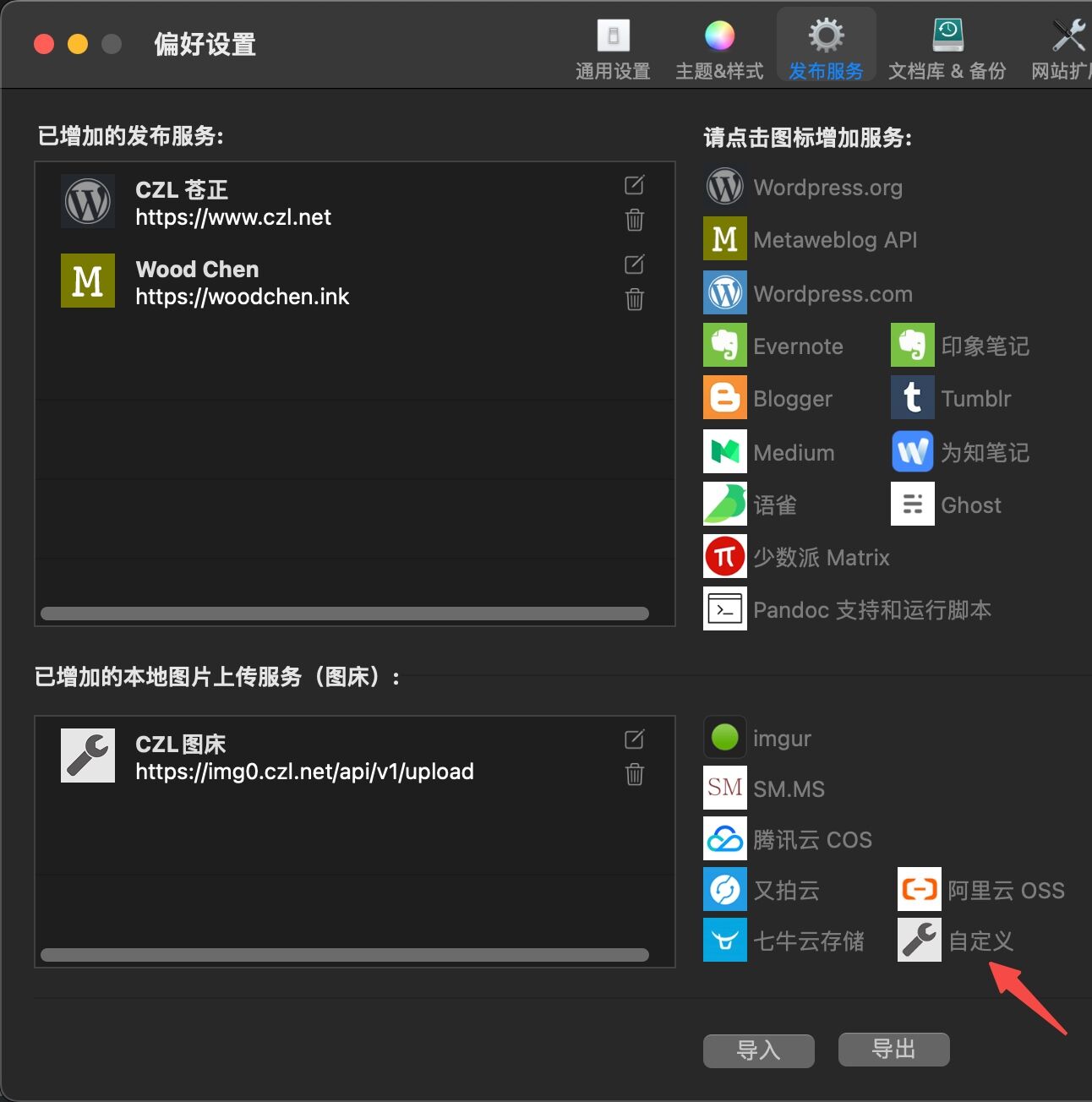
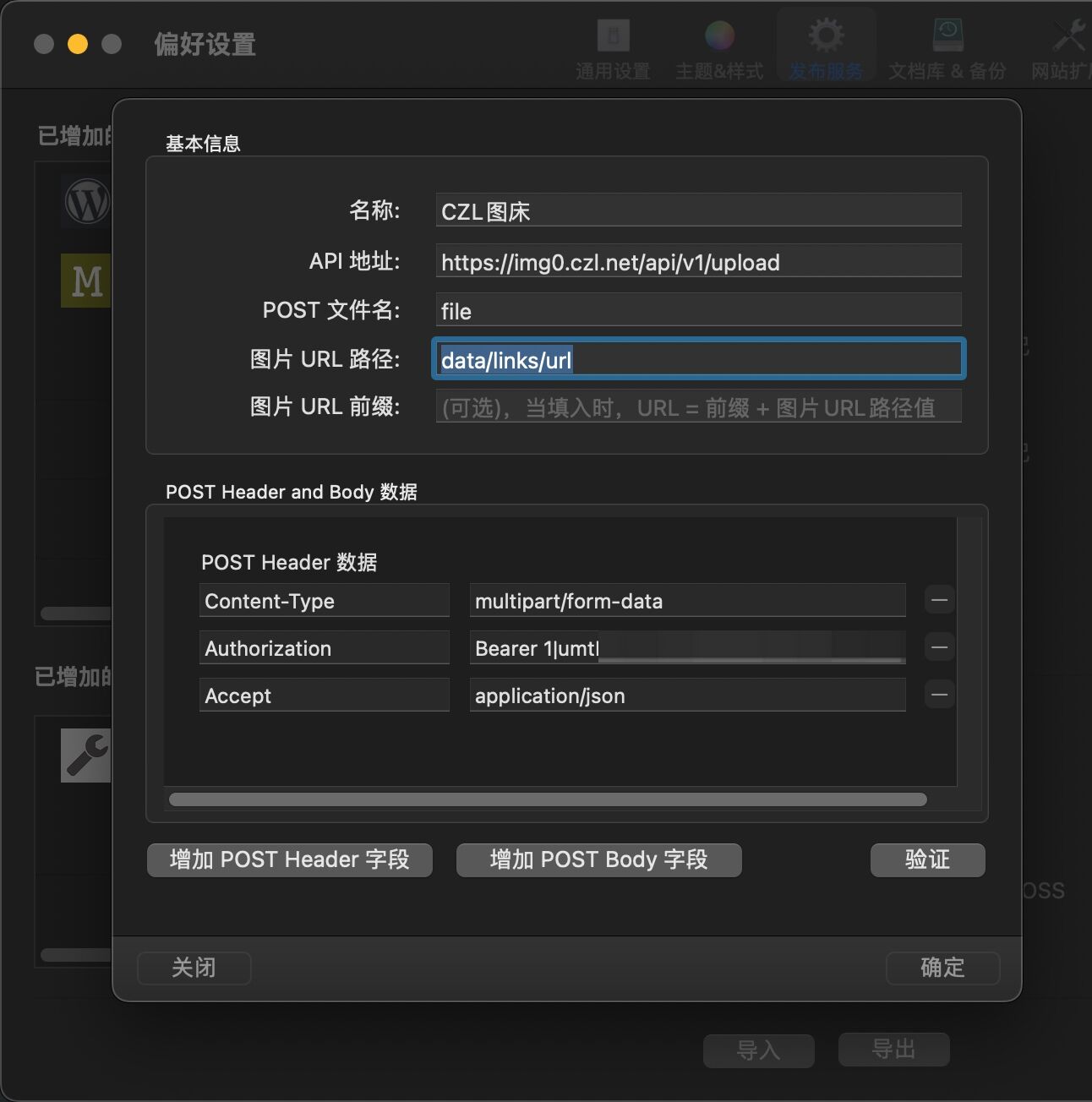
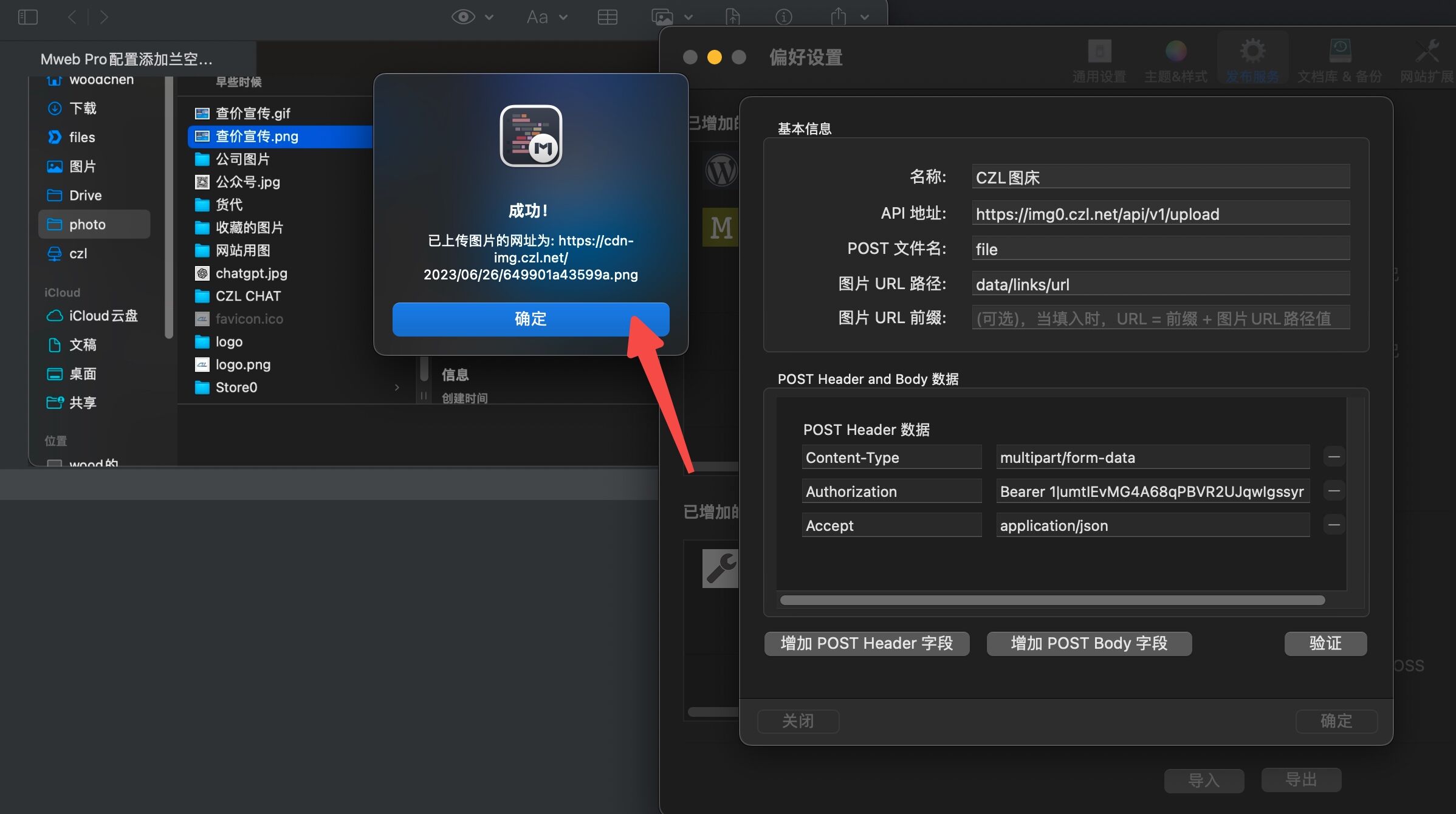
2. Add the configuration
- Enter any name that helps you identify it;
- Set the API address to the
urladdress+/upload - Set the file field name to
file - Set the URL path to
data/links/url - Add a POST Header:
Content-Type==multipart/form-data - POST Header:
Authorization==Bearer + 上面的token - POST Header:
Accept==application/json
3. Verify the configuration, then click OK in the bottom-right corner.
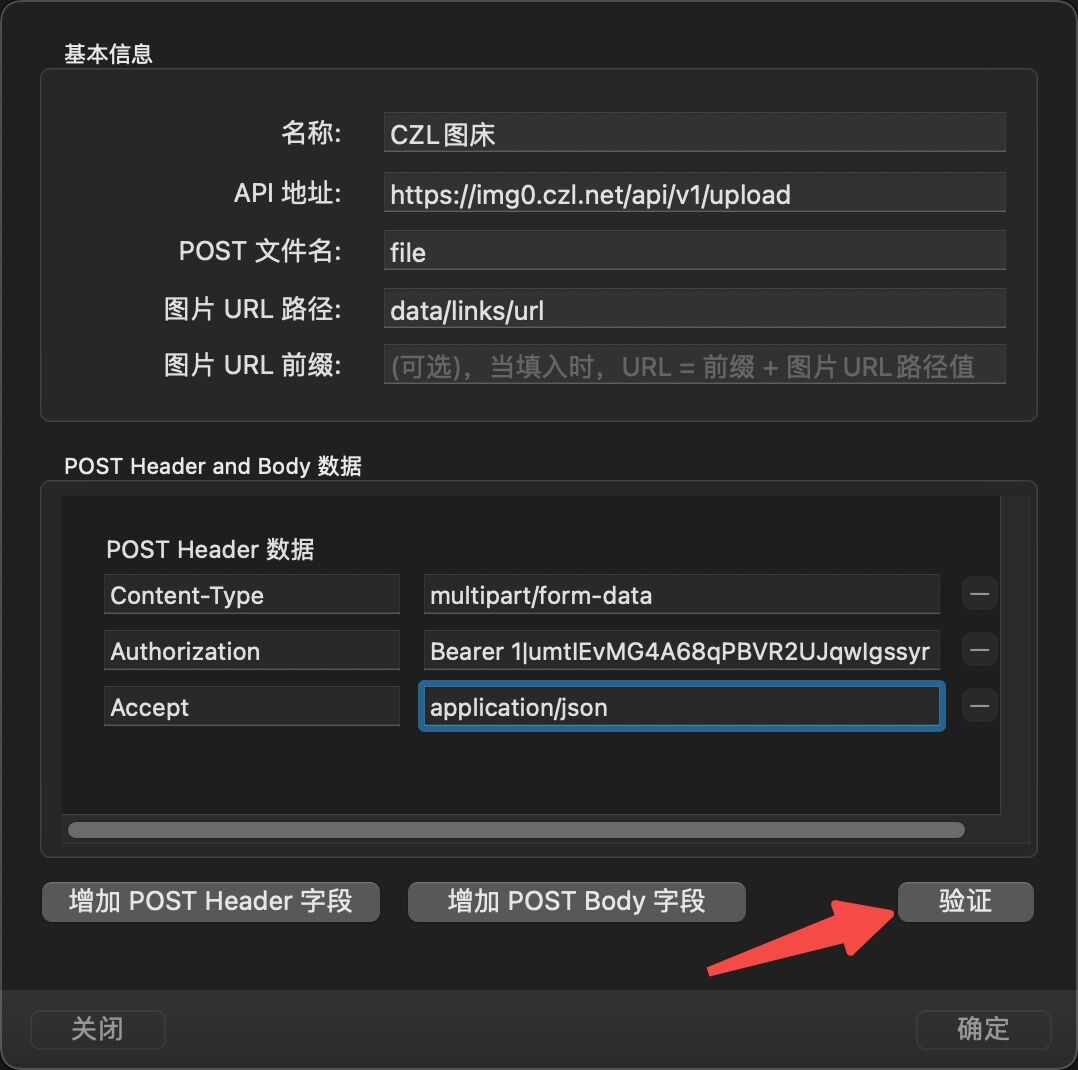
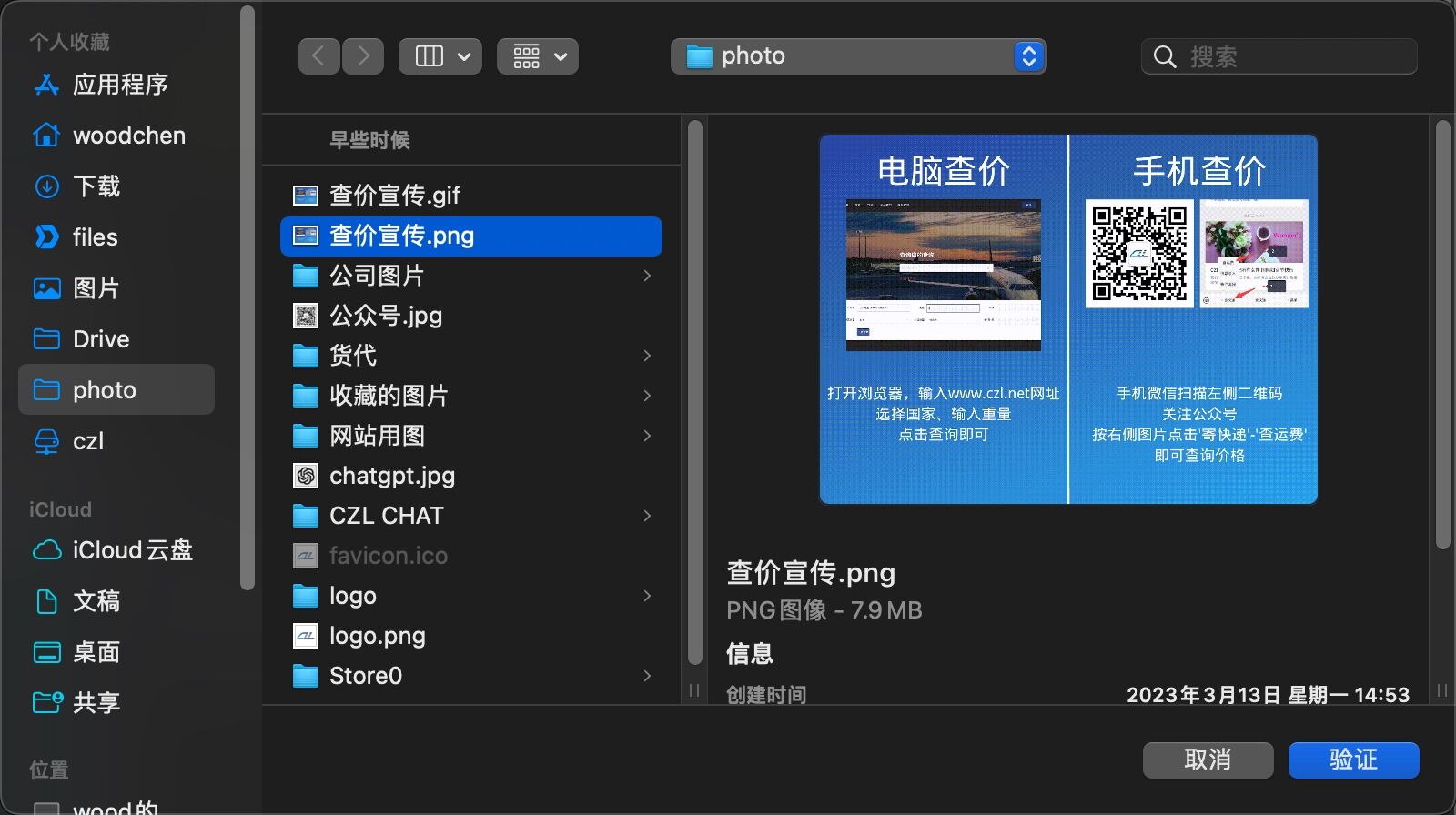
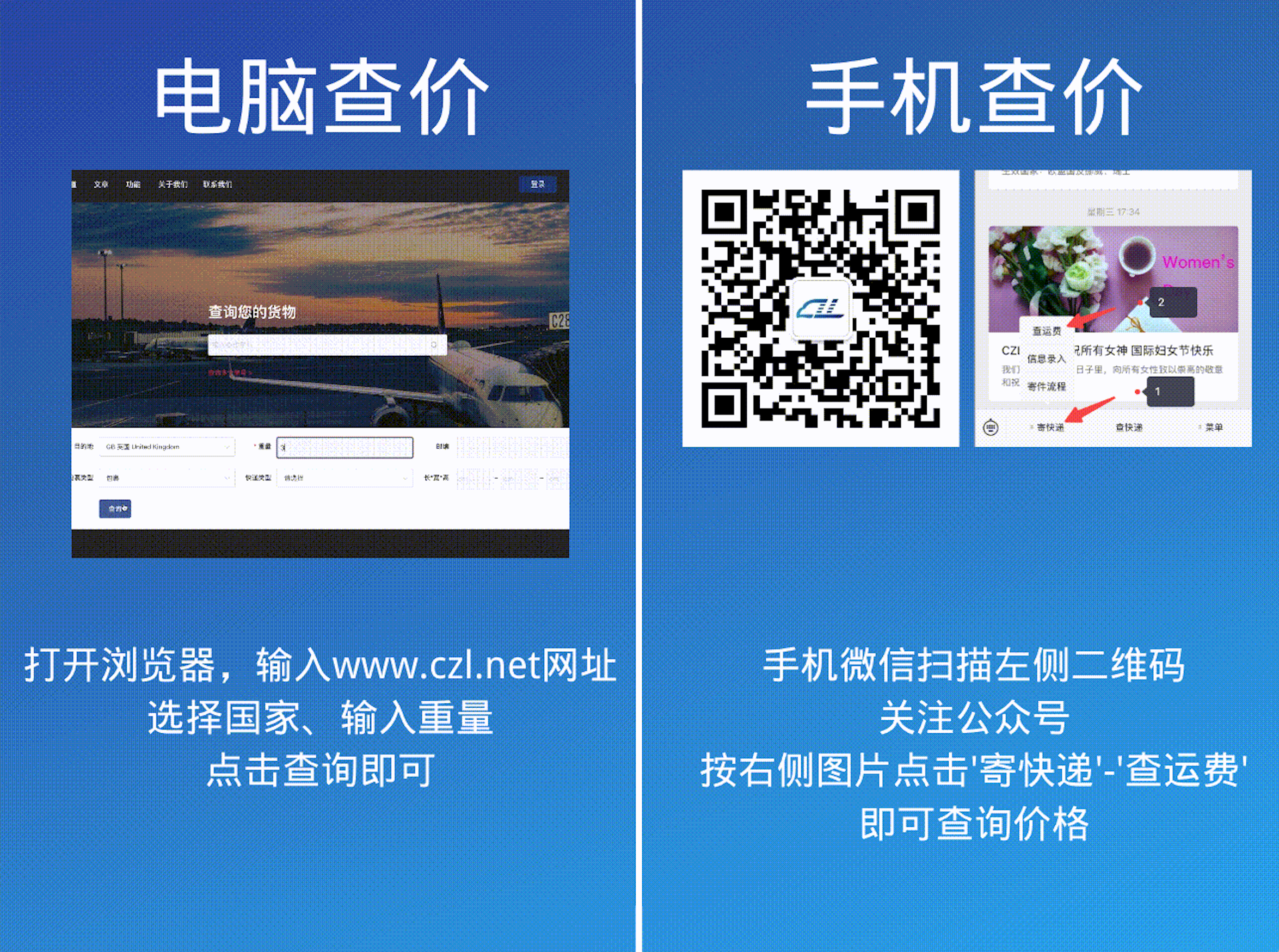
Link: https://cdn-img-r2.czl.net/2023/06/26/649901a43599a.png
Last updated 2024-01-14
Comments 0