
How to Enlarge a Selected Area in PS
This post was translated from Chinese by AI. If anything reads oddly, the Chinese original is authoritative. 中文原文
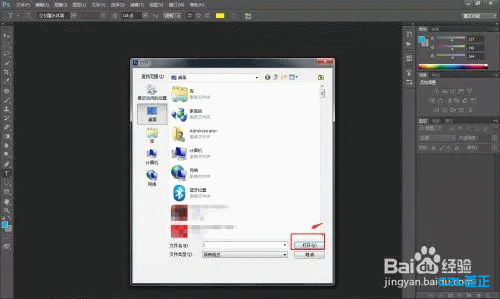
1.First, open PS on your computer and use ”ctrl+o“ to import the image you want to edit.
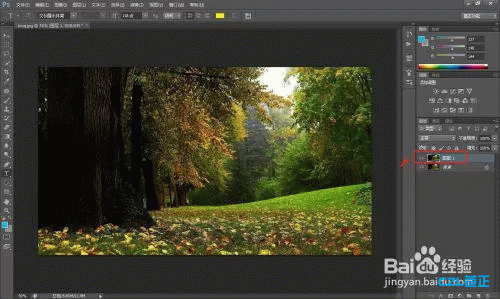
2.Use ”ctrl+j“ to create a new layer.
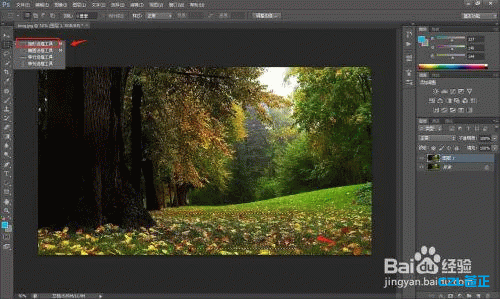
3.Click the ”Rectangular Marquee Tool“ in the left toolbar and select the desired area of the image.
4.Use ”ctrl+t“ to transform the selection.
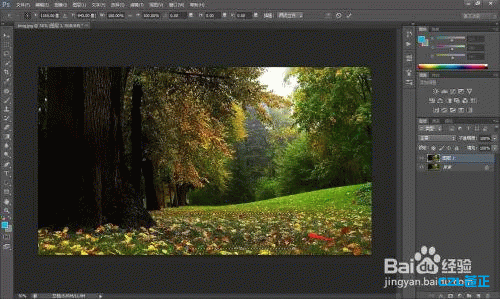
5.Hold down ”shift+alt“ and drag with the left mouse button to scale the selection proportionally.
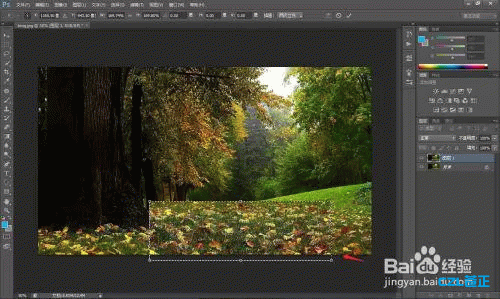
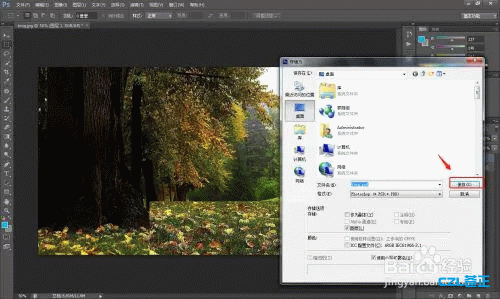
6.When finished, use ”ctrl+d“ to deselect, then save the edited image in your preferred format.
Summary
- First, open PS on your computer and use ”ctrl+o“ to import the image you want to edit.
- Use ”ctrl+j“ to create a new layer.
- Click the ”Rectangular Marquee Tool“ in the left toolbar and select the desired area of the image.
- Use ”ctrl+t“ to transform the selection.
- Hold down ”shift+alt“ and drag with the left mouse button to scale the selection proportionally.
- When finished, use ”ctrl+d“ to deselect, then save the edited image in your preferred format.
Last updated 2025-06-24
Comments 0