
Enable Root Access on a Synology NAS
This post was translated from Chinese by AI. If anything reads oddly, the Chinese original is authoritative. 中文原文
1. Enable SSH first
2. Log in via SSH using your regular account first
Switch to the root user
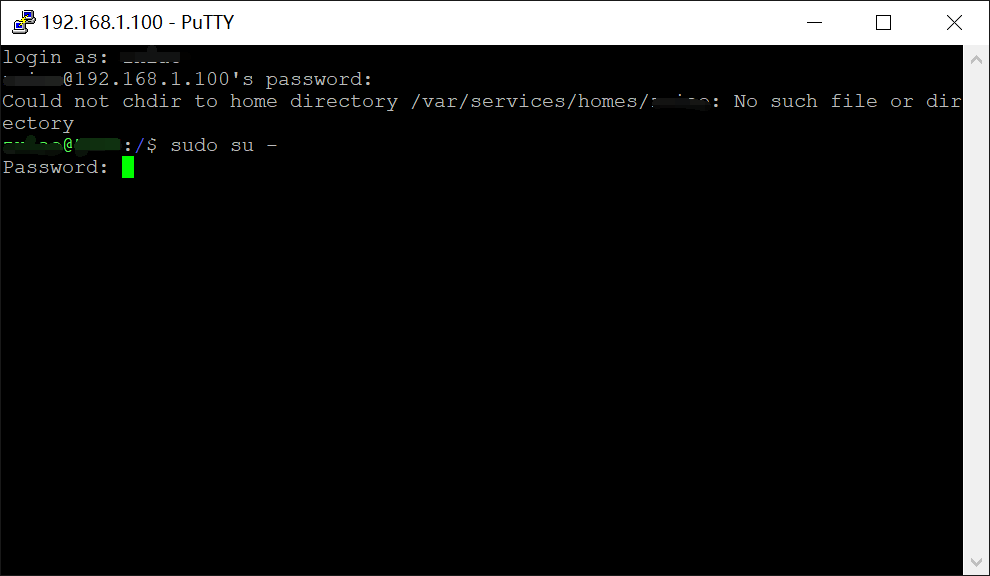
Enter the command sudo su – (without quotes), then enter your login password again.
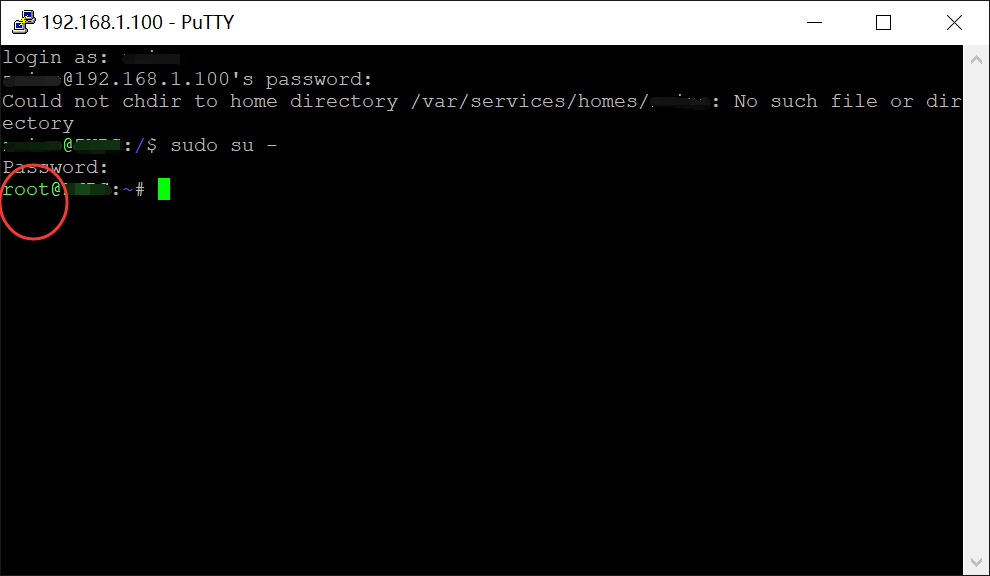
After entering the password, you can see that the current user is now root, meaning you have root privileges.
Change the root account password
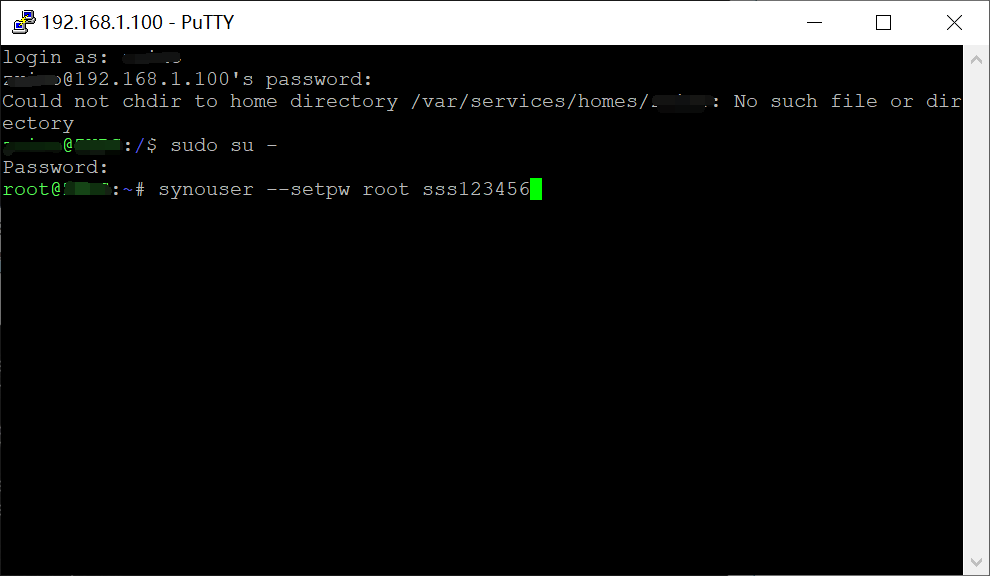
For convenience, you can set a custom password for the root account so you can log in to the NAS directly as root via SSH. Enter the command synouser --setpw root sss123456, where sss123456 is the password you want to set. Choose your own password, but I recommend using a different password from your Synology account.
Root access on your Synology system is now set up. With root privileges, you can use vi over SSH to edit system files without permission issues. You can also transfer files using an SCP client such as WinSCP.
Last updated 2025-06-25
Comments 0