
Migrating Dujiaoka from BT Panel to 1panel on an ARM Server
This post was translated from Chinese by AI. If anything reads oddly, the Chinese original is authoritative. 中文原文
I recently got a free oracle arm instance and created one with 4 cores and 24G of RAM. I'd heard that instances with low usage might be reclaimed, so I migrated some services to it.
Since there was enough RAM, I used 1panel, which feels nicer to use than BT Panel.
I ran into a few issues during the migration and couldn't find answers on google. After figuring them out myself, I decided to document them to help others.
1. Migrate the database
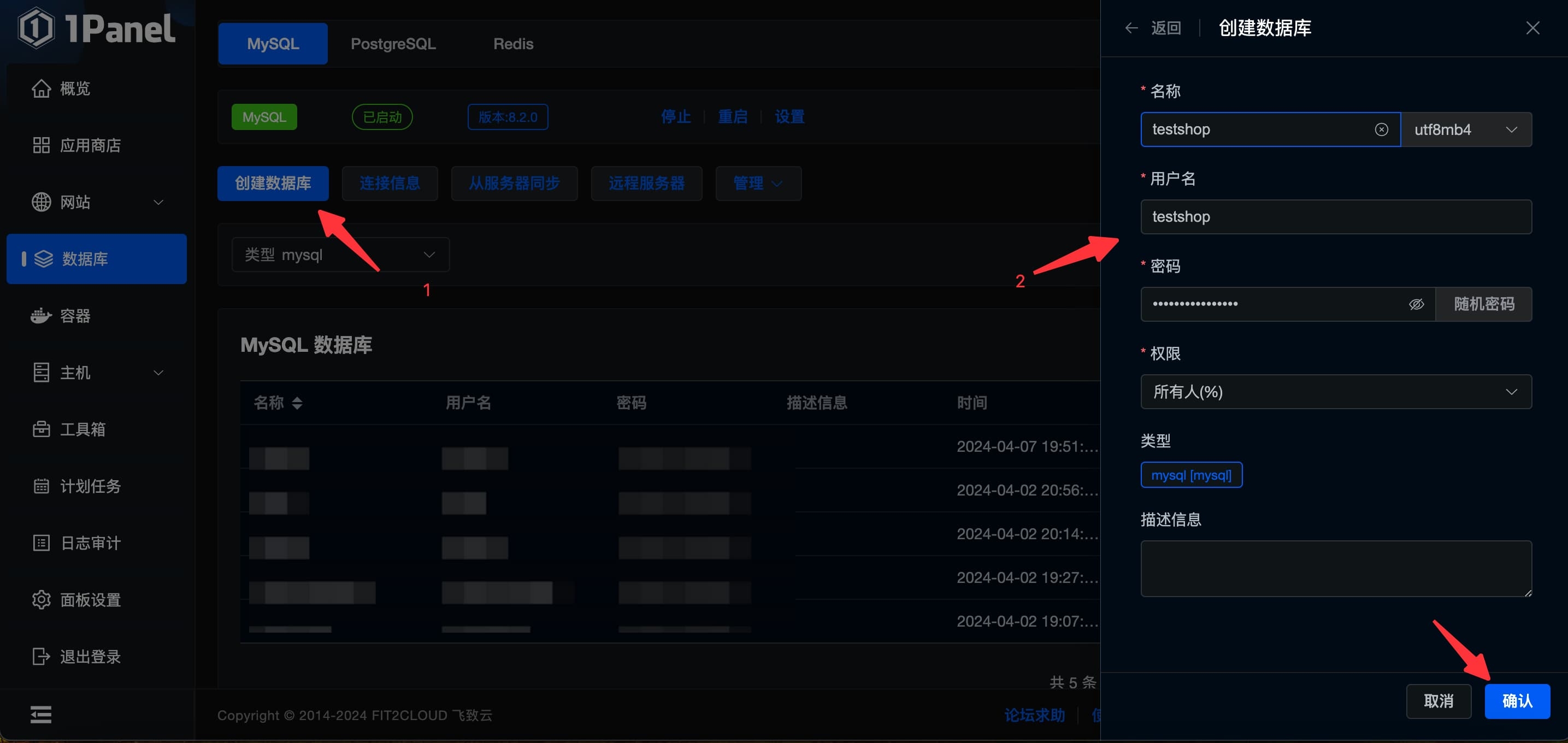
There's not much to say here. It's still a mysql database: create a database in the new 1panel instance, export a backup from the old site, then import it into the new database.
2. Create a php runtime in 1panel
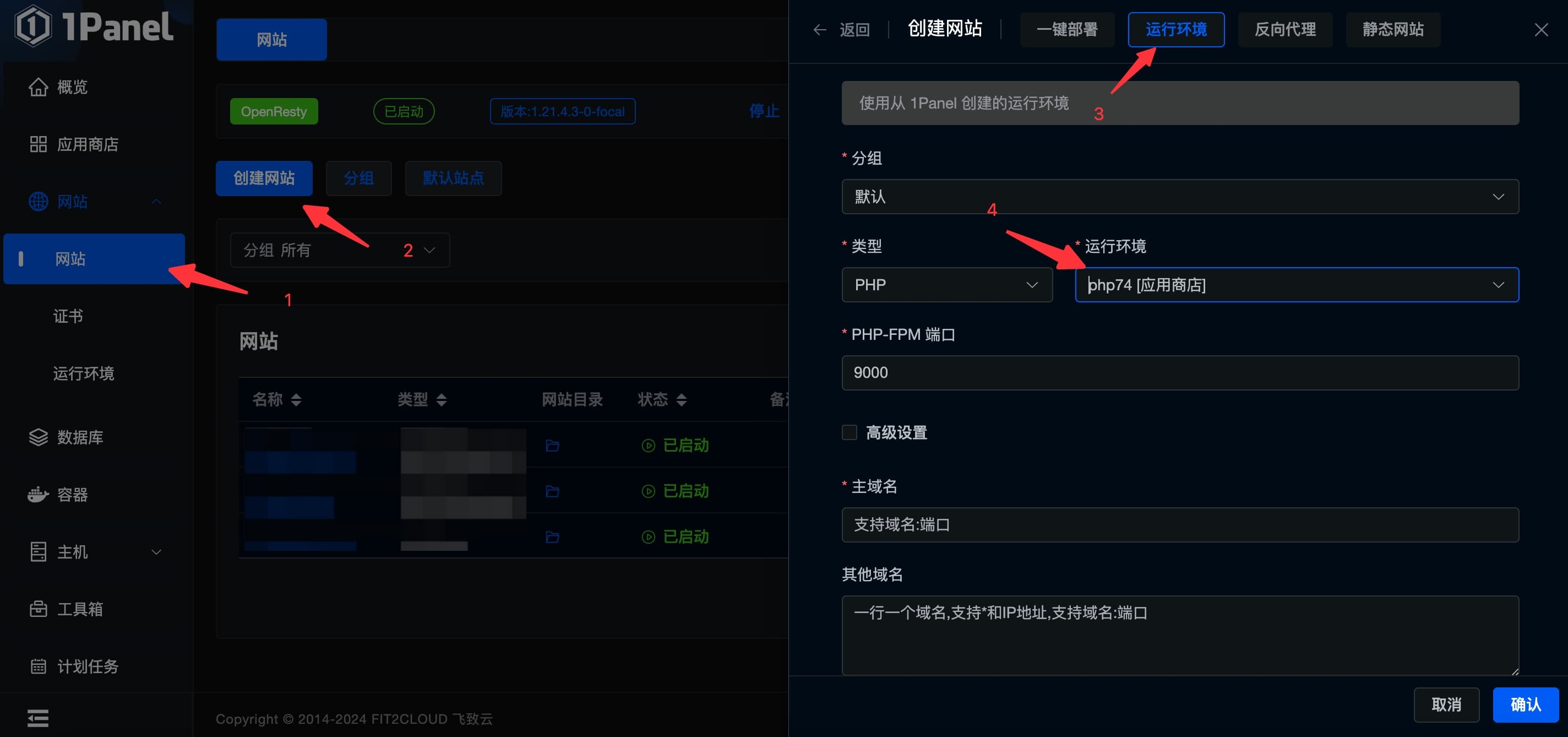
First, you must use php74; php8 won't work. Then install the following extensions.
mysqli
pdo_mysql
fileinfo
redis
opcache
exif
bcmath
intl
mbstring
gd
imagick
curl
A couple of these may not be required, but I initially followed the original author's tutorial and selected only mysqli pdo_mysql fileinfo redis opcache. It wouldn't run at all. That tutorial was based on BT Panel, whose php runtime already includes some extensions, so it's best to install everything in the list above.
3. Migrate the website files
-
Back up the website in the old BT Panel instance and download it locally.
-
Create a website in 1panel using your actual domain. I've highlighted only the key settings.
-
Upload the files to the
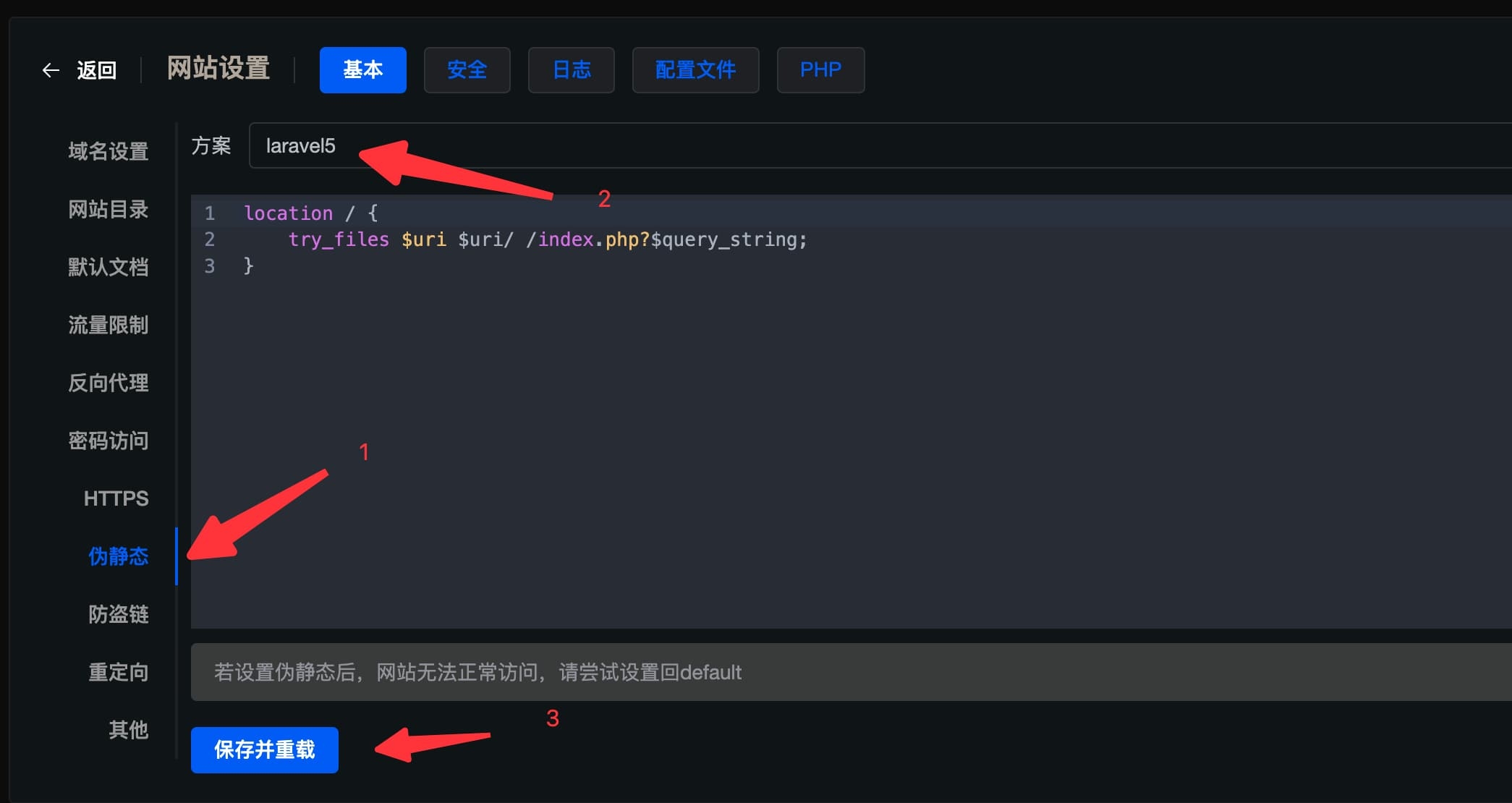
indexfolder in the site's file directory, then set the permissions, document root (selectpublic), and rewrite rules (laravel5).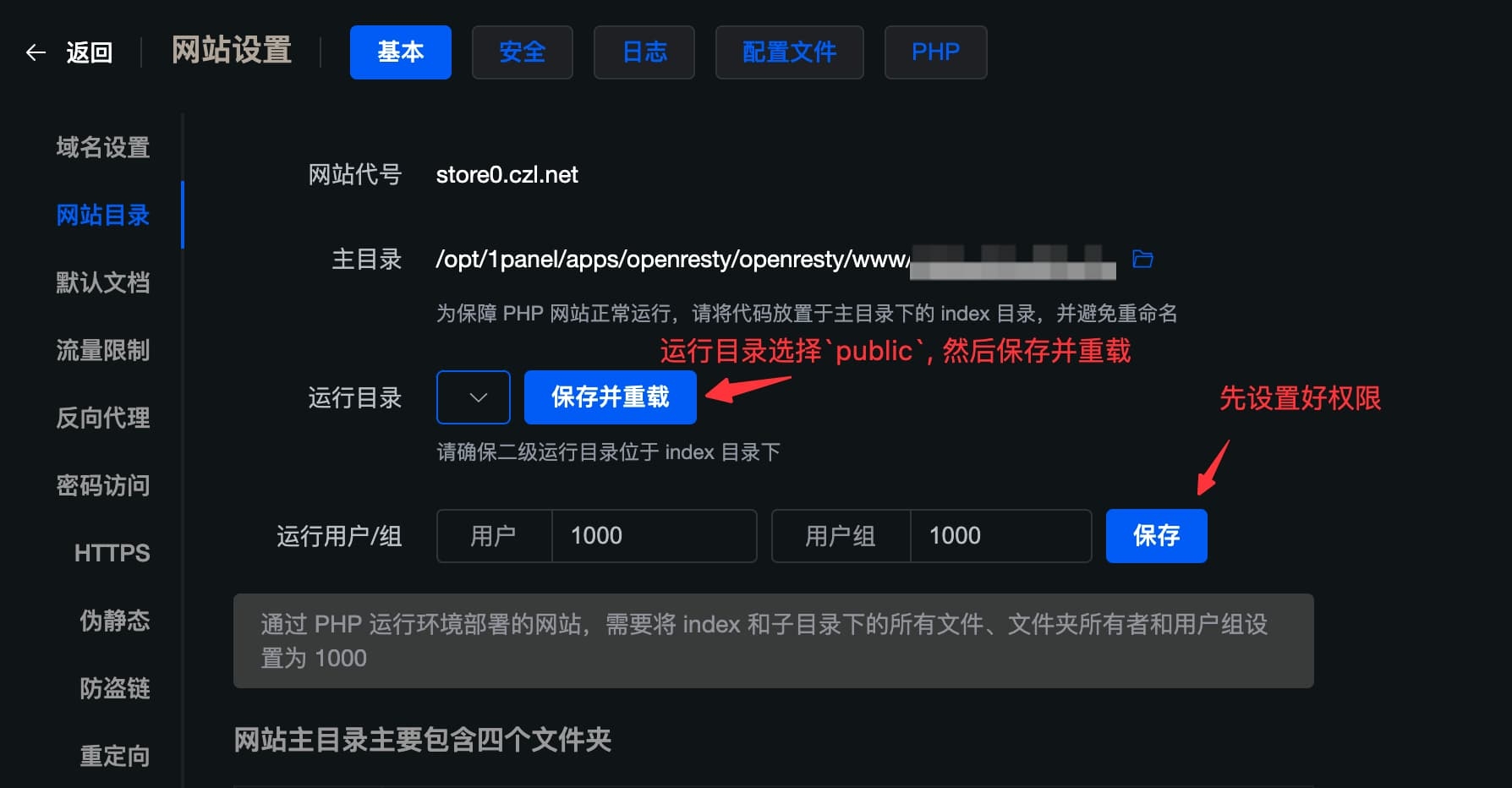
- Update the connection settings for
mysqlandredis.
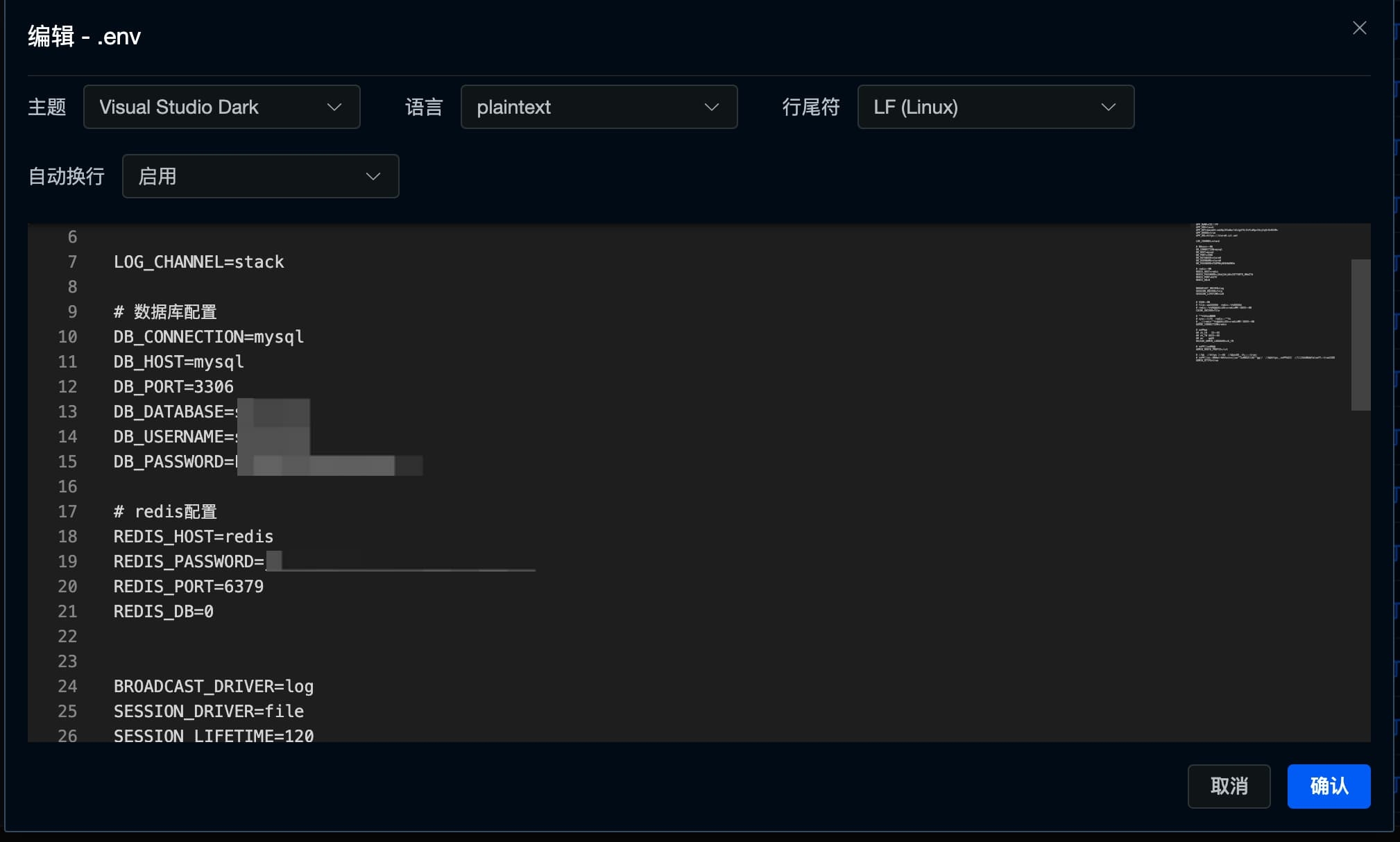
The file is .env, located in /opt/1panel/apps/openresty/openresty/www/sites/你的网址/index.
Update the settings to match your setup. The host values are mysql and redis, respectively. Don't use 127.0.0.1, since this is a containerized deployment, not a native one.
- Also, remember to delete
.well-knowfrom both theindexandpublicdirectories. They are no longer needed and could cause issues.
Configure process supervision
After completing the steps above, you should be able to access the site. However, Dujiaoka also needs process supervision configured. This step has probably stumped quite a few people: 1panel is containerized, so following the original author's method directly won't work.
First, install process supervision
Just follow the official documentation: https://1panel.cn/docs/user_manual/toolbox/supervisor/
Then configure it
-
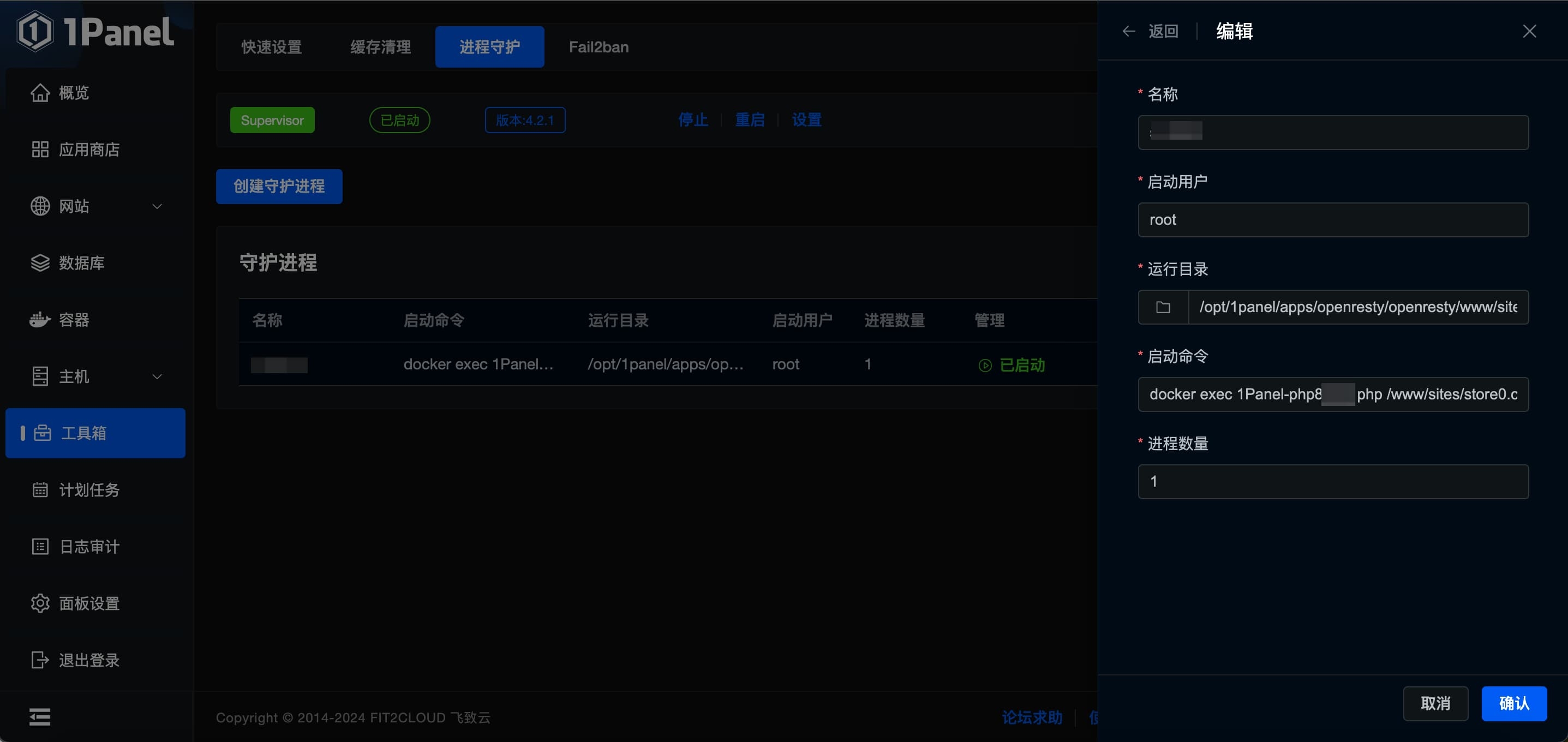
Create a new supervised process.
-
Give it any name you like.
-
Set the user to
root. -
Set the working directory to your website directory:
/opt/1panel/apps/openresty/openresty/www/sites/你的网址/index. -
Use this startup command:
docker exec 你的php容器名称 php /www/sites/你的网址/index/artisan queue:work -
Confirm to save.
Done
Everything worked after that. I placed a test order, and both tg and email worked normally, as did the website.
If you have any other questions, leave a comment.
Comments 0